NAVIGATION MENU
To access the Navigation menu displaying NBA Live 99 configuration screens, press ●. OPTIONS SCREEN
Set sound, display, and competition options.
RULES SCREEN
Customize game rules. In Simulation mode, default settings reflect current NBA rules.
MEMORY CARD
You can save or load game files to or from ANY memory card slot of your game console. You can save games only in Season or Playoff mode. You can load games from within a season or playoff or from Game Setup.
To load and save games, you must have a memory card. Never insert or remove a memory card when loading or saving files.
•
Load Game: Load previously saved Season/Playoff series files from the memory card.
•
Load Settings: Load users, rules, and options settings.
•
Load Rosters: Load previously saved Exhibition rosters.
•
Save Settings: Save current users, rules, and options settings to the memory card.
•
Save Rosters: Save current Exhibition rosters.
•
Delete File: Delete unwanted files from the memory card.
To save/load a file, highlight a slot and press ✖.
LIVE 99 MUSIC
Set music volume and how often you hear each track.
CREDITS
Check out the people who breathe life into the soul of hoops.
ROSTERS
View/change rosters, make trades, sign/release free agents, and more.
PLAYERS
View, create, and modify players.
STATS CENTRAL
Check out statistics from all NBA teams.
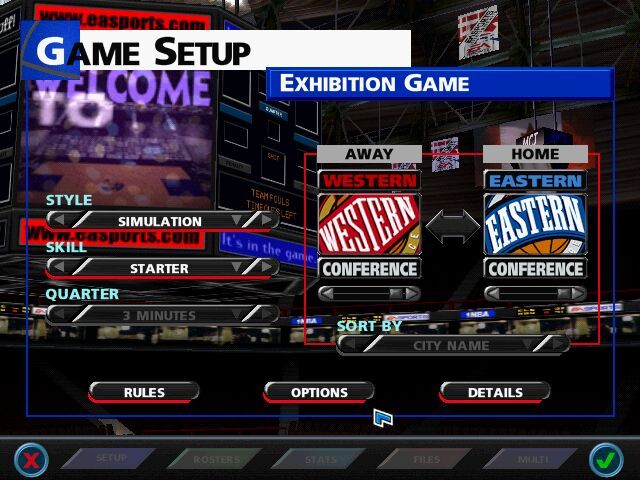
EXHIBITION TEAM SELECT SCREEN
Before an Exhibition game, proceed to the Exhibition Team Select screen to choose your teams. Team rankings appear below NBA team logos.
•
To toggle the highlight between the home and away teams, press ✖.
•
To cycle the teams sorted by rating, use D-Button ↑ to highlight a rating and then D-Button ↔ to scroll through the teams.
•
To pick teams at random, press L2 (away team) and R2 (home team).
USER SETUP SCREEN
A symbol for every controller plugged into the system appears on this screen. Up to eight players can play if two Multi Tap adapters are attached.
•
To select the team you control, D-Button ↔ to position the controller icon under either team or in the middle to select computer control.
•
D-Button ↑ to select your user name.
•
To cycle user difficulty from one star (ROOKIE) to four stars (SUPERSTAR), press L1/R1.
When all players have selected their teams and user names, press START to go to the pregame introduction.
To enter a new user name:
1. D-Button ↑ to highlight New User and press ✖.
2. D-Button ↑ to select a letter, then press ↔ to add another letter.
3. To delete a letter, press ■.
4. To accept the name, press ■, then press START to continue.
To delete an existing name:
D-Button ↑ to highlight a user name and press ■, then confirm deletion.
By creating a user name you can save a record of your stats and your controller and menu options by regularly saving your settings to the Memory Card.
PREGAME INTRODUCTION
Before the game, the Pregame Introduction displays the teams and home court, followed by the Starting Matchups screen (change your starting lineup here if you want to).
•
To substitute a player, D-Button ↑ to highlight the player and then D-Button ↔ to select the substitute.
•
To exclusively control the highlighted player (Player Lock), press ✖.
When you're ready to get to the court, press START.
PAUSE MENU
To pause the game, press START. The Pause menu appears. When options are dimmed, you cannot select them.
INSTANT REPLAY
You can replay the last few seconds of action during the game.
•
Action: Play forward/stop
•
Action: Play reverse/stop
•
Action: Toggle control overlay ON/OFF, or Stop replay when playing
•
Action: Cycle camera views
•
Action: Zoom in/out (All camera views except Highlight cameras)
•
Action: Cycle through highlight cameras (Highlight cameras ONLY)
•
Action: Camera placement (Manual camera ONLY)
•
Action: Cycle player targets
•
Action: Fast forward/rewind
•
Action: Single frame advance/rewind
•
Action: Toggle normal/reverse angle
•
Action: Exit Instant Replay
TIME OUTS
When you have possession of the ball or there is a stoppage in play, you can call a time out. Each team starts a game with 7 time outs.
To call a time out press START, then select TIME OUT from the Pause menu. The SUBSTITUTION option becomes available if it was not already.
SUBSTITUTION
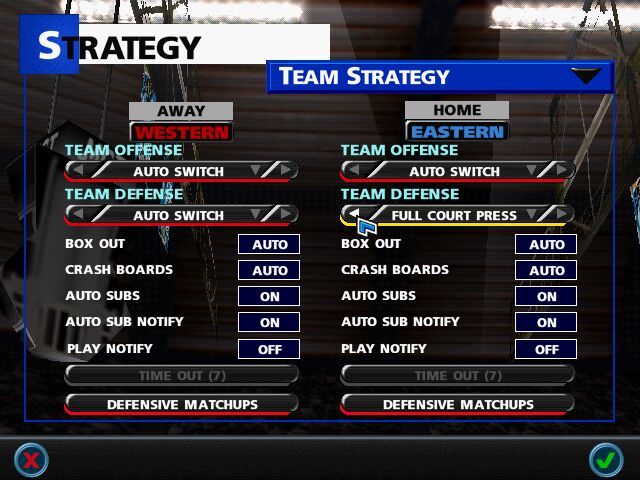
You can substitute players when play is stopped between periods, by a time out, or by a violation. When you select automatic subs in the Team Strategy screen, the computer subs players for you.
To make a substitution, highlight a player and press (a
.png)










.png)
.png)









_1.png)