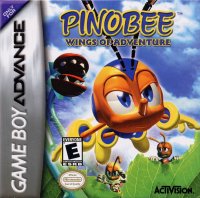
Getting Started
Set up your PlayStation® game console according to its Instruction Manual. Make sure the power is off before inserting or removing a compact disc. Insert the Pinobee disc and close the Disc Cover. Insert game controllers and turn on the PlayStation® game console. Follow on-screen instructions to start a game. Console Top View
Memory Cards
To save game settings and progress, insert a MEMORY CARD into MEMORY CARD slot 1 before starting play. You can load saved games from the same card, or from any MEMORY CARD containing previously saved Pinobee games.
Pinobee uses 1 block of MEMORY CARD data to save each game. Make sure there are enough free blocks on your MEMORY CARD before commencing play. Do not insert or remove a MEMORY CARD while saving/loading games.
Let the Adventure Begin!
Insert the Pinobee game disc into the PlayStation® and turn on the power. Press the START button at the Title Screen to display the Game Screen. To start a new game, select "New Start" and press the button. After the opening sequence, press the START button to start the game.
To continue a previous game, select "Continue" and press the button. The game can be played without a MEMORY CARD, but a MEMORY CARD is needed to save game data.
Loading/Saving
To continue a previous game, insert the MEMORY CARD containing saved game data (Diary files) into MEMORY CARD slot 1 or 2 and follow the on-screen instructions to load a game. Select a Diary file from the Diary Screen and the Main Menu will be displayed.
Go to "Select Stage", choose a stage to play and the game will start.
Saving Diary Entries
At the end of each stage, the Main Menu will be displayed. Choose "Save Diary" and follow the on-screen instructions to save the current Diary to the MEMORY CARD.
The Goal
The goal of the game is to rescue Grandpa Bee, but the outcome depends on the choices Pinobee makes throughout the game. Solve the puzzles which appear as you advance through each stage.
Pass through the Checkpoint in the middle of each stage and Pinobee's Life Meter will be restored to full. Even if the Life Meter runs out before the end of the stage, the game can be continued from the last Checkpoint by selecting "Yes" at the "Continue" screen.
Pinobee also keeps a Diary, with an entry added each time a stage is cleared.
Flying Dash Lock-On Cursor
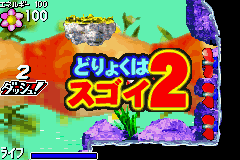
If Pinobee is hovering within range of an enemy, Item Capsule or flower, a Lock-On cursor will appear and Pinobee will lock on to the object. Press the button to make a Flying Dash towards the target.
Flower
These flowers are Pinobee's energy source.
Item Capsule
Touch one of these capsules to open it and collect the item inside. You can't see inside capsules, so to find out what's inside, touch it and see!
Pause Menu
Press the START button during a game to display the Pause Menu. Select "Map" to enter Map Mode, which shows a large-scale map of the current stage.
Use the directional button to scroll up/down and left/right, and hold down R1 for high-speed scrolling. Press the button to return to the starting point and the button to return to the Pause Menu.
Enemy
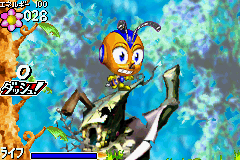
Fly into an enemy and Pinobee will take damage. Attack enemies with a Flying Dash or Stinging Attack.
Enemies are color-coded according to strength. As you progress through the stages, the level of the enemies will increase. However, if you destroy all the Golden Enemies in a stage, the level of all enemies in the next stage will decrease by one.
Main Menu
The Main Menu is displayed when a stage is cleared. Use the directional button to select menu items and press the button to enter your selection.
1. Select a Stage
Pick a stage from the Stage Selection Screen. Use the directional button UP or DOWN to scroll through stage names and select a stage to play. Press the button to enter the selection and start the game from the selected stage.
Press the button to return to the Main Menu.
2. Check Items
All items currently held are displayed in the Item Hive. Use this screen to view information about/organize items and decide which items to throw away. This screen can also be accessed from the Pause Menu.
3. View Diary
Read the Diary written by Pinobee at the end of each stage. Use the directional button UP or DOWN to choose a stage and scroll through the Diary entry for that stage. Press the button at the end of the entry to replay a stage.
4. View Collections
Watch the Ending Movies collected so far. Collect all the Ending Movies to unlock the CG Collection in the Art Gallery.
5. Save Diary
Save game data to the MEMORY CARD.
Environmental Elements
•
Fans: Use fans to float!
•
Teleport: Enter one of these and who knows where you'll come out!
•
Bumper: Sends Pinobee flying!
•
Blocks: There are 3 types of blocks with different patterns. Watch where you're walking!
•
Safe blocks: Can be walked on anytime.
•
Cracked blocks: Sting these blocks
.png)

.png)
.png)
.png)

.png)



_1.png)
_1.png)
_1.png)
.png)




.png)