Controls
Be careful not to accidentally assign the same button to two different actions.
•
Use the Restore Default Controls menu selection to restore all the default buttons.
Vibration
This option will only appear if a DUALSHOCK™ analog controller is plugged into Controller Port 1.
•
Choose Enabled or Disabled.
•
If you want to use your DUALSHOCK™ analog controller for nudging, press the Analog Mode Switch on the Controller and make sure the LED is Red.
Graphics
The Graphics Options are described below.
Focus
•
Choose Soft or Sharp focus for the graphical display. If you notice flicker on your display, choosing Soft focus should reduce it.
Dot Matrix
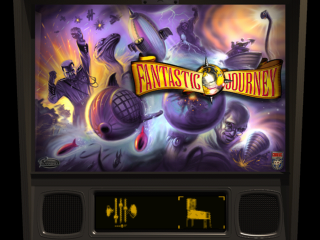
The Fantastic Journey dot matrix display (DMD) shows the current score, is used to play video modes, and provides additional information during gameplay.
•
You can choose a DMD which is Solid with no table features showing through, or Transparent so you can see the ball while it's moving behind the DMD.
Dot Matrix Position
•
Choose Low, Medium, or High to set the position of the dot matrix display on your screen.
Audio
Audio output is an integral part of Fantastic Journey gameplay and Dolby Surround Sound is used throughout. The Audio Options are described below.
Test Mechanical Sound / Test Speech and SFX / Test Music
•
Use these Options to choose a test Fantastic Journey game sound from each category. Each selected test sound plays repeatedly until you switch it Off.
•
You then use the Volume Controls to adjust the levels of each type of sound to your personal taste.
Volume Controls
•
Use these Options to set your preferred volume levels for each category of Fantastic Journey game sounds. Note that you won't hear any sounds unless you use the Test settings described above to choose and play test sounds.
Mode
•
Choose one of Mono, Stereo, and Swapped Stereo settings. Choose Swapped Stereo if the flipper sounds play on the wrong speaker.
Memory Card
You must use MEMORY CARD SLOT 1 for your MEMORY CARD. Please make sure you have enough free blocks on your memory card before commencing play.
If your MEMORY CARD is new, you must format it before you first use it. Fantastic Journey automatically detects this if you try to Save Options on to an unformatted MEMORY CARD.
•
To format a MEMORY CARD, select the Memory Card menu, then select the Save option. This displays the Format menu.
•
Select YES to format your MEMORY CARD or NO to return to the Memory Card menu.
Auto Save
•
Choose Enabled or Disabled. When Enabled, Options and high-scores will automatically be saved to your MEMORY CARD.
Load
•
Loads Option settings and high-scores from the MEMORY CARD. You can also use this Option to load data from another MEMORY CARD.
Save
•
Saves Option settings and high-scores to the MEMORY CARD.
Examine Table
Use this Option to see the incredible detail within the Fantastic Journey playfield in extreme close-up.
•
Press the Directional buttons to move, the X button to zoom in, and A or the SELECT button to zoom out.
Table Rules
Use this Option to view the rules card on the Fantastic Journey table, which gives an outline of the basic rules of gameplay.
This is by no means an exhaustive list of all the aspects of the game, and there are many hidden features and modes that you will only discover by practice and repeated play.
Slideshow
Use this Option to view a slide show tour of the Fantastic Journey playfield in close-up, clockwise from the bottom left of the table. This will help you to understand and learn the playfield layout.
•
Press the X button to see the next slide in the show; the show continues looping until you exit by pressing A or the SELECT button.
Credits / Start Simulation
Self-explanatory.
Pause Menu (In-Game Options)
Pressing the Pause Game button (START button) during gameplay pauses the game in progress and displays the Pause Menu, which allows you to change some game Options, use the Operator menus, or adjust the position of the graphical display on your screen.
You can also use the Pause Game button (START button) during Attract Mode (when no game is in progress).
•
Use the UP, DOWN, LEFT, and RIGHT Directional buttons to highlight options, and X to confirm selections.
•
The individual Pause Menu items are described below.
Return to Simulation
•
Continues the game in progress, or resumes Attract Mode.
Start New Game / Add Player / Restart Game
During a game, this Option changes as appropriate.
•
Start New Game / Restart Game - Starts a new game. Any game in progress is immediately abandoned.
•
Add Player - Adds a new player to the game in progress, up to a maximum of four. This must be done before the final player's Ball 1 drains (goes out of play).
Difficulty Level
•
Sets one of five preset game difficulty levels from Extra Easy to Extra Hard, or a Custom game difficulty setup which you have previously created by altering Adjustment settings using the Operator's Menu.
Table Setup
Slope
•
Sets the angle of the table slope, in half-degree steps from four degrees to eight degrees.
•
The higher the angle, the faster the ball will travel down the table.
Condition
•
Sets the condition of the table, from New to Neglected.
•
A clean new table does not spin the ball as much as an
.png)

.png)
.png)
.png)



_1.png)
.png)
.png)

.png)