Viewing Selections
To read or view an art or commercial selection, press the X button.
With a box or cartridge selected, you can use the right analog stick to rotate the view. Use the R1 and L1 buttons to zoom in and out. Press the X button to go to the TV and start playing.
TV
This is where you play classic games. After selecting your cartridge in the Cartridge Rack, select your Gameplay Mode by pressing the directional buttons left/right, then press the X button to proceed.
Once the game appears on screen, press the SELECT button to begin the game. Press the A button to switch between black and white or color modes.
Game System
If you've already selected a game and don't want to select a Gameplay Mode, you can simply select the Game System and start playing right away.
Board of Rewards
Patches you earn by playing various games will appear on this corkboard. Methods to unlock patches vary per game, and not all games have patches.
•
Press the X button to view unlocked patches close-up.
•
Press the A button to back out to the Main Menu.
The Boom Box
This is your personal stereo system.
•
Press the X button to start or stop the tunes.
•
Use the R1 button to skip to the next song.
•
Press the L1 button to restart the current song.
•
Use the directional buttons up/down to select a sound option.
•
Use the directional buttons left/right to adjust the volume level.
Favorites for the Atari® 2600
GAMEPLAY MODES
When you start the game, only Classic Mode is available. As you play through various games, you will unlock more modes.
1. Classic
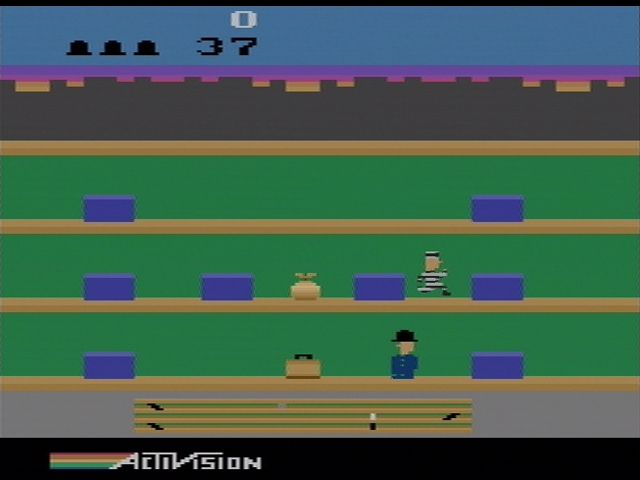
A perfect emulation of the classic Atari 2600 game screen. This is the default setting.
2. Cube
A cube spins in the center of the screen. On each of its faces is the texture of the game being played. Only the most mentally dexterous player will be able to compensate for the movements.
3. Ricochet
In this mode, the game is drawn onto a bouncing rectangle, deflecting off the sides of the screen. This view changes gameplay subtly, as the player must compensate for and track the motion of the game screen, putting a new spin on these classic games.
4. Whirl
The game screen will slowly rotate 360 degrees, making even the best players a little sea-sick. As gameplay progresses, the rotation will become faster.
5. Bungee
The game screen zooms in and out of view like a camera suspended from a bungee cord. This makes two-player games even more fast-paced and exciting.
6. Tilt-O-Vision
The game screen moves on its center axis as if its corners are being pulled in various directions. This motion changes over the course of gameplay.
7. Motion Blur
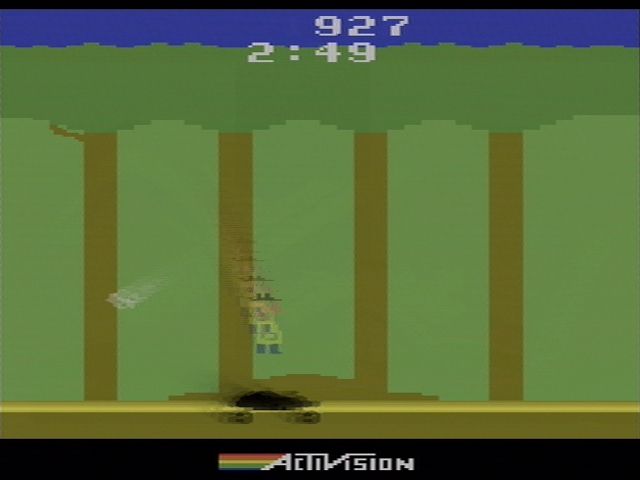
Motion blur is added to the game to enhance the feeling of movement.
8. Breathing
The game screen is stretched over a surface which changes from concave to convex, giving a changing, distorted "fisheye" effect to gameplay.
9. Warped
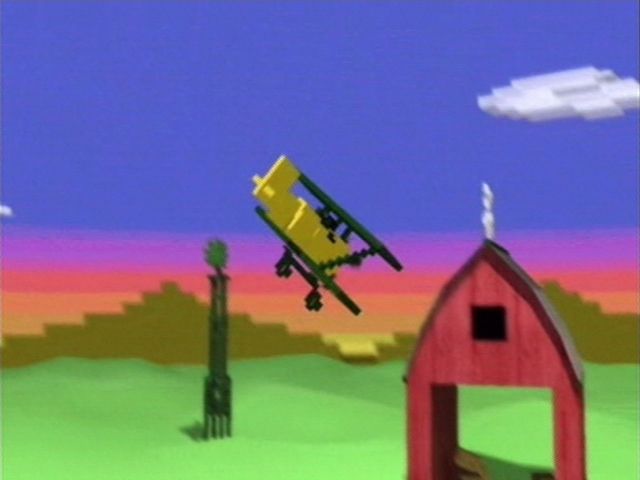
Blocks of the image are given a height. The closer the block is to a screen corner, the closer it will draw to the camera, yielding an interesting warping 3D effect.
10. Distortion
Similar to Warped, various animated ripple effects and waves dynamically change the heights of the blocks.
11. Starfield
The background of the game becomes a mass of stars moving rapidly past the screen.
12. Hyperspace
Similar to Starfield, but the stars are now streaking directly towards the player's view. Far out, man!
13. V-Hold
This Gameplay Mode is just like Classic, but, from time to time, the image scrolls vertically as if on an old TV that needs vertical hold adjustment. Sure to drive you crazy!
14. Multi-Screen
The game is displayed as nine smaller images which flicker and disappear randomly, causing the player to have to choose a new image to concentrate on.
15. Disco
The entire screen is tinted with brilliant colors that slowly spin and pulse. Whoa, dude!
16. Cloud-Cover
The background is drawn as slowly drifting cloud cover and a slight cloud cover is drawn over the foreground, for a soothing journey in the sky.
.png)

.png)
