GETTING STARTED
Set up your PlayStation®2 computer entertainment system according to the instructions in its Instruction Manual. Make sure the MAIN POWER switch (located on the back of the console) is turned ON.
Press the RESET button. When the power indicator lights up, press the OPEN button and the disc tray will open. Place the Driver™: Parallel Lines disc on the disc tray with the label side facing up. Press the OPEN button again and the disc tray will close.
Attach game controllers and other peripherals, as appropriate. Follow on-screen instructions and refer to this manual for information on using the software.
SAVING AND LOADING
Driver Parallel Lines autoloads data on boot up. To save game settings and progress, insert a memory card (8MB) (for PlayStation®2) into MEMORY CARD slot 1 of your PlayStation®2.
You can load saved game data from the same memory card (8MB) (for PlayStation®2) or any memory card (8MB) (for PlayStation®2) containing previously saved games. Driver Parallel Lines requires 146KB free space on your memory card (8MB) (for PlayStation®2) to save your current game.
Driver Parallel Lines uses an autosave feature to save your game settings and progress. If no memory card (8MB) (for PlayStation®2) is present, you may lose your progress. You may continue to play the game but you will have to acknowledge that the autosave will have been disabled.
The autosave feature is re-enabled the next time you successfully save your profile to a valid memory card (8MB) (for PlayStation®2). You may also save your profile to a new or existing profile name at any point, which will automatically enable the autosave feature.
Upon boot up, you will see a language selection screen. Press the left and right directional buttons to choose from English, French, and Spanish languages. To select your preferred language press the button.
CREATING A PROFILE
When the game starts for the first time you will be asked to create a 'Profile'. This will be used to save your game progress. Use the directional buttons to highlight letters and press button to select it.
Pressing button will cancel and allow you to restart. Once you have entered a name, choose 'OK' to accept and save.
You can create and use additional profiles if you wish, or delete ones that you no longer require, using the 'Profiles' option from Pause menu. Warning: Deleted Profiles cannot be recovered.
DOWN ON THE STREETS...
Your first job! There's a punk hitting a liquor store, and he needs your particular skills to get him out of trouble. Get your passenger safely to his hideout, and you'll be rewarded with a share of his loot.
Then, follow the directions and you'll meet up with Ray, who may have some other work for you. Prove you got the guts to do what it takes, TK, and the city is all yours...
Minimap
•
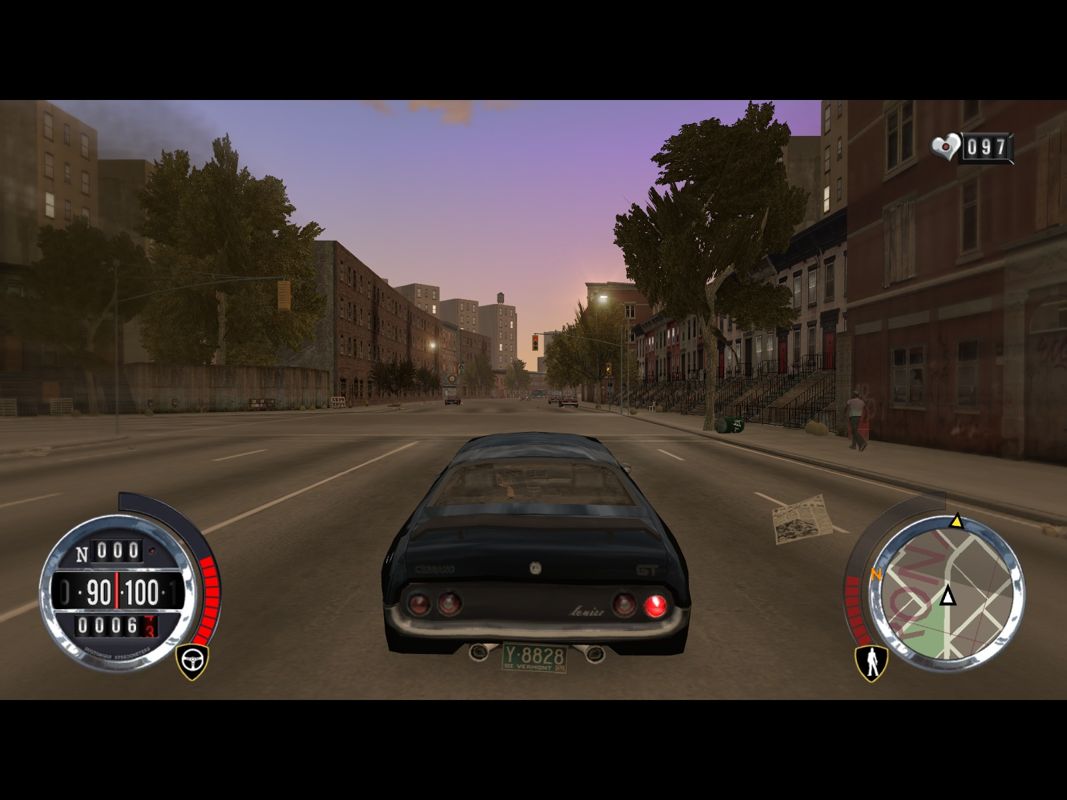
Shows the roads in your immediate area, and marks locations and things of interest. Markers that are further away than the current Minimap range may be shown on the outer edge.
People
Locations
Side-Jobs
Felony Display
•
If cops see you exiting the car, the felony will transfer to TK himself, but if they don't, it remains on the vehicle only.
•
If TK acquires felony while on foot, he can cover his tracks by getting into a 'clean' vehicle when the cops aren't watching. The cops will have trouble recognizing TK, and his personal felony will be greyed out while he remains in a clean car.
•
While your personal felony status is hidden you can still accumulate felony on your current vehicle. Don't stay close to a cop for too long though, especially if you are on a bike, as they may become suspicious; the felony bars will start filling up yellow, and eventually your cover will be blown.
•
To get rid of your current vehicle's felony you will need to call in to one of the Garages and a visit to the Safehouse will also clear your personal felony.
PAUSE MENU
You can pause the game and access the Pause Menu at any time by pressing the button. The Pause Menu allows you to review the opportunities open to you. If you are already employed on a job the current objectives will be shown instead.
Use the left and right directional buttons to move to the option you require. The map can be rotated and zoomed using the left and right analog sticks.
•
Back to Game - return to the current game.
•
Restart - restarts the game at your last save point. Your current progress will be lost. Restarting the game during an assignment will return you to its start.
•
Profiles - Load, Save or Delete a profile. You can also start a New Game here.
•
Settings - configure settings for Controls, Game, Display, Audio, or any Cheats you may earn.
•
Stats - review your game progression.
SHOOTING
You start the game
.png)

_1.png)
.png)
