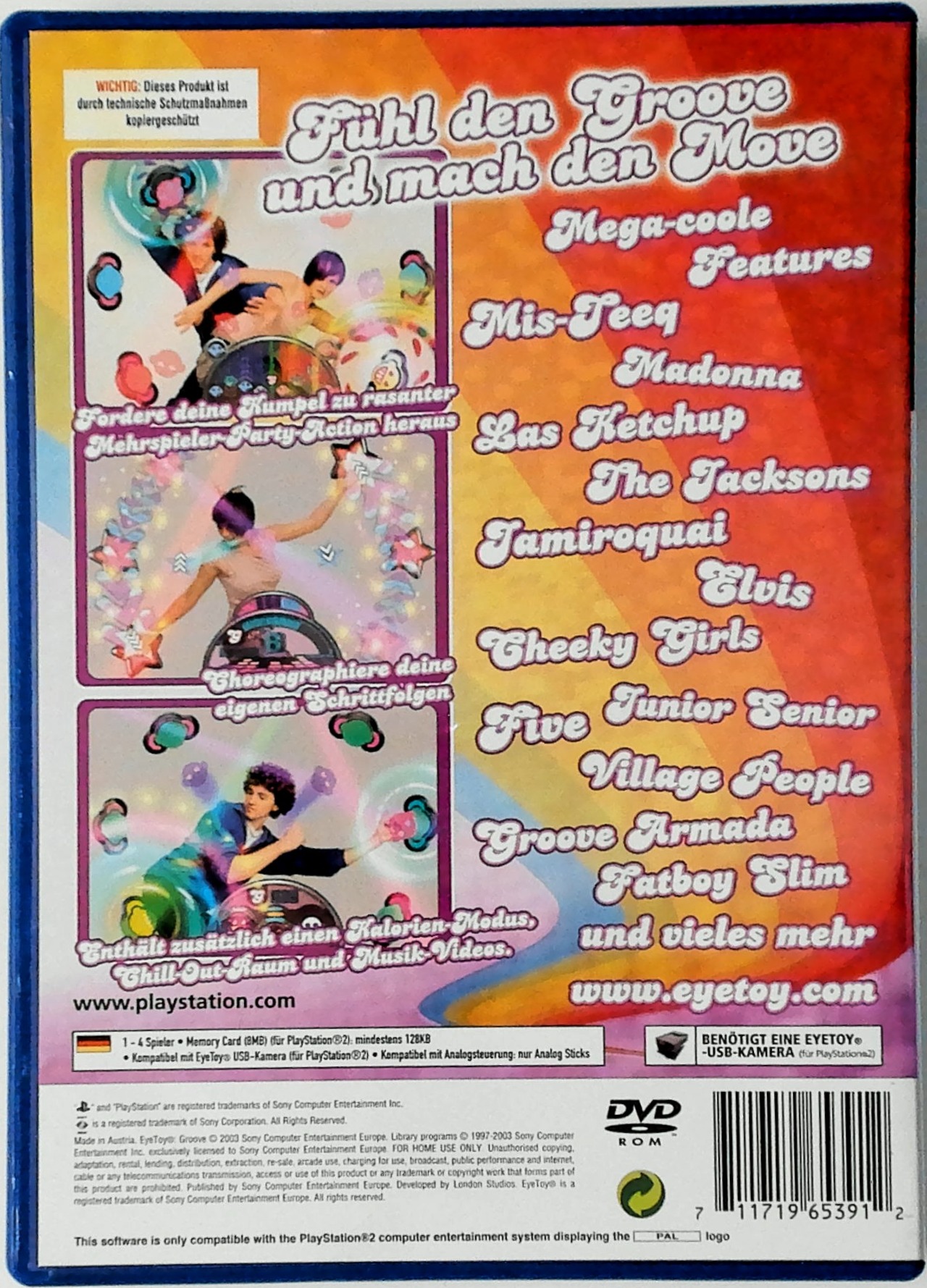
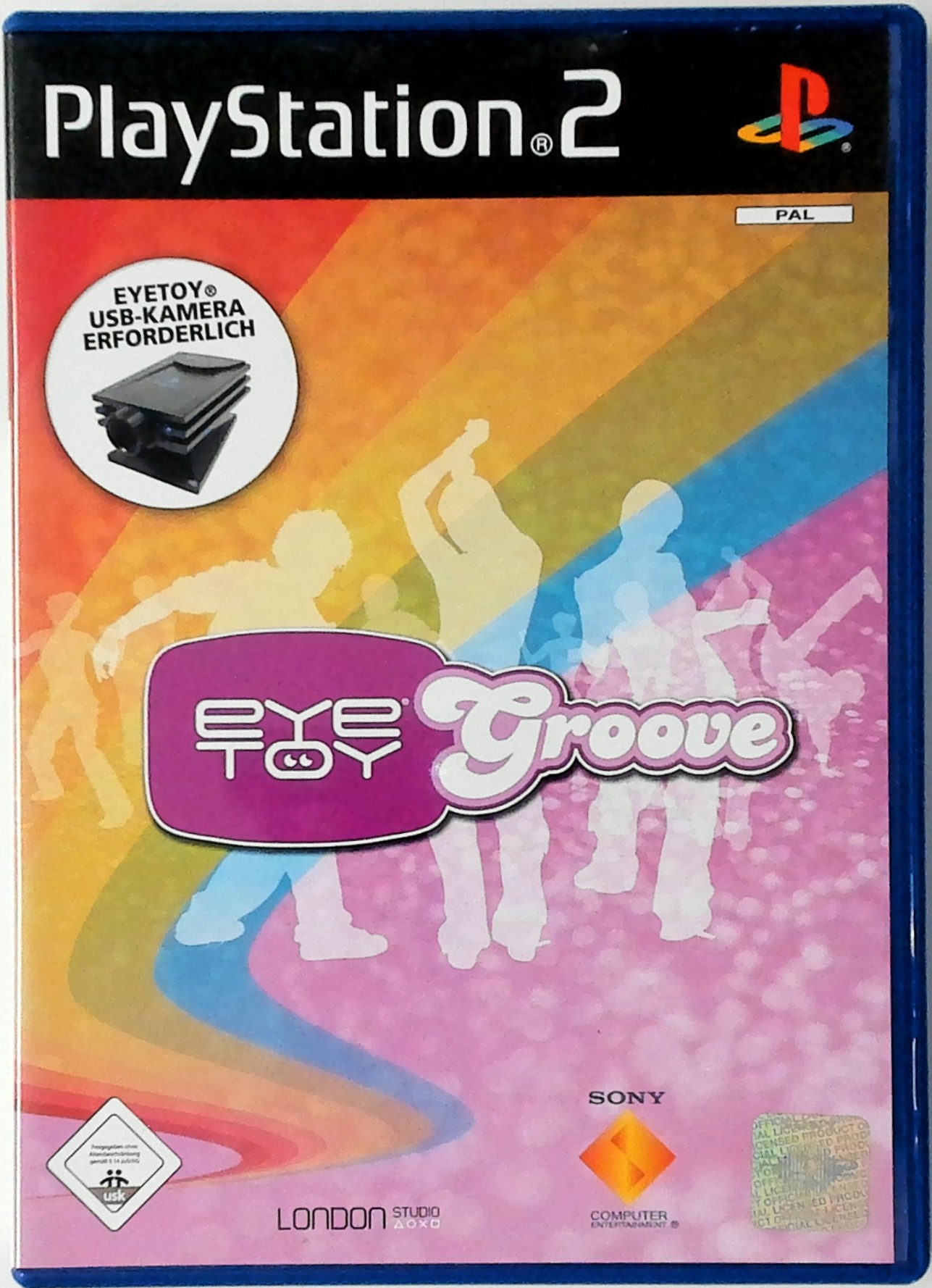
Get Ready to Groove!
Clear out the dance floor and get ready to bust out your best moves. Make sure you stretch and take a breath, because now is the time to prove you've got the groove.
Looking like a rock star won't get you any points in this dance club. It's all about how fresh your dance moves are. So toss your controller aside, put on your hippest shoes, and let's see you get down, get jiving, and get grooving!
Setting Up
Set up your PlayStation®2 computer entertainment system according to its instruction manual. Make sure the MAIN POWER switch (located on the back of the console) is turned ON.
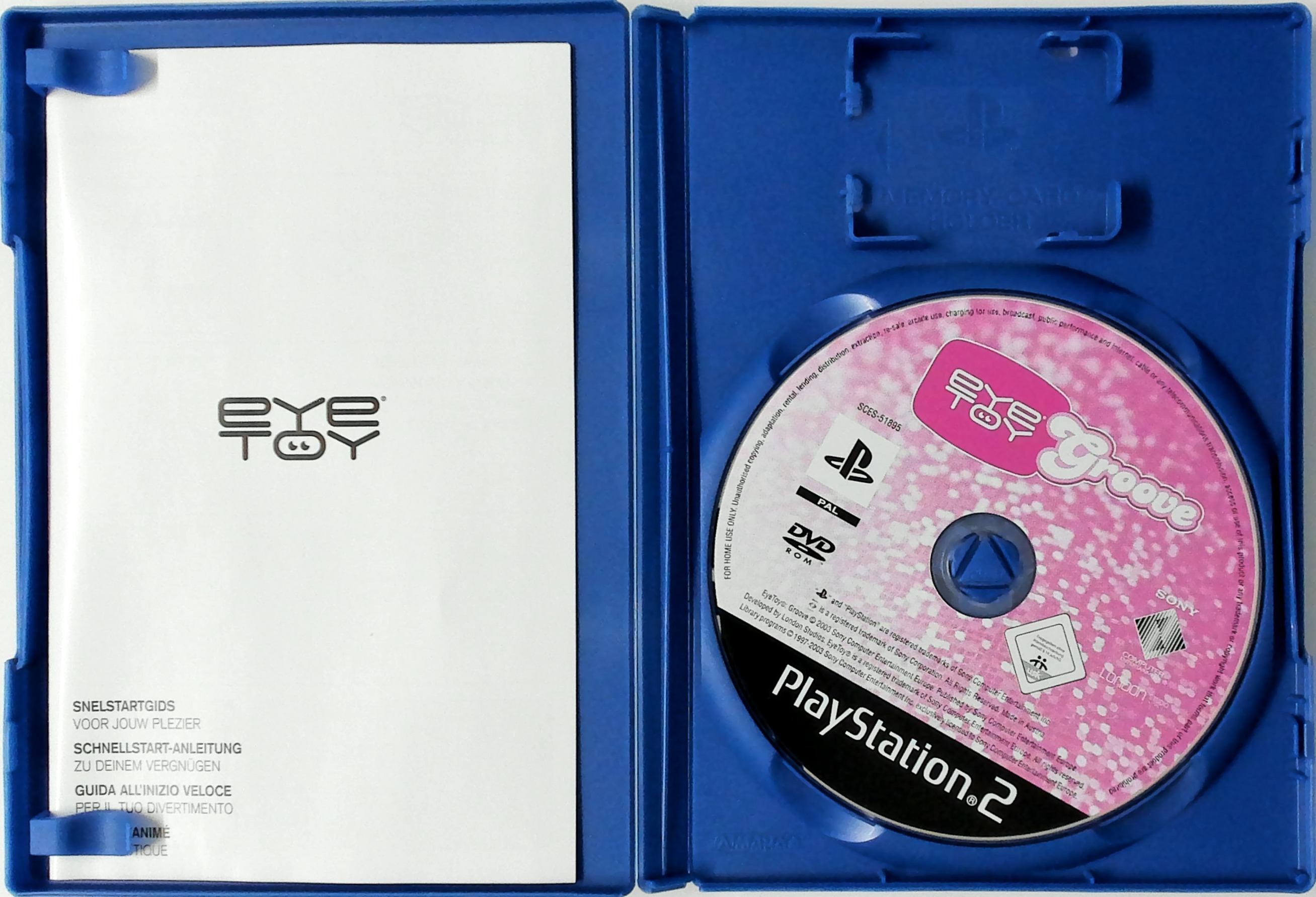
Press the RESET button. When the power indicator lights up, press the open button and the disc tray will open. Place the EYETOY™: GROOVE disc on the disc tray with the label side facing up. Press the open button again and the disc tray will close.
Attach game controllers and other peripherals as appropriate. Follow on-screen instructions and refer to this manual for information on using the software.
Please Note
The information in this manual was correct at the time of going to print, but some minor changes may have been made late in the game's development. Some screenshots for this manual have been taken from pre-completion screens that differ slightly from those in the finished game.
Using The EyeToy™ USB Camera (for PlayStation®2)
Insert the EYETOY™ USB camera (for PlayStation®2) into either the upper or lower USB connector on the front of the console. The LED power indicator (blue) should be on.
Place the camera on top of or immediately below your television and stand back between 5 to 7 feet. Rotate the manual focus ring to focus the lens. Try to ensure that your body shape is clearly defined on the screen.
If your television is positioned on the floor, simply tilt the EYETOY™ USB camera (for PlayStation®2) for extra elevation. Alternatively, swivel the camera base around to reposition the camera. Players of different heights should tilt the angle of the camera for extra convenience. DO NOT move the whole camera, just tilt it gently.
Cover the camera lens to exit the current game.
By all means find a waving style that suits you, but it is recommended to wave with your fingers apart as this creates more motion feedback.
Make sure that there is no movement in the background as background motion may hinder gameplay. Make sure you have enough room to play. Consider the space around you and watch out for shelves, doors, walls, pets and above all, other people.
Enjoy playing EYETOY™: GROOVE and stay in control!
EyeToy™ USB Camera (for PlayStation®2) Lighting Recommendations
The EYETOY™ USB camera's ability to detect movement depends upon there being a significant difference in lighting between you and your background. Ideally, you should be lit from the front, as evenly as possible.
A single, central light of between 60 and 100 watts between you and your television should be sufficient. Any additional light pointing at you will also be beneficial.
If your on-screen image looks too dark, switch on all available lighting in the room and point them at you. The red LED on the EYETOY™ USB camera (for PlayStation®2) will blink if the room is too dark.
If your on-screen image looks too bright, close any curtains and use artificial light instead. Where artificial light is the primary source of illumination, concentrate all available light on you.
If possible, avoid low-energy bulbs and fluorescent tubes as these tend to flicker, which may be detected as movement by the EYETOY™ USB camera (for PlayStation®2).
Do not set up the EYETOY™ USB camera (for PlayStation®2) so that the camera is pointing directly towards a strong light source—for example, a window with direct sunlight streaming through it will affect the camera's initial calibration.
Even with daylight providing the primary light source, the introduction of any extra artificial light directed at you, will always be beneficial.
Please Note
For additional options regarding improving lighting conditions, please see the Bright and Dim Room lighting options in the Camera Settings section on p.10.
Set up the camera (following the instructions outlined on p. 4) so that you can stand comfortably within the on-screen player outline on the Title Screen.
Using Menu Screens
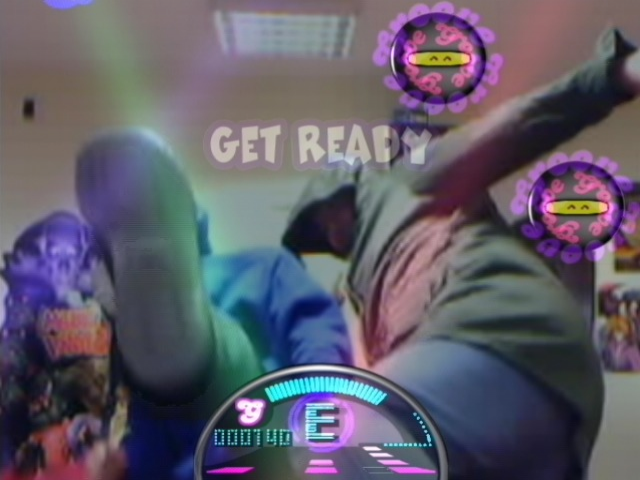
EYETOY™: GROOVE uses the player's motion to activate objects and buttons on screen. The motion buttons can only be activated if they detect motion over a period of time; indicators on the motion buttons fill up as motion is applied. Use the motion buttons to select menu items.
Wave your hand over the motion button until the disco light indicators reach their maximum level. You can also make menu selections by using an analog controller DUALSHOCK®2 connected to controller port 1 - use the left analog stick to highlight an option and press the Ⓧ button to activate it. Press the △ button to exit a menu and return to the previous screen.
The Main Menu
Select one of the following options from the Main Menu:
Activate a button on the Main Menu without filling the disco light indicators to their maximum level to see a brief description of that Main Menu option.
**Solo
.png)

.png)