Controller Operation Method
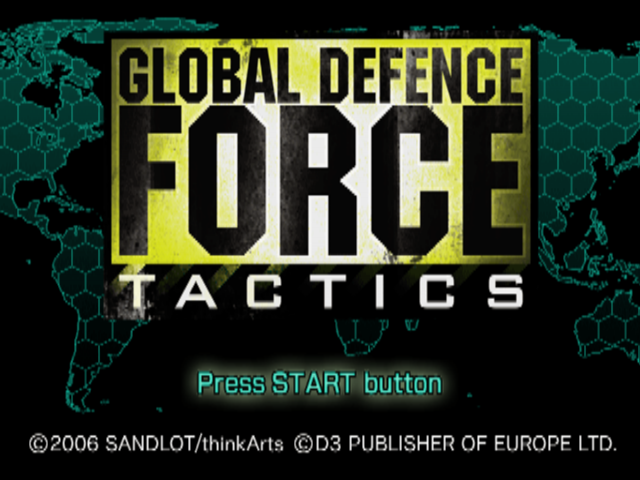
Title Screen
Press the START button to display the mode selection screen.
Analog Controller (DUALSHOCK 2)
Game Modes
Scenario
This mode allows you to command the EDF and advance through the scenario while fighting invaders.
•
From the beginning: Start the game from the beginning.
•
Continue: Resume the game from the middle.
•
From suspension: Resume the game from the point where it was saved during a mission.
Free
This mode allows you to freely change mission settings and play.
You can select maps of missions that have already been cleared in scenario mode.
Options
Change game settings.
•
Battle Animation: Set battle animation ON/OFF.
•
Guide Display: Set guide ON/OFF and display speed.
•
Hex Grid: Set hex grid display ON/OFF.
•
Movement Speed: Set unit movement speed between hexes.
•
Recovery Confirmation: Set recovery confirmation window ON/OFF during energy recovery.
•
Maintenance Confirmation: Set maintenance and recovery animation display ON/OFF.
•
Vibration Function: Set controller vibration function ON/OFF.
Save/Load
Save or load game data.
*To save game data, you need a "PlayStation 2" dedicated memory card (8MB) with 130KB or more free space. *This game is compatible with MEMORY CARD slot 1.
Encyclopedia
You can browse weapon data acquired during the game.
By meeting the conditions, invader data will also be added.
Controller Notes
*LED display is always red (analog mode).
Vibration function can be switched in "Options" settings.
*Buttons other than those listed above are not used.
*This game is for analog controller (DUALSHOCK 2) only. It cannot be played with controllers or analog controllers (DUALSHOCK).
Also, it is only compatible with controller port 1.
Map Operation
•
Directional Pad: Move cursor
•
On unactivated unit: Select unit
•
On base where unit is stored: Select stored unit
•
Other: Map window display
•
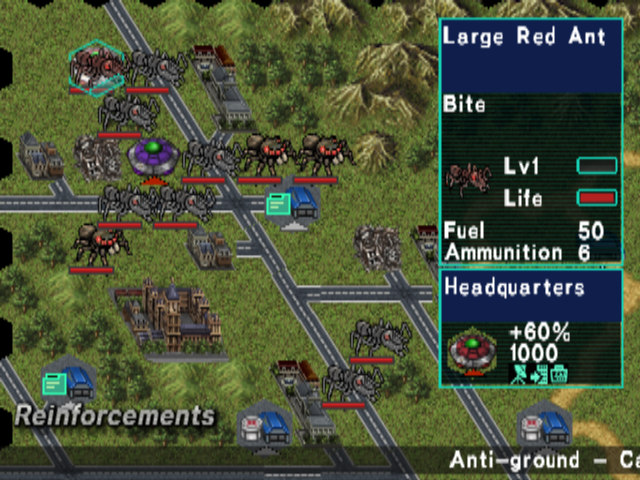
On unit: Display unit movement range
•
L1/R1 Button: Move cursor to unactivated unit
•
L2/R2 Button: Toggle durability gauge display
•
START Button: Display battle situation
Menu Operation
Unit Information Display
•
● Button: On unit: Display unit detailed information
•
● Button: Other: Display terrain detailed information
•
● Button: On unit: Display unit attack range
Game Flow
① Mission Selection
Select a mission.
② Unit Formation
Register units to participate in the mission and change equipped weapons.
You can also check mission information.
Unit Types
•
Basic Unit: These are units required to start a mission. Units of the type marked with a basic unit mark must have at least one registered.
•
Other Units: These are units that can be registered optionally.
Cost
•
Cost: This is the cost required for registration, set for each unit. It is not necessary for basic unit registration, but it is required when registering other units.
•
Total Cost: This is the maximum cost that can be used for that mission. If the total cost exceeds this value, formation cannot be performed.
Unit and Weapon Levels
Units and weapons each have a level set, and units cannot equip weapons of a higher level than their own. Unit levels increase by accumulating experience points, but weapon levels do not change.
Formation Options
•
Unit Details: This shows the detailed status of the unit currently selected by the cursor. (For details on status, please refer to P6)
•
Automatic Formation: If you try to start a mission without registering any units, units will be automatically formed.
③ Mission
Clear various victory conditions set for each mission.
For the mission flow, please refer to P9.
④ Mission Clear
Mission results are evaluated with a rank from S (highest) to D (lowest).
New units and weapons can be obtained depending on the clear status.
•
Clear Turns: The fewer turns it takes to clear the mission, the higher the evaluation.
•
Total Kills: The more enemy units destroyed during the mission, the higher the evaluation.
•
Total Capture/Destruction: The more bases captured or destroyed during the mission, the higher the evaluation.
•
Formation Bonus: The less cost used during unit formation, the higher the evaluation.
•
Clear Rank: The overall clear rank for that mission is determined based on the above four evaluations.
⑤ New Mission Added
When a mission is cleared, the next mission is added.
Cleared missions will have their clear rank displayed next to their title.
Basically, you will clear missions according to the scenario, but you can also re-challenge missions you have already cleared.
If you clear the same mission multiple times, the highest clear rank will be recorded.
After


.png)


.png)

.png)
.png)


