Getting Started
Set up your PlayStation®2 computer entertainment system according to the instructions in the Instruction Manual. Attach game controllers and other peripherals, as appropriate. Make sure that the MAIN POWER switch (located on the back of the console) is turned ON.
Press the OPEN button. When the power indicator lights up, press the OPEN button and the disc tray will open. Place the WORMS™ 3D disc on the disc tray with the label side facing up. Press the OPEN button again and the disc tray will close. Follow on-screen instructions and refer to this manual for information on using the software.
Memory Card (8MB) (for PlayStation®2)
WORMS™ 3D only supports MEMORY CARD slot 1. To save game settings and progression, insert a memory card (8MB) (for PlayStation®2) into MEMORY CARD slot 1.
WORMS™ 3D features an AutoSave system, and the game will automatically save your game progression at certain points. Insertion or removal of the memory card (8MB) (for PlayStation®2) after switching the console on may cause data to be overwritten or lost.
WORMS™ 3D also supports manual save and load of game data from the Main Menu. After performing a manual save/load, the game will again AutoSave your progression at the relevant points.
Controller
WORMS™ 3D is a one to four player game that is played using the DUALSHOCK®2 analog controller. Connect the controller to be used to controller port 1.
Overview and Quick Start
WORMS 3D is a turn-based strategy game, where 2-4 teams battle it out across bizarre, randomly-generated landscapes or finely crafted custom designed levels. Each team takes turns to pick off the opposing teams, using crazy weapons, tools, other utilities they may have discovered and whatever dastardly strategies they can imagine. Worms die when they lose all of their energy or drown in the icy depths: the winning team is the one that manages to survive the mayhem and have worms left standing!
Quick Start
WORMS 3D is turn-based. This means you have a few seconds to take your turn before play passes to the next player. Keep an eye on your turn time in the bottom left hand corner of the screen.
Move your worm around using the left analog stick. If you come across an obstacle blocking your path, try using the X button to jump it, or tapping the X button twice to perform a back-flip over it.
To setup a shot, use the directional button to rotate your worm until it's pointing in the desired direction, and choose a trajectory also using the directional button. Fire by pressing the X button... the longer you press the X button, the stronger the shot will be. Take into account the strength and direction of the wind when you aim your shot.
When worms lose all their energy or fall in the water, they die... if you have no worms left, you have been defeated!
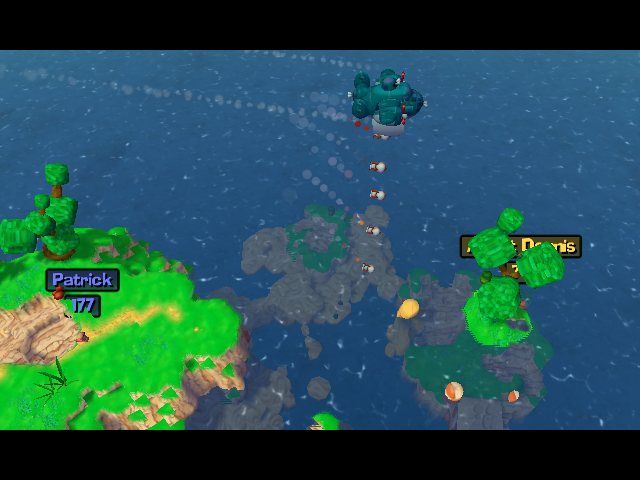
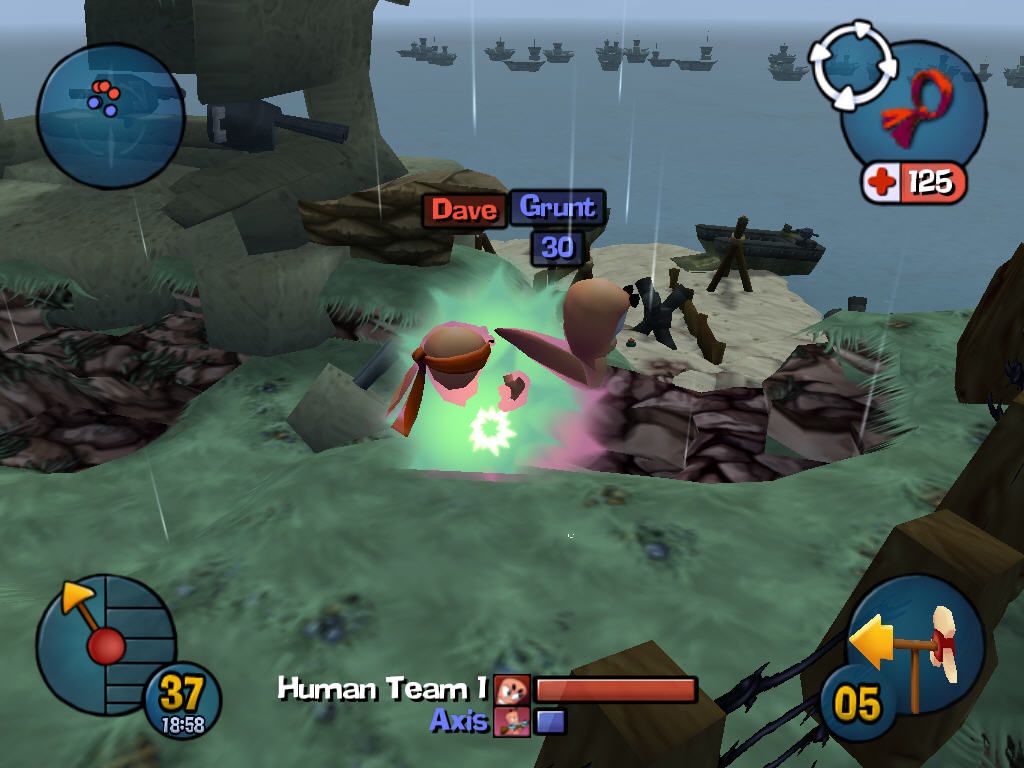
Try using different camera angles to look around the landscape... in addition to the default 3rd person view, you have a choice of 1st person view, or blimp view... good for getting a strategic overview of the situation.
Controls
•
Square button = Open/close weapon panel
•
Left analog stick = Move Worm
•
R1 button = 1st Person View
•
Right analog stick = Rotate Camera
•
R1 + Right analog stick = Adjust trajectory
•
Select button = Toggle display
Playing Worms 3D
Moving Worms
Move your worm around using the left analog stick: your worm can be moved in all directions, while the directional button rotates your worm on the spot and adjusts your weapon's trajectory. If your selected worm encounters a small obstacle on the landscape, it will "auto-hop" to clear the obstruction, but if blocked by a larger obstacle, it will stop.
Jumping
Make your worm perform a forward jump by pressing the X button. You can also make your worm jump straight up in the air by pressing and holding the X button.
Pressing the X button twice in rapid succession makes your selected worm perform a back-flip: useful for clearing large obstacles. Press the X button twice whilst pushing forward on the left analog stick to perform a forward flip.
All jumps can be steered while your worm is in the air by using the left analog stick. Use the shadow under your selected worm to judge your landing position.
Other Moves
Some of the weapons and utilities have nifty little tricks that can aid your worm in its progress. Check out the Wormapedia section in the game for more details and tips.
Changing Which Worm You Control
If Worm Select is enabled in the options, press the Triangle button to select a different member of your team. Repeatedly pressing the Worm Select button cycles through all the worms in your team.
You can only change worms if you haven't already moved one, or selected a weapon. Worm Select can also be used as a utility if available.
Quitting the Game
Press the START button to open the Pause Menu. When the Pause Menu is accessed, the game enters pause mode. Press the START button again to resume play.
In single-player games, you can choose to "Quit Game" or "Continue". In multiplayer games, you can select "Continue", "Draw Game" and "Quit Game" by selecting the option you require.
Camera Views
Default Camera View (3rd Person)
.png)


.png)


.png)


.png)


.png)