Getting Started
Set up your PlayStation®2 computer entertainment system according to the instructions in its Instruction Manual. Make sure the MAIN POWER switch (located on the back of the console) is turned ON.
Press the RESET button. When the power indicator lights up, press the OPEN button and the display will open. Place the GOBLIN COMMANDER disc on the disc tray with the label side facing up.
Press the OPEN button again and the disc tray will close. Attach game controllers and other peripherals, as appropriate. Follow on-screen instructions and refer to this manual for information on using the software.
Main Menus
•
Campaign: Start or continue a single-player game.
•
SKIRMISH: Start a Multi-Player game on one of the many maps.
•
Options: Adjust the settings for the game.
To navigate the Main Menu, press up or down on the left analog stick, and press the button to confirm the selection.
Campaign Menu
From the Campaign Menu, the player has the option to either start a New game or Continue a game that is already in progress. To do so, highlight the appropriate choice and press the button to confirm the selection. To return to the Main Menu, press the button.
New Game
The player has three slots that they can use to start a New single-player campaign. To do so, navigate to one of the three slots and press the button.
The player will then be prompted to enter a Profile Name from the Character Screen provided.
Character Screen
To navigate the Character Screen, use the left analog stick. To select a highlighted character, press the button. To remove the last character, navigate to Delete and press the button.
When finished entering a Profile Name, navigate to Done and press the button. This will start the game from the beginning with the Profile that has been provided. To cancel and return to the Campaign Menu, press the button.
Managing a Profile
To Continue a game, Load a game or Delete a Campaign, navigate to the tab that contains the appropriate Profile Name and press the button to access the Profile Menu. To return to the Campaign Menu, press the button.
Continue allows the player to start from any level or view any cinematic that they have already completed. To choose an Act (where applicable), press left or right on the left analog stick. To choose a Level, press up or down on the left analog stick. To start, press the button.
Load Game allows the player to resume any Saved Game. To do so, navigate to the desired Save Profile, and press the button.
To Delete the currently selected Campaign, highlight it and press the button. The player must then navigate to Yes to confirm or to No to cancel and return to the Profile Menu.
To return to the Campaign Menu, highlight Back and press the button.
Back
To return to the Main Menu, highlight Back and press the button.
Skirmish Menu
From the Skirmish Menu, the player has the opportunity to play one of the many maps that have been designed for use in Multiplayer mode. To return to the Main Menu, press the button.
Start
To cycle through the maps available, press left or right on the left analog stick. To Start a Skirmish game on the currently selected map, press the button.
When doing so, the player will have the opportunity to customize their game from the First Player Options screen provided.
Player Options
Using the left analog stick, the player will have the opportunity to set the First Player Options, granting them the ability to customize the Clans that will be controllable, the amount of Souls and Gold to start with, the Tech level of their clans (which correlates to the number of different units available from each clanshrine) as well as the ability to use Titans and Turrets.
When finished with the First Player Options, press the button to set the Second Player Options. When satisfied, press the button to start the game.
Back
To return to the Main Menu, highlight Back and press the button.
Options Menu
The Options Menu grants the player access to all of the settings that can be adjusted in the game. To navigate, press up or down on the left analog stick, and press the button to confirm. To return to the Main Menu, press the button.
Audio
From Audio, the player can adjust the volume levels for both the Sound Effects and the Music for the game. To adjust the levels, use the left analog stick to highlight the appropriate setting, and press left or right on the left analog stick. When satisfied, press the button to confirm the selections. To cancel, press the button to return to the Options Menu.
Controls
Toggle Controller Vibration on/off for each player. Camera Invert will reverse the camera control for that player. To select, press up or down on the left analog stick. To toggle the setting, press right or left on the left analog stick. To confirm selections, press the button.
To cancel, press the button to return to the Options Menu.
Back
To return to the Main Menu, highlight Back and press the button.
Playing the Game
The Goblin Commander
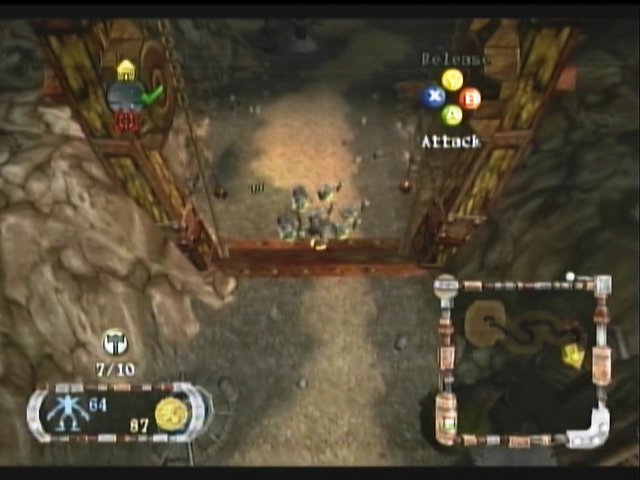
The player uses their glowing cursor, or GOBLIN COMMANDER,
.png)

.png)
