Getting Started
Set up your PlayStation 2 computer entertainment system according to its instruction manual. Make sure the MAIN POWER switch (located on the back of the console) is turned on. Press the standby/RESET button. When the power indicator lights up, press the OPEN button and the disc tray will open. Place the Grandia II disc on the disc tray with the label side facing up. Press the OPEN button again and the disc tray will close.
Attach game controllers and other peripherals, as appropriate. Follow on-screen instructions and refer to this manual for information on using Grandia II.
PlayStation®2
Starting the Game
Insert the Grandia II disc into the PlayStation®2 computer entertainment system and turn on the power. From the title screen, press the START button to start the game.
If saved games are present, the start menu will appear. You can then select either "New Game" or "Load Game" and press the X button to start the game.
Starting a New Game
If you want to play the game from the beginning, select "New Game" and then press the X button. The opening movie will start, and when the movie ends, the main game will begin.
Loading a Saved Game
If a saved game is present on a Memory Card (8MB) (for PlayStation®2), select "Load Game" and press the X button. Use the L1 button and R1 button to select the MEMORY CARD slot where the memory card is inserted.
Then select the saved game you wish to load and press the X button. Your adventure will continue from the time when the game was saved. For details on saving games, see "Save Game."
Ending Play
Be sure to save your game before ending play. You cannot resume your game unless you save it first.
When you want to end play, press the RESET button, then press the OPEN button on the PlayStation 2 console, then remove the disc. Close the disc tray and then press the MAIN POWER switch to turn off the power. Save Game
Select "Save Game" and press the X button to display the save screen. On the save screen, use the L1 button and R1 button to select a MEMORY CARD slot where a memory card is inserted.
Then select the place to save your game and press the X button. Saving your game in the same place where a previously saved game appears means that the old game will be overwritten and disappear.
•
While saving or loading games, make sure you do not turn off the power or insert or remove memory cards or other expansion units or controllers.
•
A memory card is required to save games. Saving one game requires 68 KB of memory.
•
You can save up to 10 save files on one memory card.
Saved Games
•
MEMORY CARD slot: The MEMORY CARD slot where the currently selected memory card is inserted appears here.
•
Save time: The total play time at the time when the game was saved appears here.
•
Current play time: The total play time from the start of your adventure to the present appears here.
Game Fields
The connections between the various game fields are described briefly below. Players may explore by navigating through town and dungeon fields. If you enter a building inside a town, you will enter an indoor field. If you come into contact with an enemy in a dungeon field, the combat screen will appear.
Town Fields
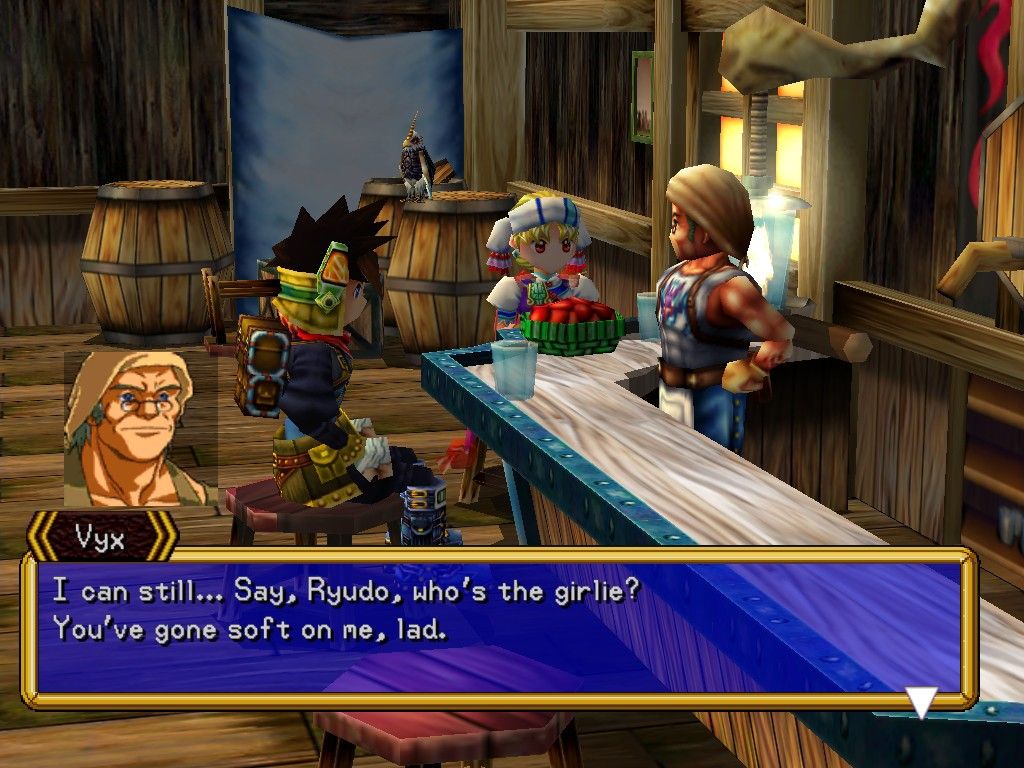
Town fields are located in areas where people live. You should actively explore and talk to people to gather information. When you go inside a building, the screen switches to an indoor field.
When you leave the town field and go outside, you will see an area map. You may also encounter dungeon fields inside towns.
Indoor Fields
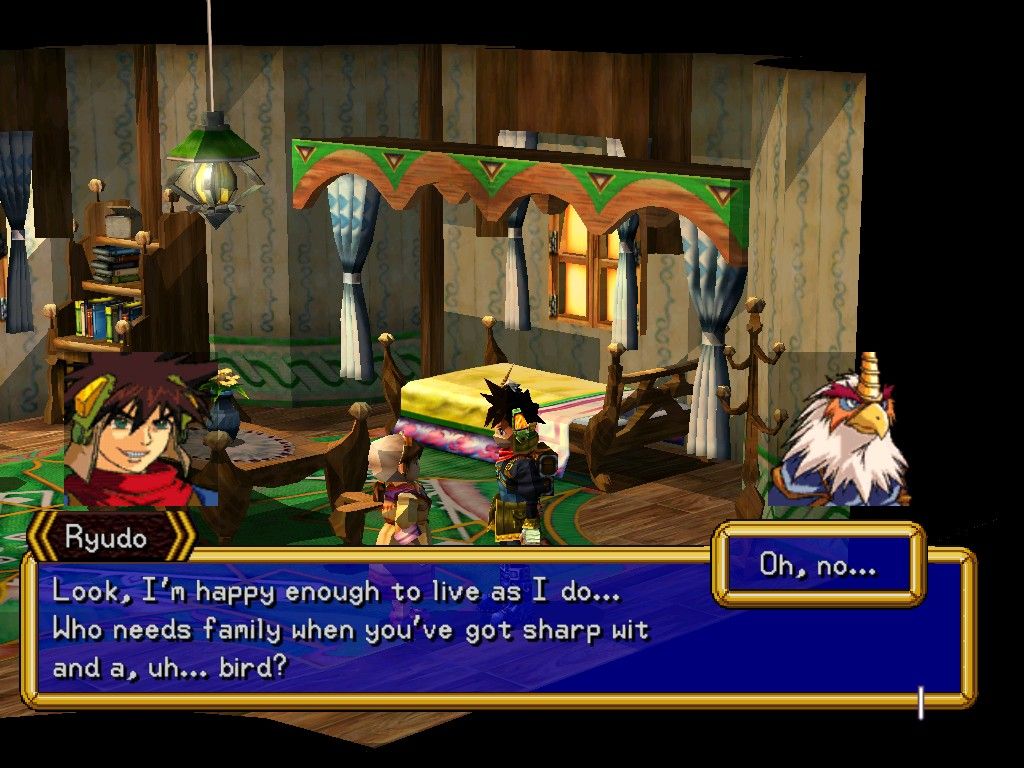
When you enter a building from the town field, the screen will switch to an indoor field. Indoors, you cannot use the L1 button and R1 button to change the camera angle because the angle is fixed.
If you see the name of another location when you move near a door or opening, you may enter that location from there.
Area Maps
Area maps display the locations you have already visited, allowing you to pick a region and move there. You can move to any region on the area map displayed with white letters.
Move the feather cursor to the region you wish to visit, then press the X button to display the screen for that region. Note that you can select different regions as the scenario proceeds.
Dungeon Fields
Caverns, mountain roads, and other regions where monsters roam are known as dungeon fields. If you encounter a monster, a combat scene appears and combat will begin.
Depending upon the location, there may be several maps of dungeon fields connected to each other. Towers and caverns, for example, consist of multiple levels, so make sure you use the compass to keep your way.
Combat Scenes
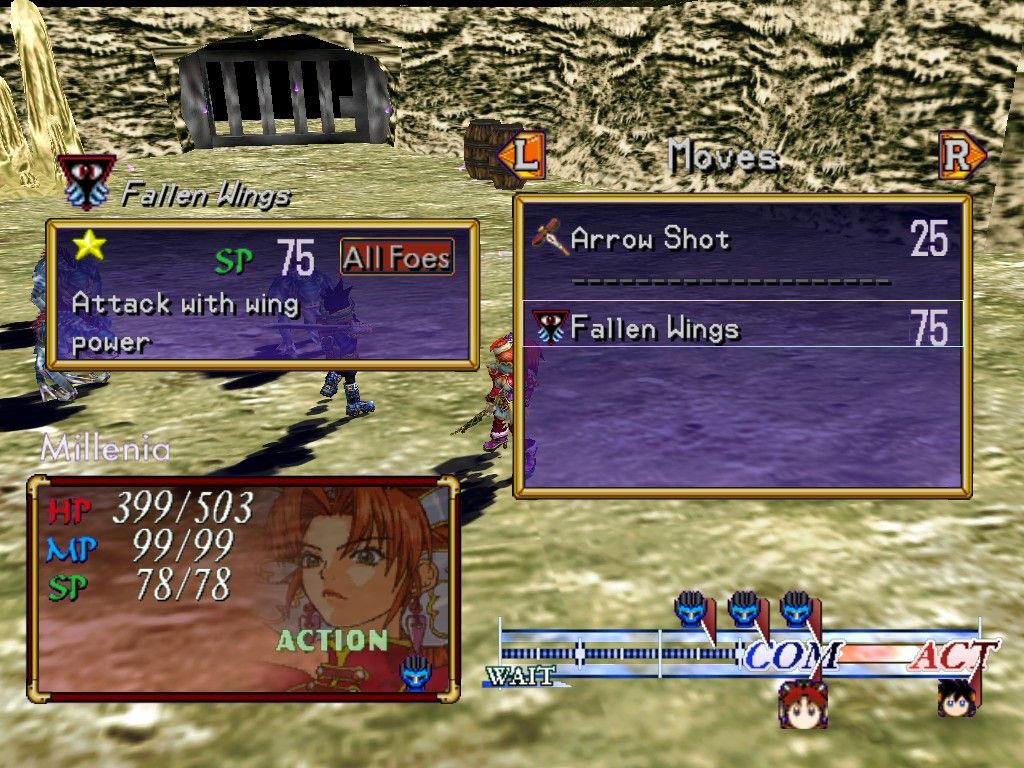
When you encounter an enemy, a combat scene will appear. If you defeat all the enemies or make a successful escape, you'll return to the previous dungeon field.
If all members of your party fall in combat, your game is over and the title screen will appear.
The Character Growth System
There are four
.png)

.png)