GETTING STARTED
Set up your PlayStation®2 computer entertainment system according to the instructions supplied with your system. Check that the system is turned on (the on/standby indicator is green).
Insert the Tomb Raider: Anniversary disc in the system with the label side facing up. Attach game controllers and other peripherals as appropriate. Follow the on-screen instructions and refer to this manual for information on using the software.
MEMORY CARD (8MB)(for PlayStation®2)
To save game settings and progress, insert a memory card (8MB)(for PlayStation®2) into MEMORY CARD slot 1 of your PlayStation®2 system.
You can load saved game data from the same memory card or any memory card (8MB)(for PlayStation®2) containing previously saved games.
GETTING INTO THE GAME
CREATING A PROFILE
When you insert your Tomb Raider: Anniversary disc into your PlayStation®2 system for the first time, the game offers you the chance to set up a profile, provided you have a memory card inserted into MEMORY CARD slot 1.
You can save up to three profiles on a single memory card; each profile contains four save files. If you don't have a memory card inserted when you start the game, the profile will be set up during your first save (assuming a memory card has been inserted into MEMORY CARD slot 1 before the save).
STARTING A NEW GAME
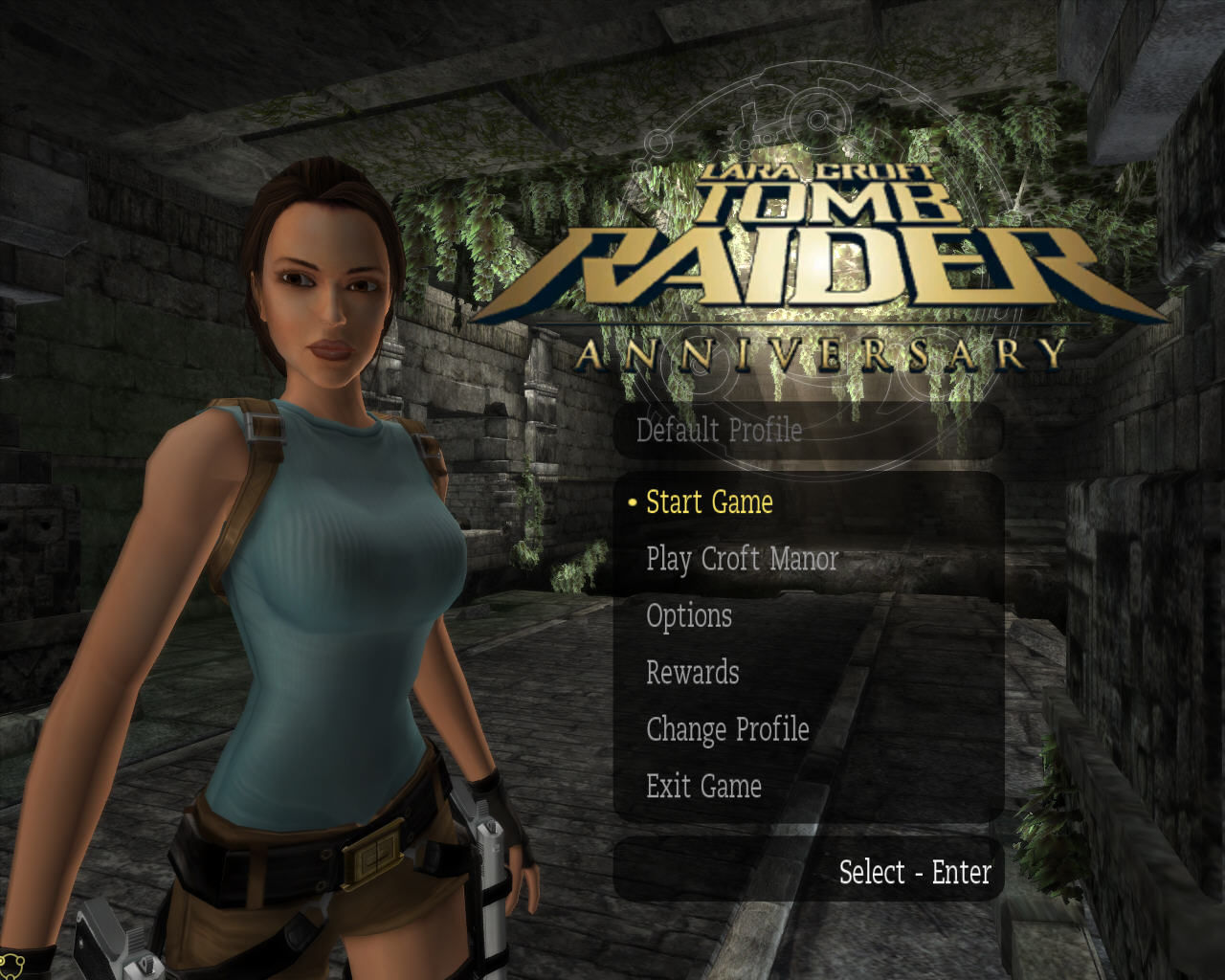
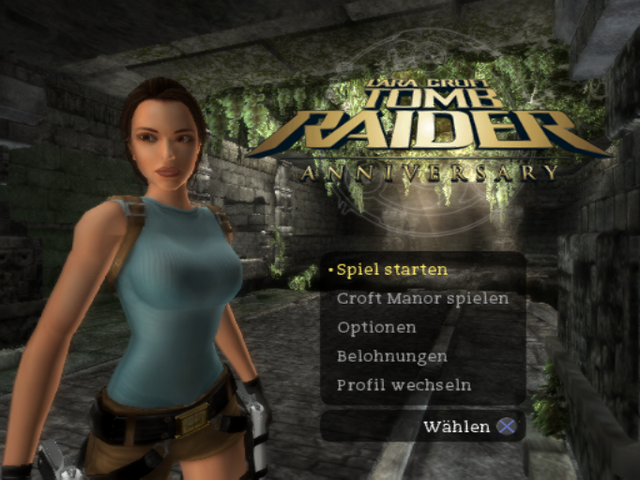
Once you create a profile, you proceed to the Main Menu. If you're ready to start your adventure with Lara, select Start Game. If you'd prefer to learn how to control Lara in a less dangerous environment, select Play Croft Manor to explore Lara's home. DIFFICULTY SETTING & SCREEN MODES
When you start a new game, an Options screen appears, allowing you to set some game options before you begin play. After setting the options, press the button to continue.
•
Difficulty is set at the beginning of the game, and cannot be changed during your adventure. Once you beat a level, you can replay it at any difficulty level.
SCREEN CALIBRATION
After you set New Game options, a Calibration screen appears. This allows you to adjust your display options to create an optimal gameplay experience.
Follow the on-screen prompts to set Brightness and Contrast.
Once you've set all pre-game settings, you're ready to begin Lara's adventure! SAVING & LOADING THE GAME
SAVING YOUR PROGRESS
Every game level has game save checkpoints. The word Checkpoint appears at the bottom of the screen when Lara passes a checkpoint. To save your progress, press the START button to access the Pause Menu, and select Save. The four save files in your profile will be displayed. Highlight one and press the button to save your game.
You can also save between checkpoints, but Lara will always appear at the most recently passed checkpoint when a save is loaded. •
If Lara dies during a game, she will automatically restart at the last checkpoint passed, whether you saved there or not. •
There is no automatic save when you quit the game. If you quit without saving, you lose all progress since your last save.
SAVING REWARDS
When you replay a level, the Save Rewards option becomes available. This stores any rewards you've picked up, though it does not save your location within a level.
LOADING A SAVED GAME FROM THE PAUSE MENU
You can load saved games from the in-game Pause Menu. When loading, you can choose a save from any of the four save files on your memory card.
Saved game details appear on the right of the screen if data is present. Use the directional buttons to choose a saved game, and press the button to load and resume that game.
•
If you saved at the end of the game, you won't be able to load that save during play. Instead, you can revisit it and any other part of the game via the Load Level option in the Main Menu.
LOADING A SAVED GAME FROM THE MAIN MENU
Once you have a game in progress and data saved to the memory card, Start Game in the Main Menu will be replaced by Play Game. Select this to resume your most recent save, load saved games, or replay completed levels.
•
If you're using save files copied from another memory card, the save file most recently copied becomes your current save, and will be selected when you Resume a game, even if this save data does not represent the most up-to-date game progress.
ROPE WORK
Lara uses ropes to span gaps too large to jump across. •
Use the left analog stick to move Lara into position under the rope, or take a run up using the left analog stick and press the button to jump onto the rope. •
Climb and descend the rope by holding the button and pressing the left analog stick ↑/.
•
Press to rotate Lara around the rope, changing her swing direction. •
Press / to build momentum and swing Lara higher, then press the button to jump to the next rope or platform. •
Press the button to release from a rope.
LADDERS
Lara can climb up and down ladders to traverse large vertical spaces. •
Use the left analog stick to move Lara into position under the ladder, or take a run up using the left analog stick and press the button to jump onto the ladder 

.png)