GETTING STARTED
Set up your PlayStation®2 computer entertainment system according to the instructions supplied with your system. Check that the system is turned on (the on/standby indicator is green).
Press the OPEN button to open the disc cover. Place the MERCURY MELTDOWN REMIX™ disc with the label side facing up in the disc holder, and then close the disc cover.
Attach game controllers and other peripherals as appropriate. Follow the on-screen instructions and refer to this manual for information on using the software.
Memory Card (8MB)(for PlayStation®2)
To save game settings and progress, insert a memory card (8MB)(for PlayStation®2) into MEMORY CARD slot 1 of your PlayStation®2 system.
You can load saved game data from the same memory card or any memory card (8MB) (for PlayStation®2) containing previously saved games.
Welcome to Mercury Meltdown!
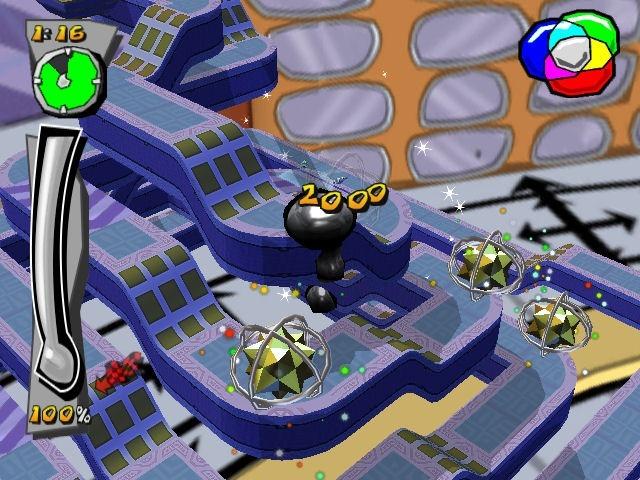
Once again, you must take control of the metallic blob and guide it through all the hazards that stand in your way!
Title Screen
Press the START button or while at the title screen to proceed. If you do not press any keys the game will return to this screen and then enter Demo Mode.
Profile Menu
A profile is a record of your progress in the game. The first time you play you will probably want to create a Profile, and here's how it is done:
Select "Create Profile" and enter the name you want to be known by and a 3-letter nick-name using the on-screen keyboard. Finish each entry by selecting "OK".
If you have played previously, the game will automatically load the most recently played player profile. Other profiles may be loaded from the Options menu.
Your new Profile will be saved to the memory card (8MB) (for PlayStation®2) if one is present. Mercury Meltdown Remix uses an auto-save feature so your updated Profile will be saved whenever you make new progress in the game.
Once you have finished saving your Profile you are given the option of playing through the Tutorial. If you want to get straight into the action without creating a Profile you may choose the "Quick Start" option. This will start the game with a default profile.
When using Quick Start auto-saving is disabled. If you decide you would like to save your progress after using Quick Start you can do so by manually saving the game after a level. When you do this you will be able to create a Profile and auto-save will be enabled.
Tutorial
The Tutorial introduces you to how to play Mercury Meltdown Remix. We recommend everyone plays it at least once to learn about the goals of the game and the obstacles you will face!
If you decide not to play the Tutorial immediately after creating your Profile, don't worry! The Tutorial can be played again at any time by selecting it from the "Extras" menu.
•
Steer the blob over the switch to open the door to the next section. Mercury Meltdown Remix - The Game
The game starts by showing you the main menu. If you leave the game idle while this screen is displayed you can watch the demonstration mode to see what lies in store! Alternatively, you can select a menu option and see for yourself.
Single Player
This menu option takes you to the main game. The first thing you see is the level selection screen.
Test-Tubes
Each level is represented by a test-tube. Use to rotate the ring of test-tubes. Each test-tube starts off empty.
When you have played a level the test-tube will fill with as much mercury as you saved on that level. When you have saved all of the mercury on a level, the tube is full and a cork will appear in the top.
As well as the cork, there might be two tags attached to the tube: one for achieving the #1 spot on the high score table for that level and one for collecting all the bonus items. When you collect all the mercury AND both tags you will get a golden cork in your test tube instead of a normal one! Game Progress
•
Lab Unlock - This indicates the amount of mercury you have saved towards unlocking the next laboratory. When it is full the next set of levels will be yours!
•
Party Game Unlock - Shows you your progress to unlocking the next party game. Collect bonuses to fill this bar.
Level Status Panel
This area shows the status of the current level:
•
Mercury - How much you have saved
•
Bonus - How many of the bonus items you have collected. •
Time - The fastest time in which you have completed the level.
•
High-Score Table - The 5 best-ever scores on this level.
Laboratories
There are 8 laboratories in Mercury Meltdown Remix and each contains 16 levels. You must save a certain amount of mercury before the next laboratory unlocks.
Within each laboratory, you can play the levels in whichever order you prefer. You can always come back to levels to try and improve your score or the amount of mercury you've saved as well.
Camera Controls
The game camera has two modes: single-blob tracking and multi-blob tracking. In multi-blob tracking mode the camera will automatically adjust to keep all of the mercury visible on-screen at all times.
In single-
.png)

.png)
.png)
.png)


_1.png)



.png)

.png)
.png)




.jpg)