Setting Up
Set up your PlayStation®2 computer entertainment system according to the instructions in the Instruction Manual. Make sure the MAIN POWER switch (located on the back of the console) is turned on.
Press the RESET button. When the power indicator lights up, press the open button and the disc tray will open. Place the ONIMUSHATM: WARLORDS disc on the disc tray with the label side facing up. Press the open button again and the disc tray will close.
Attach game controllers and other peripherals, as appropriate. Follow on-screen instructions and refer to this manual for information on using the software.
Starting the Game
Press the START button at the Title screen. The Main Menu will appear. Use the directional buttons to select an option and press the X button.
•
NEW GAME - Start a new game.
•
LOAD GAME - Resume a previously saved game.
•
OPTION - Adjust various settings. You can also access Option Mode from the Pause menu by pressing the SELECT button.
Option Mode
To display the Option screen, select OPTION from the Main Menu or the Pause Menu. Press the directional buttons ↕/ to select an option; press ←/→ to change the setting or press the X button to see a submenu.
•
LANGUAGE - Choose JAPANESE or ENGLISH. (Available only from the Main Menu Option Mode.)
•
SUBTITLE - Choose JAPANESE or ENGLISH. (Available only from the Main Menu Option Mode.)
•
SUBTITLE DISPLAY - Turn subtitles ON/OFF.
•
SOUND SETTINGS - Choose a speaker setting: STEREO A, B, C or MONAURAL A, B, C.
•
STEREO A - Ideal setting for stereo speaker systems.
•
STEREO B - Stereo sound to the screen (when something on the right side of the screen makes a sound, the sound comes from the right).
•
STEREO C - Stereo sound to the character's opposite direction (if your character is facing toward you, when something on the right side of the screen makes a sound, the sound comes from the left).
•
BGM VOLUME - Adjust volume for background music.
•
SE VOLUME - Adjust volume for sound effects.
•
VIBRATION - Turn the controller vibration ON/OFF (available for the DUALSHOCK™ 2 analog controller and the DUALSHOCK™ analog controller only).
•
SCREEN ADJUST - Adjust the monitor position.
•
BRIGHTNESS - Adjust the brightness of your monitor. The ideal brightness for this game is set when the color bars beneath the red line are invisible. Your monitor must have a brightness adjustment feature to use this option.
•
CONTROLS - See the controller's button assignments.
•
BACK - Return to the Title screen (or gameplay).
•
DEFAULT - Restore the default settings.
Souls
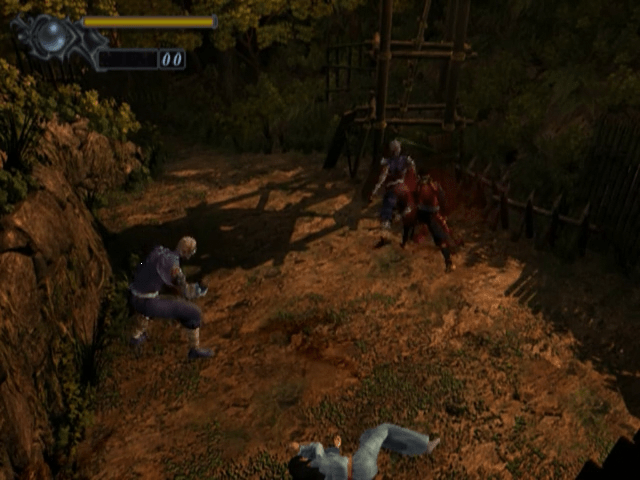
When your character defeats an enemy, a soul may appear. There are three colors of souls, each with a different effect:
•
RED SOUL - Enhances Ogre Gauntlets or an Orb.
•
BLUE SOUL - Increases your character's Magic Power.
•
YELLOW SOUL - Increases your character's vitality.
The amount of the souls will vary depending on how your character defeats enemies. Figure out how to get as many souls as possible.
How to Absorb Souls
Hold down the button to absorb the souls. Do so quickly, since souls disappear after a while. You can see the result of absorbing souls in the Soul Counter.
Inventory
Press the START button to display your character's Inventory. Toggle between different sections of the Inventory by pressing the L1 or R1 button.
Certain characters cannot use certain items. When your character cannot use an item, the item is dimmed.
Equip
This screen appears first when you display the Inventory. It shows the weapons and armor you have acquired. Highlight an item and press the X button to use/equip it.
Item
Press the L1 or R1 button in the Inventory to display the ITEM screen. Use the directional buttons to highlight items. A picture and description of each highlighted item are displayed. Press the X button to use/equip the item.
File
Press the L1 or R1 button in the Inventory to display the File screen to view the files you have acquired. Highlight a file and press the X button to read it. While reading a file, scroll the text with the directional buttons.
Map
Press the L1 or R1 button in the Inventory to display the Map screen to view the maps you have acquired. Highlight a map and press the X button to see its details.
You can also check your current location by pressing the R3 button (right analog stick) during gameplay.
Return to Gameplay
To return to the gameplay screen, press the ▲ button, or highlight EXIT on the Inventory and press
.png)

.png)
.png)
.png)


_1.png)

.png)


.png)

.png)


.png)



.png)