Getting Started
Set up your PlayStation®2 computer entertainment system according to its Instruction Manual. Ensure the MAIN POWER switch (on the back of the console) is ON.
Press the RESET button. When the power indicator lights up, press the OPEN button to open the disc tray. Place the Scaler disc on the disc tray with the label side facing up. Press the OPEN button again to close the disc tray.
Attach game controllers and other peripherals as appropriate. Follow on-screen instructions and refer to this manual for information on using the software.
PlayStation®2 Components
Saving and Loading
Scaler prompts you to save data during a game using a memory card (8MB) (for PlayStation®2). Insert a memory card into MEMORY CARD slot 1 of the PlayStation®2 system before starting a new game or loading a saved game.
Scaler's file uses 74KB of memory and has room for three saved games.
Load Game Menu
The Load Game menu can be accessed from the Main Menu. If you have previously saved a game, use the directional buttons or left analog stick to select the saved game you want to play. Press the button to confirm your selection.
How to Play
Scaler has many cool abilities. Some he starts with, many he can upgrade, and one he needs to acquire.
Scaler Abilities
Sink your claws into select vertical surfaces and climb to new areas.
Once you've acquired this ability, you can sneak by deadly traps and confuse your enemies.
Surf the vines to gain access to new areas. You can also use the vines to charge up your electric bomb attack.
Menu Screens
IMPORTANT
Use the directional buttons or the left analog stick to highlight your selection. Press the button to confirm. Press the button to go back.
Main Menu
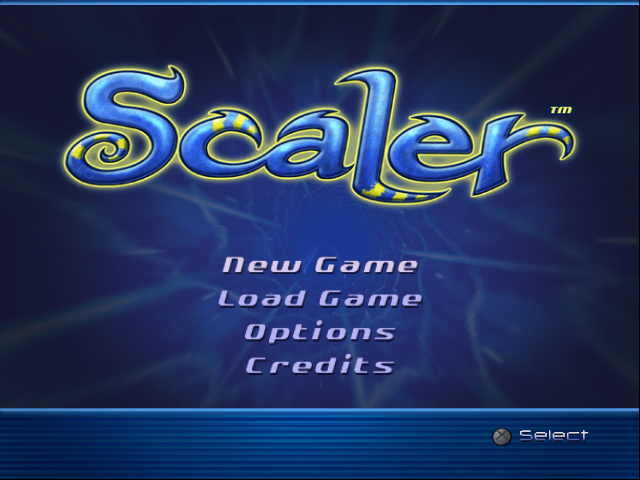
From the Main Menu, select New Game, Load Game, Options, or Credits.
Lets you begin a new adventure!
If you have previously saved a Scaler game onto a memory card (8mb) (for PlayStation®2), you can load it and continue on your adventure! See Saving and Loading for more information.
Here you'll find all the settings you need to tailor Scaler to your own tastes. See the Options Menu section for more details.
Here you'll be able to view the game credits.
Options Menu
You can reach the Options Menu by selecting it from either the Main Menu or the Pause Menu.
Panel Menu
Here you can set the state of the panel and the mini-map. You can have the panel display when there is a significant change such as when you take damage, or it can be up at all times. You can display the mini-map by toggling it on and off with the R3 Button or you can display it at all times.
Language Menu
On the Language Menu, select the language you would like the game to display.
Audio Menu
Select either Music or Sound Fx. Once selected, use the left and right functionality of the directional buttons or left analog stick to adjust the volume.
Vibration Menu
Select "On" or "Off" to turn the vibration function on or off.
Camera/First Person Menu
To control how the right analog stick moves the camera. Select either X axis or first person view. Once selected, use the left or right directional buttons or left analog stick to select "normal" or "Flipped." When you are satisfied with your settings, press the button to confirm.
Level Map
This displays a map of the current level. Your current position is indicated by a yellow arrow. Your current objective is indicated by a star.
Use the right analog stick to zoom in and out on the map. Use R1 and L1 to move up and down between levels on the map.
Save
This displays the save game slots. Use the directional buttons or left analog stick to select a game slot. If the slot is open, the game will be saved.
If there is an existing saved game in the slot, you will be asked to confirm your selection. "Yes" overwrites your existing save with your current save and then returns to the Pause Menu. "No" will return to the Pause Menu without saving.
Quit Game Option
This option is only available when you pause the game. You will be asked to confirm your selection.
Quit Level Option
This option is only available when you pause the game. You will be asked to confirm your selection. Quitting the level will take you back to the world map.
World Map / Gallery
You can also press the R1 button while you are on the World Map to access the Gallery. As you collect more Crystal Gems, more pictures will become available.
.png)

.png)
