MEMORY CARD slot 2
MEMORY CARD slot 1
disc tray
RESET button
OPEN button
USB connector
controller port 1
controller port 2
*Note: Illustration may not match all PlayStation 2 console types. For owners of SCPH-70000 series PlayStation 2 systems, refer to the setup instructions supplied with your system. Setting Up Your PlayStation 2
Set up your PlayStation®2 computer entertainment system according to the instructions in its Instruction Manual. Make sure the MAIN POWER switch (located on the back of the console) is turned ON.
Press the RESET button. When the power indicator lights up, press the OPEN button and the display will open. Place the SOULCALIBUR®III disc on the disc tray with the label side facing up. Press the OPEN button again and the disc tray will close.
Attach game controllers and other peripherals, as appropriate. Follow on-screen instructions and refer to this manual for information on using the software.
Starting the Game
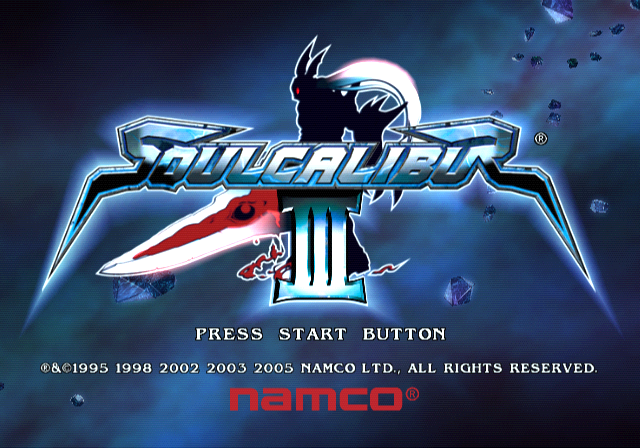
If the disc is properly set in the PlayStation®2 hardware and the game is started, the Title Screen will be displayed. Press the START button to go to the Mode Select Screen.
Mode Select Screen
Single Player Modes
The single player mode includes seven sub-modes including Tales of Souls Mode, Chronicles of the Swords Mode and Character Creation Mode.
VS Modes
The modes in this section allow you to play against another player.
Shop
Buy weapons for your characters and other items.
Options
Change settings and save or load your data.
About Save Data
When saving game progress, insert a memory card (8MB) (for PlayStation®2) with at least 300KB of free space into MEMORY CARD slot 1 or slot 2. Then start the game.
About Progressive Output
Higher video quality can be enjoyed if a component AV cable for PlayStation®2 (SCPH-10100U) and a progressive scan (525p) television set with component video input are used. If a television set without progressive scan (525p) capabilities or a connection other than with a component AV cable is being used, the picture may not display properly in progressive scan mode.
For instructions on how to use the component AV cable to connect the PlayStation®2 to a television set, please consult the instruction manual for the PlayStation®2 or the diagrams included with the component AV cable. Furthermore, please set the Component Video Out settings on the PlayStation®2 to Y Cb/Pb Cr/Pr under System Configuration. Some television sets with component video inputs may not be progressive scan (525p) enabled. Please consult the television set's instruction manual or contact the manufacturer to confirm.
Selecting Progressive Mode
Hold down the button and the Button while the game is booting, and the following prompt will appear: "Change to Progressive Mode?" Carefully read the warning on the screen. Select "Yes" with the directional buttons and confirm with the button to switch to progressive mode.
Character Creation
Create your own original characters and change the color of standard character parts such as hair and costume. Use your own created character to play in other modes such as Soul Arena, Practice, and VS Standard modes.
Menu Screen
When "Custom Character Creation" is selected, the Menu Screen will be displayed. Select a submenu with the directional buttons or the left analog stick, and confirm your selection using the button.
Edit character.
Save characters that have been created.
Load game data saved on a memory card (8MB) (for PlayStation®2).
Delete character. Choose the character you would like to delete and select this option.
Return to SOULCALIBUR®III Title Screen.
Character Select
Selecting "Edit" from the menu screen will display the Character Select screen. Select a blank space when creating a brand new character, or select a character that has already been created to edit that character. As the game progresses the number of characters that can be created will increase.
Select Gender & Job
When creating a brand new character, you choose the character's gender and job. Gender does not have an effect on the character's abilities. The character's job determines the fighting discipline and techniques the character can perform. It is not possible to change gender and jobs once they have been decided. As the game progresses, the jobs that can be chosen increase.
Viewing the Edit Screen
This is the screen used to edit the character.
The following items are lined up from the left: "Edit Equipment," "Edit Color Scheme," "Edit Face," and "General Menu."
On the top is the good and evil meter, and the bottom is the light and dark meter. The character's personality changes according to the parts they are equipped with, and the character's dialogues as well as motions vary depending on their personality.
It is possible to adjust the camera or zoom in and out with the L2 button, R2 button, and right analog stick.
•
Parts Currently Equipped
Chronicles of the Sword
In this mode, you are able to use your created character as the main character of a real time strategy game. You are able to choose your own unit and fight in an arena, or battle on the map. As your enemies move in real time, every decision you make


.png)

.png)
.png)


_1.png)