GETTING STARTED
Set up your PlayStation®2 computer entertainment system according to the instructions supplied with your system. Check that the system is turned on (the on/standby indicator is green).
Press the OPEN button to open the disc cover. Place Th3 Plan disc with the label side facing up in the disc holder, and then close the disc cover. Attach game controllers and other peripherals as appropriate. Follow the on-screen instructions and refer to this manual for information on using the software.
Memory Card (8MB) (for PlayStation®2)
To save game settings and progress, insert a memory card (8MB)(for PlayStation®2) into MEMORY CARD slot 1 of your PlayStation 2 system. You can load saved game data from the same memory card or any memory card (8MB) (for PlayStation®2) containing previously saved games. MAIN MENU
Press the directional buttons UP and DOWN to move. Press the X button to confirm and the △ button to cancel and/or return to the previous menu.
•
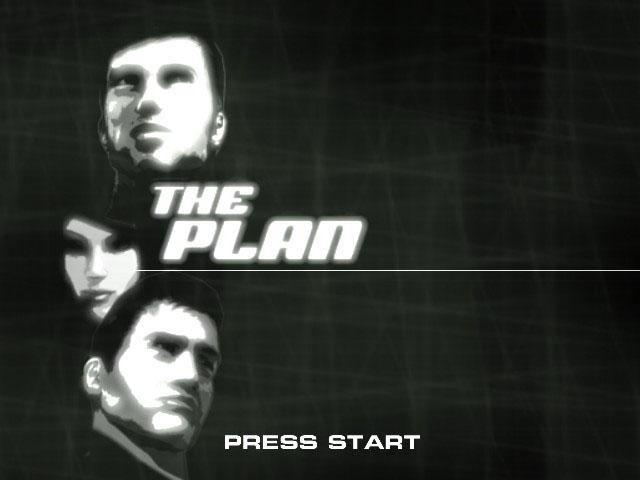
New game: Starts a new game.
•
Load game: Allows you to load saved games from the memory card (8MB) (for PlayStation®2) inserted in MEMORY CARD slot 1.
•
Bonus mode: Allows you to play a level you have previously completed in 1, 2 or 3 player mode depending on your results in single player mode.
•
Options: Allows you to access the options screen.
•
Credits: Shows the game's credits.
LOADING / SAVING
•
Name of the saved mission
•
Date and time the game has been saved
•
Foster's Villa - Interrogation
•
Time spent playing this game
Do not connect or disconnect any peripheral and do not remove a memory card (8MB) (for PlayStation®2) while the console is powered. You can only load a saved game if the memory card (8MB) (for PlayStation®2) is correctly inserted in MEMORY CARD slot 1.
Loading
To select a saved game, press the directional buttons UP or DOWN and then press the X button to load it. If you are already playing a mission, you must confirm that you wish to load the selected saved game as you will lose your progress in the current mission.
Saving
You can save your current mission's progress at any time during the game. Press the directional buttons UP and DOWN to select a saved game. If the saved game is not empty, you must first confirm you wish to delete the previously saved game. To cancel, press the △ button.
PLAYING AGAIN
If you have already completed a level in 1 player mode, you can play it again. If you have collected enough money, you can also play with 2 or 3 players (a multitap (for PlayStation®2) is necessary to play in 3 player mode).
Select the level you want to play with the directional buttons UP and DOWN, then select the amount of players with the directional buttons LEFT and RIGHT (only if the selected level has this option available).
2-player mode
To be able to play in 2-player mode, you must connect the first player's DUALSHOCK®2 Analog Controller in controller port 1 and the second player's DUALSHOCK® 2 Analog Controller in controller port 2. Player 1 controls the character in the top window and player 2 controls the character in the left bottom window. Player 2 can also control the third character with the R2 button by switching screens (the R1 and L1 buttons allow you to control the character at the bottom right without changing screens).
3-player mode
To be able to play in 3-player mode, you must connect a multitap (for PlayStation®2) in controller port 2, a DUALSHOCK®2 Analog Controller in controller port 1 for player 1, a DUALSHOCK®2 Analog Controller in controller port 2-A for player 2, and a DUALSHOCK®2 Analog Controller in controller port 2-B for player 3.
Player 1 controls the character in the top window, player 2 controls the character in the left bottom window, and player 3 controls the character in the right bottom window.
CONTROLLING YOUR CHARACTERS
To move your character, move the left analog stick in the direction you want the character to go. The longer you press the left analog stick the faster the character will go. You can interact with the environment using the controller buttons as follows:
L1/L2 and R1/R2 buttons
You control the character in the top window by default, but you can also control the characters in the bottom windows. You can do this in two ways:
•
L2/R2: These buttons will call one of the two characters in the bottom windows (L2 button for the character in the left window and R2 button for the character in the right window). The three windows will rotate and the one you have selected will appear at the top. You can now control your new character.
•
L1/R1: You can also control a character