Starting the Game
PlayStation®2 Setup
Set up your PlayStation®2 computer entertainment system according to its Instruction Manual. Make sure the MAIN POWER switch (located at the back of the console) is turned ON.
Press the RESET button. When the power indicator lights up, press the OPEN button to open the disc tray.
Place the TimeSplitters Future Perfect™ disc on the disc tray with the label side facing up. Press the OPEN button again to close the disc tray. Attach game controllers and other peripherals as appropriate. Follow on-screen instructions and refer to this manual for information on using the software.
Multitap Connection
When using the Multitap (for PlayStation®2), a controller must be connected to controller port 1-A.
•
multitap connector (for PlayStation®2)
Loading a Profile
Highlight your chosen profile from a memory card inserted in MEMORY CARD slot 1 or MEMORY CARD slot 2. Press the button to load it and continue to the Main menu.
If no profile names appear on-screen, check that a memory card containing your saved profiles is inserted in MEMORY CARD slot 1 or MEMORY CARD slot 2. Highlight CHECK FOR SAVED PROFILES and press the button. The names of your saved profiles will appear.
Story Mode
Immerse yourself in an epic adventure unfolding somewhere between the recent past and the distant future as time-tripping spacetime marine Cortez. Race against time to trace the origin of the vicious TimeSplitters and save the world from annihilation. To start your game in Story mode:
•
Select STORY in the Main menu.
•
Choose the level you want to play. Only one level is available initially—completing a level unlocks the next one for play.
•
Select the level of difficulty: EASY, NORMAL, or HARD.
•
Read the mission description and press the button. Gameplay begins.
Want an ally? Take on the TimeSplitters with a friend by selecting two players and then Story mode in the Main menu. Player Progress
To see how well you are doing on your mission, select PLAYER PROGRESS in the Main menu. View STATISTICS, ARCADE AWARDS, and the GALLERY for each profile.
Settings
Change some of your settings here and the others in-game.
Press the D-button to select which profile to apply the setting changes to.
Set your control preferences (see Controls on p. 7).
Share your progress with friends. Copy and save a particular profile from one memory card to another. There is no limit to how many profiles you can store.
Enable or disable the Autosave feature.
For controls and audio/video options, see Options on p. 7.
Extras
View the TimeSplitters Future Perfect MOVIES and CREDITS. Options and Status Menus
Press the START button while playing to bring up the Options and Status menus. Press the D-button to highlight either OPTIONS or STATUS.
Options
Press the D-button to cycle through the options and press the button to select one. Most of the options in TimeSplitters Future Perfect are self-explanatory and are therefore not covered in this manual. Exceptions are listed below. Configure the basic controls. Choose between CLASSIC, CLASSIC B, RADICAL, RADICAL B, and CUSTOM. Change any of the configurations by selecting CUSTOMIZE.
Decide whether you require a crosshair to help you aim and, if so, how it should behave. Choose between ON AND FIXED, OFF, and ON AND MOVING.
Select how you switch between weapons. Choose between IF NEW AND BEST (if a newly-collected weapon is the best in your arsenal it is automatically equipped), ALWAYS (whenever you collect a weapon it is equipped), NEVER (weapons are only changed manually), BEST (the best weapon in your collection is selected), and IF NEW (newly-collected weapons are equipped).
Press the D-button to adjust the screen position.
Status
The Status menu is not always available depending on which game mode you are playing. Story mode displays your main objectives and informs you when you have completed them. Arcade mode has a SCORES menu instead, while Challenge mode shows scores and objectives (and stats where applicable).
For more information on Arcade and Challenge modes, see Arcade Mode below and Challenge Mode on p. 8.
Other Game Modes
Arcade Mode
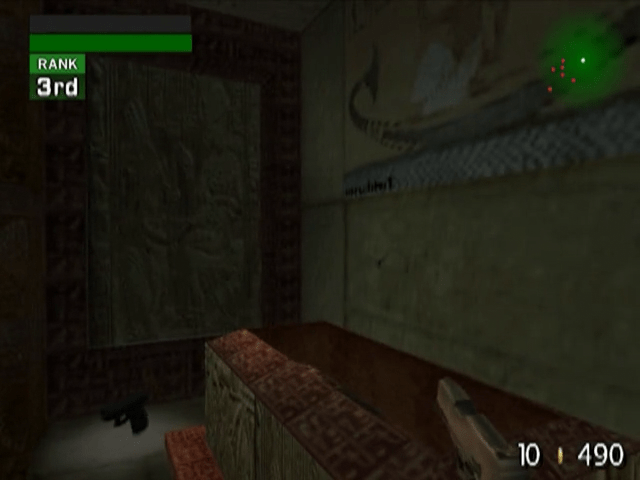
Take part in a series of multiplayer games played on specially-created maps. Arcade mode is all about winning: thrash human and AI 'bot opponents to earn rewards and build up your stats.
To play an Arcade game:
•
Select ARCADE at the Main menu, then choose ARCADE at the Arcade Type screen.
•
Choose a game mode and a location.
•
Adjust the various preferences to your liking and select GO when
.png)

_1.png)
_2.png)
_2.png)
_3.png)
.png)
.png)