GETTING INTO THE GAME
STARTING A GAME
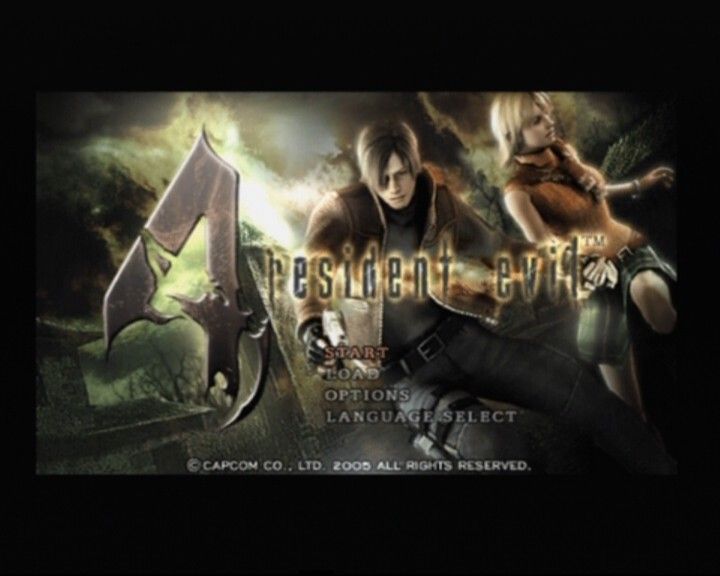
Press the START button to skip the opening movie and display the Mode Select screen. Use the menu controls (page 3) to select an option.
•
START: Start a new game from the beginning. After you complete the game the first time, you can select a difficulty level the next time you play.
•
LOAD: Load your saved progress and continue your game. Selecting the last saved file (page 21) lets you resume the game from where you left off.
•
OPTIONS: Change various game settings (page 7).
PROGRESSIVE SCAN MODE
This game can be set to display a higher quality picture on TVs that support progressive mode. To enjoy progressive mode, you need a progressive mode enabled (525p) television with component video inputs, and a PlayStation 2 Component Video Cable (SCPH-10100; sold separately). For instructions on setting up for progressive mode, see your PlayStation 2 Instruction Manual or the instructions for the Component Video Cable. If you are unsure about your TV's compatibility, refer to the TV's instruction manual or contact the manufacturer. To activate progressive mode, press and hold the and buttons while the game is starting up. A message will appear prompting you to switch over to progressive mode. Select YES to activate the mode.
If the picture displays correctly, select YES again. If the picture does not display correctly, press the RESET button and use Normal Mode.
NOTE: On some TVs, activating progressive mode sets the image to wide screen (16:9) format.
OPTIONS SCREEN
Select OPTIONS from the Main Menu, or press the SELECT button in-game to open the Pause/Options menu. Change various game settings on this screen.
Highlight an option by moving the left analog stick or directional buttons / and change the setting by moving it /.
•
LOAD GAME: Resume a game from your last save point (page 21). (Available from the in-game Pause/Options menu only.)
•
RETRY FROM A CONTINUE POINT: Restart the game from the last checkpoint you passed. (Available from the in-game Pause/Options menu only.)
•
CONTROLLER SETUP: Set the camera angle and sight control, toggle INVERTED AIM on/off, switch the CONTROLLER CONFIG (TYPE I or TYPE II), turn the controller's vibration feature on/off, and select your QUICK KNIFE (TYPE I or TYPE II).
•
SCREEN ADJUST: Adjust the brightness of your TV screen (if available on your TV), and toggle the widescreen display on/off.
•
AUDIO SETUP: Select STEREO, MONAURAL, or DOLBY PRO LOGIC II depending on your system's audio setup (see below).
NOTE: Be sure to read the screen hints for further information when changing settings.
FOR DOLBY® PRO LOGIC II DECODING
This game is presented in Dolby Pro Logic II. Connect your game console to a sound system with Dolby Pro Logic, Dolby Pro Logic II, or Dolby Pro Logic IIx decoding to experience the excitement of surround sound. You may also need to select Dolby Pro Logic II from the Audio Setup menu of the game.
AIM AND SHOOT!
Hold the R1 button to ready your weapon and use the left analog stick or directional buttons to aim using your weapon's laser sight.
•
Press the button to shoot (attack).
180° TURN
•
While moving backward (left analog stick or directional buttons ), press the or button to do an "about face"!
KNIFE ATTACK
Hold the L1 button to switch to the Knife regardless of your equipped weapon.
•
While holding the L1 button, press the button to slash.
ACTION BUTTON
When you see the Action Button hint on screen, press the indicated button(s) to perform various awesome actions. WEAPON RELOAD
•
While holding the R1 button, press the or button to reload your weapon.
•
Some weapons take longer to reload.
•
Get close and press the button!
MAP SCREEN
Select MAP from the Subscreen, or press the button while in-game for quick access to the Map.
ATTACHE CASE
ORGANIZING ITEMS IN YOUR ATTACHE CASE
•
Highlight the item you want to move, then press the button.
•
Move the cursor to an empty space.
•
Press the button again to complete the move.
•
Press the L1 and R1 buttons to rotate the selected item.
You can only pick up items if there is free space in your Attache Case. Manage your items and space so you're always carrying the most important items for the tasks ahead.
TEMPORARY SPACE
When you don't have enough space for every item, you can place extra items in the Temporary Space.
SELECT MARKER
Select the item you want to see and it will appear on the Map, showing you its location.
COMBINING ITEMS
By combining related items, you can free up space in your inventory and even power up your weapons.
COMBINING HERBS
•
Highlight the herb you want to combine, press the button and select COMBINE.
•
Line it up with the second herb.
•
Press the button to combine the original herbs into a new herb.
WEAPONS DEALER
Talk to the Weapons Dealer to buy and sell items. Here you can:
•
BUY: Purchase weapons and parts.
.png)

.png)




.png)




.png)