GETTING STARTED
Set up your PlayStation®2 computer entertainment system according to the instructions in its Instruction Manual. Make sure the MAIN POWER switch (located on the back of the console) is turned ON.
Press the RESET button. When the power indicator lights up, press the OPEN button and the disc tray will open. Place the TOMB RAIDER: LEGEND™ disc on the disc tray with the label side facing up. Press the OPEN button again and the disc tray will close.
Attach game controllers and other peripherals, as appropriate. Follow on-screen instructions and refer to this manual for information on using the software.
MEMORY CARD (8MB)(for PlayStation®2)
To save game settings and progress, insert a memory card (8MB)(for PlayStation®2) into MEMORY CARD slot 1 before powering on the system. At least 155KB of free space on the memory card is required to save game data.
This game supports saving and loading of game data in MEMORY CARD slot 1 only. You can load saved game data from the same memory card or from any memory card containing previously saved TOMB RAIDER: LEGEND™ games.
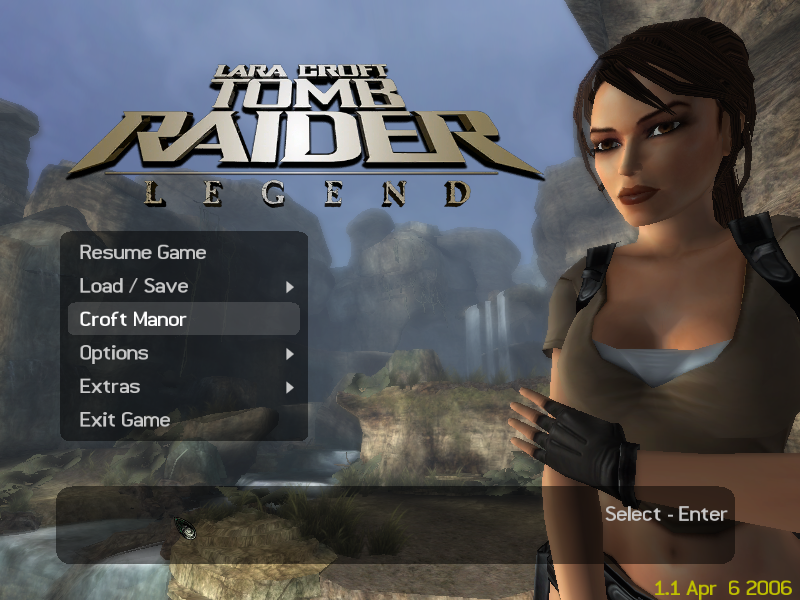
MAIN MENU
START GAME
Start a new game. If saved data is present on your memory card, this option changes to RESUME GAME and resumes play from the last save.
LOAD
•
NEW GAME: Start a new game.
•
LOAD GAME: Displays a list of saved games. Select a save and press the button to load it.
•
LOAD LEVEL: Displays a list of completed levels (present in the loaded save). Replay these levels to collect rewards, play in different difficulty modes, or attempt a Time Trial.
CROFT MANOR
You can visit Lara's expansive manor via the Main Menu throughout the game. However, to gain full access you must have a saved game containing at least one completed mission. Only then will all the Manor's secrets become approachable for you to discover. OPTIONS
Press the left analog stick or directional buttons to select an option and to change the setting. Press the button to confirm your Options changes, or press the button to return to the Main Menu without change.
•
SOUND: Adjust the volume of MUSIC, SFX and VOICE VOLUME.
•
DISPLAY: Use the Display Menu to adjust the following options:
•
SUBTITLES: Set subtitles ON/OFF or to your preferred language.
•
SCREEN POSITION U/D: Use the slide bar to adjust the screen position up/down.
•
SCREEN POSITION L/R: Use the slide bar to adjust the screen position left/right.
•
WIDESCREEN: Turn ON/OFF. Selecting ON enables a widescreen 16:9 aspect ratio image.
•
PROGRESSIVE SCAN MODE: Turn ON/OFF. Selecting ON switches to a 525p image. Progressive scan offers higher-quality pictures but requires a screen that supports this feature.
OPTIONS continued
•
CAMERA: Set the following camera options to YES or NO:
•
AIM & BINOCS INVERT X-AXIS
•
AIM & BINOCS INVERT Y-AXIS
•
CONTROL: Set the following control option:
•
CONTROLLER CONFIGURATION: Select DEFAULT, ALTERNATIVE 1, ALTERNATIVE 2 or ALTERNATIVE 3.
•
Then choose from the following (for any control option):
•
COMBAT MODE: Select STANDARD, ADVANCED HOLD, or ADVANCED TOGGLE.
•
VIBRATION: Select ON or OFF.
•
CALIBRATION: Press the left analog stick to adjust the screen BRIGHTNESS and CONTRAST.
•
EXTRAS: Access information and bonus content within TOMB RAIDER: LEGEND™. By completing levels and collecting rewards along the way, you will unlock items that you can then select and view here.
DIFFICULTY LEVELS/SCREEN MODES
When you start a new game, you'll be prompted to select a difficulty level and set two screen options:
•
DIFFICULTY: Choose EXPLORER (easy), ADVENTURER (medium) or TOMB RAIDER (hard).
•
WIDESCREEN: Turn ON/OFF. Selecting ON enables a widescreen 16:9 aspect ratio image.
•
PROGRESSIVE SCAN: Turn ON/OFF. Selecting ON switches to a 525p image. Progressive scan offers higher-quality pictures than does interlaced scan, but requires a screen that supports this feature.
Once you make your screen mode selections, you will not be prompted again unless you start a New Game. However, you can change these options at any time from the Pause Menu/Options Menu (press the START button to pause the game and select OPTIONS).
SAVING AND LOADING THE GAME
Press the START button during play to display the Pause Menu; from here you can save your progress and rewards and load a saved game.
SAVING YOUR PROGRESS
Every game level has several checkpoints to pass. The word CHECKPOINT will appear in the bottom right of the screen to inform you when Lara has passed a checkpoint. This is a good place to save your progress. Press the START button to access the Pause Menu and select SAVE. From here you can choose to create a new save game or overwrite an existing save
.png)

_1.png)
.png)
_1.png)



.png)

.png)



.png)
