GETTING STARTED
Set up your PlayStation®2 computer entertainment system according to the instructions supplied with your system. Check that the system is turned on (the on/standby indicator is green).
Insert the Warriors Orochi™ disc in the system with the label side facing up. Attach game controllers and other peripherals as appropriate. Follow the on-screen instructions and refer to this manual for information on using the software. Starting a Game
1. Insert the game disc into the PlayStation®2 console and insert a memory card (8MB) (for PlayStation®2) into MEMORY CARD slot 1.
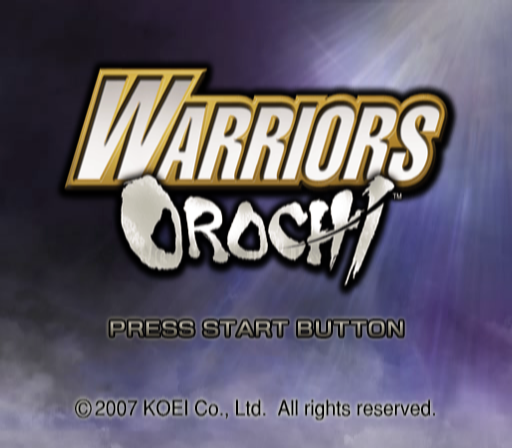
2. When the game loads, the opening sequence will begin. When the opening sequence finishes, or when you press the START button, the title screen will appear.
3. Pressing the START button at the title screen will bring up the Main Menu screen.
•
You must have a PlayStation®2 memory card (8MB) (for PlayStation®2) to save game data. At least 230KB of space is required to save.
Main Menu
Choose the mode of game play.
•
Story Mode Choose a force (Wei, Wu, Shu, Samurai) to play through the storyline for that force. The characters you control can be changed between each scenario. Satisfying certain conditions will unlock additional playable characters and scenarios.
•
Free Mode Play with any unlocked characters, in whichever unlocked scenario you please. Character development data will be shared with Story Mode.
•
Gallery View characters, weapons and movies that appear in the game.
•
Options Change the settings for gameplay.
•
Continue Resume the game from where you left off. This will only be displayed if you have interim save data in Story Mode or Free Mode.
Saving a Game
Following the display of the post-battle Results screen after clearing a scenario, you will be asked if you want to save your game data. You can also save from the Camp screen (P.18).
Saved character development data can be used in both Story Mode and Free Mode.
Saving During Battle
Press the START button during a battle and the Information screen will be displayed. Select Interim Save. After saving you can continue playing.
•
If you save during play again, previously saved data will be overwritten.
•
When you clear the stage, your interim save data will be deleted.
Loading a Game
Select Story Mode from the Main Menu, then select the storyline and the scenario you wish to play. If there is interim save data, you will be able to select Continue from the Main Menu.
Options
Game Settings
•
Life Display Life Gauges of all NPC characters [ON/OFF]
•
Events Display in-game events [ON/OFF]
•
Vibration Toggle vibration function [ON/OFF]
•
Controller Character Switch Change the buttons used to switch between characters you control [Type A / Type B]
•
Button Settings Change button settings
System
•
Sound Select sound setup [Dolby® Digital ProLogic® II / Dolby® ProLogic® II / Stereo / Mono]
•
BGM Set the volume for the background music [16 volume levels]
•
Sound Effects Set the volume for sound effects [16 volume levels]
•
Voice Set the volume for game dialog [16 volume levels]
•
Sound Test Listen to background music tracks from the game
•
Officer Reset Reset the abilities of a selected character to their default settings.
•
Save / Load Save or load data.
Dolby® Sound Setup
When using an optical cable, DIGITAL OUT (OPTICAL) should be activated on the console configuration Menu.
Setting up Dolby® Digital Pro Logic® II
If you have a sound system with Dolby Digital or Dolby Pro Logic IIx decoding, connect your game console to a sound system with a digital optical cable, and select "Dolby Digital Pro Logic II" from the sound options. The movie scenes will play back in Dolby Digital 5.1.
Depending on the decoding features of your sound system, the sound during the gameplay will playback in Dolby Pro Logic IIx, Dolby Pro Logic II, or Dolby Pro Logic.
Setting up Dolby® Pro Logic® II
If you have a sound system with Dolby Pro Logic IIx, Dolby Pro Logic II, or Dolby Pro Logic decoding, connect your game console to a sound system with either a digital optical cable or an analog cable. Select "Dolby Pro Logic II" from the sound options to experience the excitement of surround sound during gameplay, including movie scenes.
*This game uses both Dolby Digital and PCM audio. Some decoders will switch between both audio formats automatically, and others may not. Please refer to your sound system's instruction manual to determine if it is necessary to activate an "autodetect" feature.
Call Your Horse
•
【SELECT button】 Calls your horse to your side. The horse you rode most recently will appear.
•
*If you have not ridden a horse, a horse with low ability will appear.
•
*You cannot call a horse when inside a castle.
Mount/Dismount
•
( button while next to or on a horse】 Press the button while next to a horse to mount. Press the button while on a horse to dismount.
.png)

.png)
