PLAYSTATION SET UP
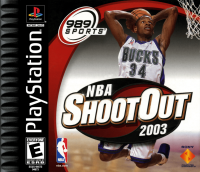
Set up your PlayStation game console according to the instructions in its Instruction Manual. Make sure the PlayStation power is off before inserting or removing a compact disc. Insert the NBA SHOOT OUT disc and close the CD door. Insert game controllers and turn on the PlayStation. Follow on-screen instructions to start. OPTIONS
You begin at the Options screen every time you play. There are three basic game modes: Exhibition, NBA Season, and Playoffs. NBA Seasons and Playoffs can be saved onto memory cards—Exhibition games cannot be saved.
The Game Options screen is explained below. The Trade Players screen is explained on page 18.
•
Press the D-Pad up/down to highlight your choice, and then press X.
GAME OPTIONS
The Game Options screen allows you to tailor the game to suit your preferences and skill level.
•
Press the D-Pad up/down to highlight your choice, and then press X to change the setting.
•
When you're finished with the Game Options screen, press Triangle to return to the setup screen.
Game Mode
The two modes — Simulation and Arcade — determine the style of play. In Simulation mode, the game closely follows the NBA rules. In Arcade mode, the players don't suffer fatigue, they can't foul out of the game, and there are no substitutions.
Difficulty
We recommend that you start out on Rookie level and work up to All-Star. In the unlikely event that you master All-Star, you can set up games between the weaker teams and the tougher teams, or you make trades to strengthen your opponent or weaken your team.
Dunk Replays
It's hard to imagine anyone not wanting to see the awesome dunk replays, but if you want to get through the game without delay, you can turn off the Dunk Replays.
CPU Assist
The CPU Assist feature allows you to keep the game close. With CPU Assist ON, your shots are more likely to fall when you're behind by a few baskets.
Commentator
The commentator setting controls the game commentary. If you turn it OFF, the commentary will not play during the game.
SELECT TEAMS (EXHIBITION)
In Exhibition play, the Select Teams screen shows a comparison between the two selected teams in four important categories. The longer the bar, the stronger the team is in that category. The team with the green bar is superior in that category.
NOTE: for 3-Pointer and Field Goals, your best player's ability is indicated by the length of the shaded portion of the bar.
•
To select a team, press the D-Pad left/right to highlight the home/visiting team, and then press up/down to cycle through the teams.
SELECT TEAMS (NBA PLAYOFFS/SEASON)
In Playoff and Season play, you use the Select Teams screen to select the teams you're going to control. All the games between teams that are not tagged will be played by the computer, and the results will appear in the standings.
•
To select a team, press the D-Pad to highlight the team, and then press X.
•
Press X to un-tag the team.
•
Press Start to continue.
CONTROLLERS
After you've selected your teams and settings, you need to assign the controller(s) to the appropriate teams. All the controllers plugged into the PlayStation appear on the screen. •
Press the D-Pad left/right to assign that controller to either the home or visiting team.
•
For a computer controlled game, do not assign any controllers.
•
Press Start to continue.
STARTING LINEUPS
Before you take the floor, you have the opportunity to modify your starting lineup. Every player on the bench is available for every position, so you're not limited as to who can play center, guard, or forward. It's wise, though, not to put a six-foot guard in at center or forward.
Notice that the highlighted player's stats appear in the box at the bottom of the screen.
•
To see a player's complete stats, press Square.
•
To replace a player, press the D-Pad left/right to highlight the player, and then press the D-Pad up/down to cycle through the available replacements.
•
To begin the game, press Start.
ON THE HARDWOOD
The controls, explained below, allow you to maneuver the players and execute offensive and defensive plays. Make sure to use the player attribute boxes at the top of the screen for a quick reference to the particular strengths and weaknesses of the player controlling the ball.
•
The Red bar indicates the player's 3-Pointer accuracy.
•
The Green bar indicates the player's Field Goal accuracy.
•
The Blue bar indicates the player's energy level. Pressing R1 gives the player a brief Turbo Boost, indicated by the blue bar.
•
The top letter indicates the offensive play.
•
The bottom letter indicates the defensive play.
Running the Court
Whether you have the ball or not, you need to guide the player under your manual control. The player you control is marked with a circle. Controller One has a green circle, controller Two a red circle. To move your player, press the D-Pad.
Pressing R1 gives the player you are controlling a brief turbo boost. The light blue bar at the top of the screen indicates how much turbo he has left.
Passing
Press X and Circle to pass the ball. The player with the ball always passes in the direction he is facing.
X executes a short pass
.png)

.png)
.png)

.png)


.png)
.png)
.png)

.png)
.png)
.png)

.png)





_1.jpg)