PlayStation Setup
Set up your PlayStation game console according to the instructions in its Instruction Manual. Make sure the power is OFF before inserting or removing a compact disc. Insert the NFL GameDay 2004 disc and close the Disc Cover. Insert game controllers and turn ON the PlayStation game console. Follow on-screen instructions to start a game. Console Top View
Console Front View
Kicking
To kick a punt or field goal, you need to first select the appropriate offensive formation by pressing ◄/► from the Play Calling screen to choose SP TEAMS. Press ◄/► from this formation to choose a kicking play.
•
Press and hold ✖ to start the kick power meter.
•
Release ✖ to kick the ball.
Passing Icons
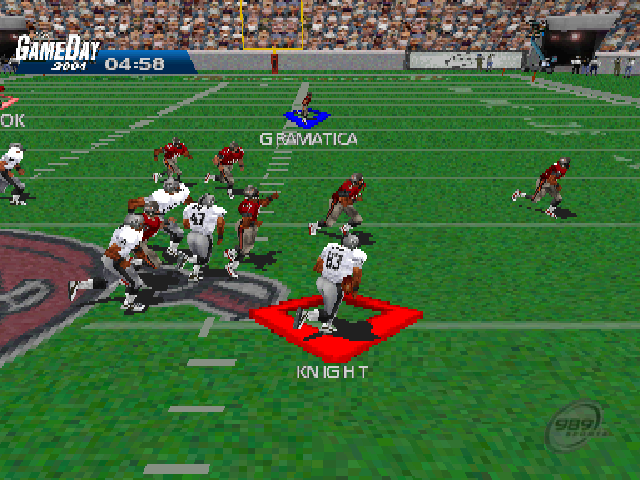
Passing icons are controller button symbols that correspond to each of your receivers. They enable you to make quick decisions, once the play starts, by creating a more visible target for your quarterback.
When the ball is snapped and the quarterback drops back to throw, button symbols will appear above each receiver. With these symbols visible, you can locate your receivers quickly and see who is open or breaking away from the defensive coverage. This allows you to progress through your quarterback reads faster.
With quicker reads, you can get the ball to an open receiver rather than trying to force a pass into coverage. Before the play starts, view the passing icons by pressing L2 to draw back the camera. Notice that each eligible receiver will be shown with a passing icon. Remember that running backs are often times used as eligible receivers.
Max Pass Protection
Max Pass Protection adds another blocker to protect your quarterback on passing plays. Before the ball is snapped, press R2 to activate Max Pass Protection. This keeps the running back, that was designated for a pass route, in the backfield as an extra blocker.
Play as Any Skill Receiver
In a 1-player game, before the ball is snapped, press to scroll through the eligible receiver icons for the play. The receiver icon you select will blink, indicating that you have control of that player.
After the snap, run any route with the controlled receiver. When you press the pass button, the ball will be thrown to that receiver.
Getting the Defense Ready
Getting your defense ready and figuring out your opponent's game plan will help your defense to be much more effective. Before the snap, press L2 to see how your defensive matchups line up against the offensive set.
If you see that you are out of position and you need to make a quick adjustment, press L2 + / to shift your defensive line and cover some of the gaps left open by the defensive play call.
User Records
User Records allow you to keep track of your stats for each game you play. You can create up to eight user names that can be assigned at the Team Select screen.
When you have accumulated some statistics, view the user stats associated with each player at the completion of 1-player or 2-player games. In a 2-player game, tag both players with a different user name and compare User vs. User game statistics.
Create User
Press / / ↑ / to select a user number.
•
Press / to highlight a letter, then press ↑ / to choose a new letter.
•
Press when finished editing a name.
•
Continue this process to create up to eight user names. You can delete a created name by selecting a user name and pressing . Press to confirm your deletion and continue.
•
Press when you are finished.
Memory Card
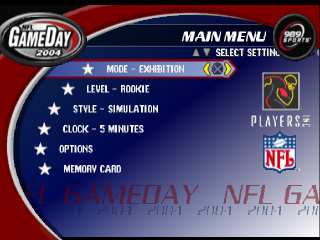
The MEMORY CARD is used to load and save files. Before starting an NFL GameDay 2004 game, you have the option to load a saved file from your MEMORY CARD. You can load Seasons, User Records or Rosters. Any file saved to the MEMORY CARD can be renamed or deleted at any time after the initial save. Memory Card Note
Make sure the MEMORY CARD is in the correct slot. To change to a different slot, press ↑ / ↓ to the MEMORY CARD option, then press ⬅ / ➡ to select a different slot.
Saving a File
•
Press ↑ / ↓ to the SAVE option.
•
Press ⬅ / ➡ to select the type of game information to save, then press ☯.
•
Enter a name for the file, then press ☯ to save the file.
Loading a File
•
Press ↑ / ↓ to the LOAD option.
•
Press ⬅ / ➡ to select the type of game information to load, then press ☯.
•
Press ↑ / ↓ to select a file, then press ☯ to load it.
Deleting a File
•
Press ↑ / ↓ to DELETE FILES, then press ☯.
•
Press ↑ / ↓ to select a file to delete, then press ☯.
•
When prompted, press ⬅ / ➡ to select YES, then press ☯ to delete the file.
Renaming a File
•
Press ↑ / ↓ to RENAME FILES, then press ☯.
•
Press ↑ / ↓ to select a file, then press ☯
•
Press ⬅ / ➡ to choose a character to modify, then press ↑ / ↓ to change the character.
•
Press ☯ to accept the file name.
Choosing a Game Mode