Console Top View
Console Front View
Setup
Set up your PlayStation® game console according to the instructions in its Instruction Manual. Make sure the power is off before inserting or removing a compact disc. Insert the NCAA GameBreaker 2000 disc and close the disk cover. Insert game controllers and turn on the PlayStation® game console. Follow on-screen instructions to start a game. Athletic Dept
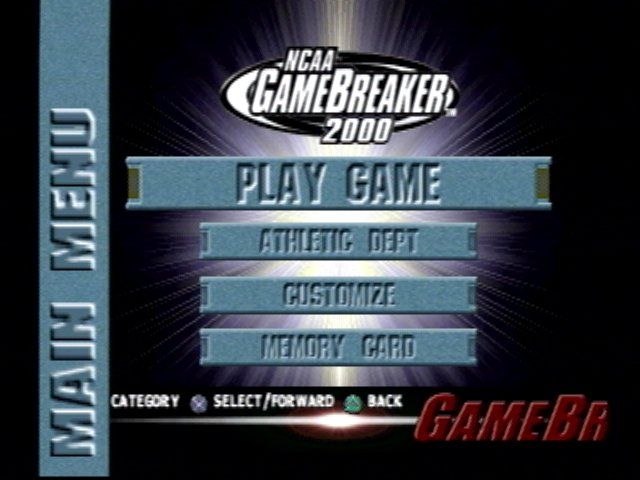
Use the Athletic Dept menu to view and manage team rosters.
View Rosters
View the player rosters of each college team. Rosters will show the physical attributes and skill ratings of each player by rating each stat based on a scale of 1-100.
•
D-Pad Left/Right to choose a team roster.
•
D-Pad Up/Down to view the entire roster and player ratings.
•
Press and to cycle through other skill categories.
Blue Chip Recruiting
Build your program into an instant powerhouse by recruiting the nation's top blue chip incoming freshmen and junior college transfers. Play through the Season and try to get your freshmen blue chips elected to the All-Freshmen team.
Go Recruiting
•
D-Pad Left/Right to select your recruiting team or press START to have the CPU randomly select a team for you. Be sure to review Rosters to see what kind of players your team needs.
•
D-Pad Up/Down to choose a Playbook. Selecting the type of Playbook your team will be using will help determine the type of quarterback you'll be recruiting. Choose a Passing or Balanced Playbook to recruit a classic drop back passing QB. Choose a Running Playbook to recruit a dynamic option QB.
Official Visits
From this screen you'll choose one of five recruits from nine positions.
•
D-Pad Up/Down to select a blue chip recruit. Frosh indicates a college true freshman. Junior indicates a junior college transfer.
•
Press to check a recruit and invite him on an official visit. If a school is highlighted in blue under school preferences, the recruit has given that school a verbal commitment. Flashing numbers indicate a gamebreaker. The higher a blue chip's overall attribute, the more national attention he'll attract.
•
Press to continue and repeat the previous steps to invite all nine recruits to your school.
Letter of Intent Day
On Letter of Intent Day, you'll know which recruits have chosen your school.
•
D-Pad Left/Right to view the recruits that other colleges have landed. Each blue chip signing with your school will be automatically placed on the roster depth chart and issued a jersey number.
•
Press to keep the current recruiting class or to discard and go recruiting again.
Create Walk-On
Create a coach's dream-come-true by molding a walk-on player in the form of an All-American athlete. Or simply create yourself, using your own physical attributes.
•
D-Pad Up/Down to a player attribute, then Left/Right to alter the selection. Notice that the player ratings at the bottom of the screen adjust as you alter the player attributes, retaining the characteristics of a complete player. Press and hold L2 + D-Pad Left/Right to move the attribute slider more rapidly. Press R1 + R2 to reset all slider settings.
•
D-Pad Up/Down to select the team option, then Left/Right to choose a team.
•
D-Pad Up/Down to select the jersey number, then Left/Right to choose a number.
•
D-Pad Up/Down to select the walk-on, then Left/Right to select a player position.
•
Determine your walk-on's position by the NCAA Prospects listing. If the prospects are an option quarterback or a halfback, select one of those two choices for your player's position.
•
D-Pad Up/Down to choose a player to replace and press .
•
Press to replace the player.
Edit Schedule
Switch a game on the schedule to a different date or give your team a breather from the college grind by creating a BYE on the schedule where it didn't exist before. You can also change the opponent of a scheduled game or simply change a game from Away to Home and give your team an advantage in an important matchup.
•
D-Pad Left/Right to choose a team schedule.
•
D-Pad Up/Down to choose a game on the schedule.
•
D-Pad Left/Right to change opponents.
•
To change the location of the game to Home or Away, press .
•
To change the week to a BYE week, press .
•
To choose a random opponent for a game, press . L2 + will choose random opponents for the entire schedule.
Load/Save Teams
After you have created players and/or altering rosters, save teams to the MEMORY CARD. You can also load a previously saved team. A team cannot be loaded after a Season has been saved. If you attempt to load a previously saved Bowl Season or Tournament, your current Bowl Season or Tournament will be canceled.
Note
Before altering files, select a MEMORY CARD slot by using the D-Pad to select Card 1 or Card 2 and pressing .
To Save a Team/Settings/Seniors

.png)
.png)
.png)

.png)


.png)


.png)



.png)