The game ends when you lose to the computer. You can continue the match from that stage by pressing the Start button from the Continue screen.
Two-Player Vs. Mode
Two players compete against each other. Refer to the Arcade Mode section for selecting a character's outfit.
After each player selects a character, a Handicap Selection screen will appear. Each player can adjust their handicap settings by pressing the Left or Right Directional buttons on their controllers. The larger the health meter, the less damage your character will take.
After making your selection, press the punch or kick button to start the match. After the first match, the Character Select screen comes up and displays the total number of wins and draws for each player.
Team Battle Mode
You begin the contest after choosing the number of team members and the characters to be used. The game is a competition where the victor is decided after each round. When playing against the computer, a second player join-in is also possible.
Decide the number of team members from 1 to 8. The same character cannot be used again on the same team. When one of your characters is beaten on your team, your next choice character starts the next round. The winning character is awarded a little energy for the next battle.
Survival Mode
You compete to see how many computer opponents you can defeat before your health meter runs out. You cannot change the degree of difficulty, the time limit, or the number of rounds.
There is no option for 2P join-in battle. The pause feature does not work in this mode. Each battle is one round. The game is over when your health meter runs out. When you defeat a computer opponent, your character is awarded a little energy for the next battle.
Time Attack Mode
In this mode, you compete against the clock until you complete all the stages and beat the game. The settings for the degree of difficulty, time limit and number of rounds cannot be changed.
When you continue, you do not have options to change characters or have the 2-player join-in battle. Furthermore, you cannot pause in this mode.
Practice Mode
In this mode you can practice moves and combos against a character who acts like a punching bag. First, with the Direction key, select the character that you will use, then select your practice partner. Various information about the current attack is displayed near the top left hand side of the screen.
Press the Start button to enter or exit the Practice menu. Press the Direction key up or down to make your selection, then change the contents with the Left and Right buttons.
•
Attack Data -- Turn the attack data on or off at the top of the game screen.
•
Counter Attacks -- Allow you to do counter hit damage to your practice partner.
•
Replay Settings -- Use this feature to automatically replay your 4-6 hit combos, or set it on manual replay to replay them yourself with the Select button.
•
Key Display -- Switch it on or off at the bottom of the game screen. This option is also used to select your character's available combos for practice, as well as the computer partner's combos. With Player or Com. highlighted, press down on the Direction key, then make your selection by pressing the Left and Right buttons. Press the Select button on the game screen to activate the autocombo feature.
•
Command List -- Use this option to see a listing of some of your character's moves. Press the Direction key up or down to cycle the list.
•
Player Select -- Choose this option to select a different character. Press any Punch or Kick button to select.
•
Reset -- Select this option to reset to the Title screen.
Option Mode
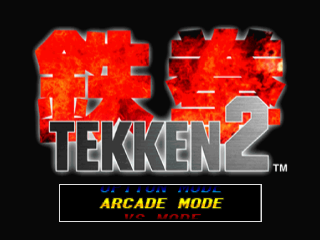
In the Option Mode, you can select the settings by using the Up and Down Directional buttons, then change the contents with the Left and right buttons. Press the Select button to exit.
•
Difficulty Level -- This is the strength of the computer. Choose the level (which ranges from Easy to Hard) that best suites your ability.
•
Fight Count -- You can change the number of rounds in a match from one to four.
•
Round Time -- The time limit for rounds ranges from 20 seconds to no limit.
•
Speaker Out -- This changes the sound output between Stereo and Mono.
•
BGM Select -- This changes the background music: Original, Arrange, or Silent.
•
Vs. Game Wins Shown By -- The number of wins can be displayed by fruit (as a picture) or by number (as a numeral).
•
Character Change at Continue -- When you continue in Arcade Mode, the character can be changed or selected.
•
Key Config. -- You can select either the two preset controller configurations or the free setting in which you can configure each button as you wish. In the free setting, press and hold one of the highlighted buttons, then press the Directional button left or right to change the action of that button. •
Quick Select -- This allows the player to change the Character Selection screen, so all the available characters are displayed at once.
•
Guard Damage -- This makes your character take some damage when blocking attacks.
Records
To view the current records, use the Left or Right Directional button.
•
Time Attack Data -- This screen holds the top 10 fastest completion times. It also shows the players' initials and the characters used to complete the game. This data can be saved to a memory card. Note: Memory cards are sold separately.
•
Greatest Survivor's Data -- This screen holds the top
 (Rev 1).png)

 (Rev 1).png)



_1.png)
_1.png)


.png)





.png)
.png)
_1.png)
_1.png)
.png)

_1.png)
_1.png)


_1.jpg)
