Starting Up
•
Set up your PlayStation® game console according to the instruction manual. •
Make sure the power is off before inserting or removing a compact disc.
•
Insert the Fifth Element disc and close the disc cover.
•
Insert game Controllers and turn on the PlayStation game Console. •
Follow the on-screen instructions to start a game.
•
A Memory Card is required to play Fifth Element.
Console Components
Menu Navigation
To select menu options, use the Directional buttons up/down to navigate through the menu options. Highlight the option you want to select, and hit the X button to accept.
Screens without menus will have button press options listed on the bottom of the screen.
Game Reset
To abort a game in progress, press the START button to pause the game. Choose Quit Game from the menu to return to the Fifth Element title screen.
Soft Reset
You can reset to the Fifth Element title screen at any time during gameplay by holding down SELECT, then pressing and holding START for two seconds.
Main Menu
Use the Directional buttons up/down to select an option and press X to select. There are four options on the Main Menu:
•
New Game - Select to start the game using the current settings. You will proceed to the Character Selection screen.
•
Load Game - Select to load a saved game from the Memory Card.
•
Options - Select to change game settings.
•
Tutorial - Select this option to view a brief tutorial video that will explain the game controls.
Load Game
If you select this option, the PlayStation will scan your Memory Card for Fifth Element saved games. Any saved games it finds will be displayed on the screen. Use the Directional buttons up/down to select a particular saved game and press X to load it. Use the △ button to return to the Main Menu without loading a game.
Options
Use the Directional buttons up/down to highlight an option, and press X to select. Use the △ button to return to the Main Menu. There are six options to choose from:
•
Sound Settings - Select this option to adjust the in-game sound and music volumes.
•
Screen Settings - Select this option to adjust the positioning of the game display on your TV screen.
•
Light - Select this option to change the brightness of the game display. Use the Directional buttons left/right to adjust the brightness from 0-10.
•
Difficulty - Select this option to adjust the game difficulty level. Use the Directional buttons left/right to select between easy, normal, and hard. The easy setting will reduce enemy hit points and increase the time allocated for timers. Hard setting will increase enemy hit points and reduce the time allocated for timers.
•
Films - Select this option to toggle the reward videos on or off. Use the Directional buttons left/right to select between On or Off.
•
Vibrations - Select this option to enable or disable force feedback (Dual Shock™ only). Use the Directional buttons left/right to select if the force feedback (vibration) is On or Off.
Sound Settings
Use the Directional buttons up/down to select either music volume, movie volume, or sound (effects) volume. Use the Directional buttons left/right to adjust volume. Press X to accept volume settings and return to Options. Use △ to return to Options without making changes.
Screen Settings
Use the Directional buttons to adjust the centering of the game display on your screen. Press X to accept screen settings and return to the Options screen. Use △ to return to Options without making changes.
Tutorial
The tutorial is a short movie that shows the basic game controls. You can press X during the tutorial to quit and return to the Main Menu.
Mission Intro Menu
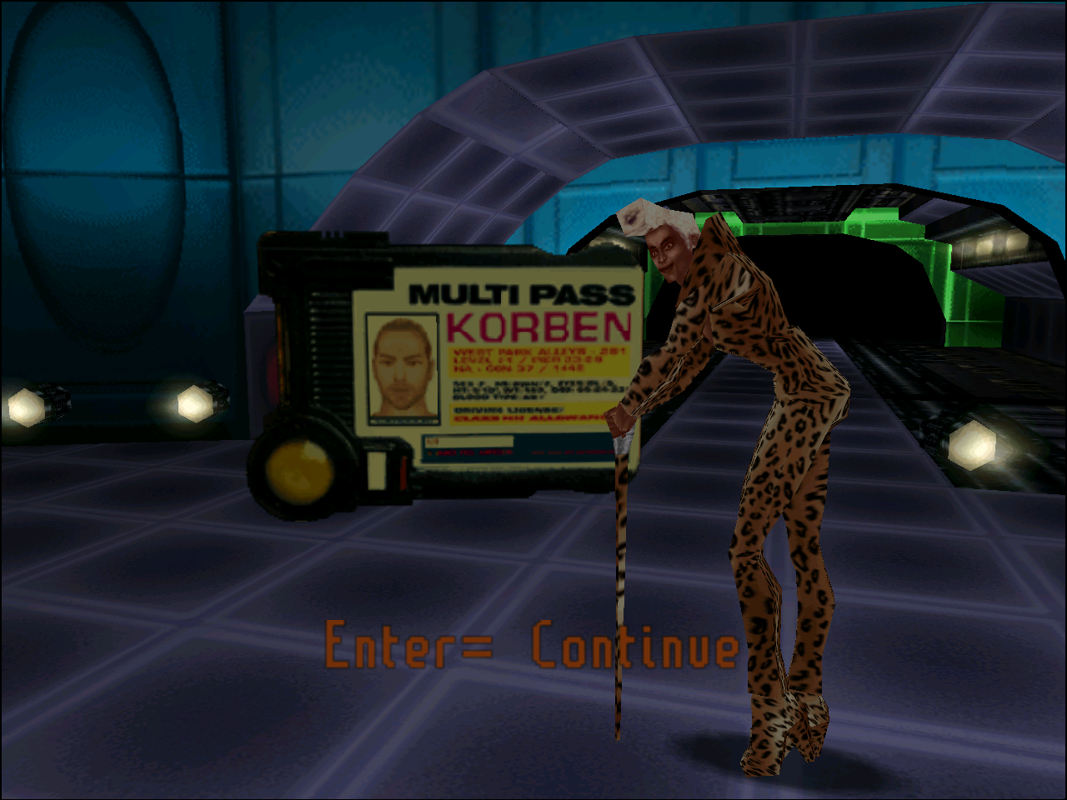
Ruby Rhod, the best DJ in the universe, will go to the extreme to put on the most incredible performance for his 50 billion listeners. He is here to tell your story...
Shield Power
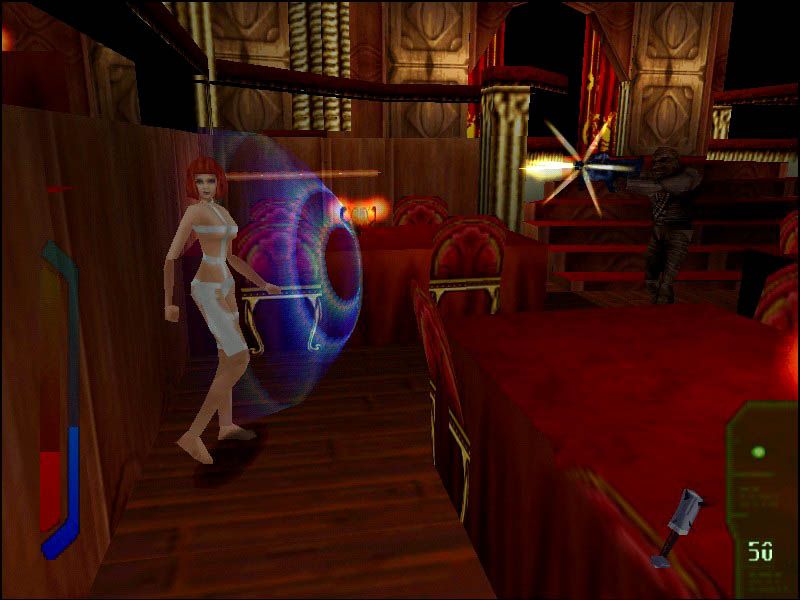
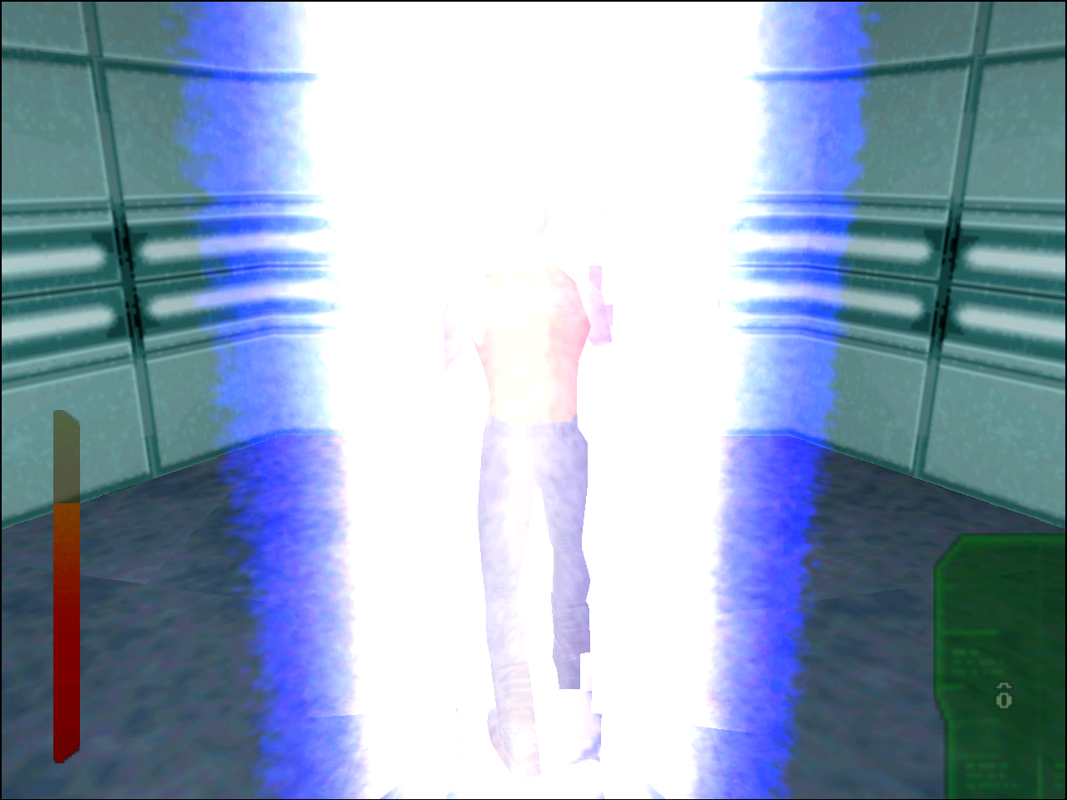
A blue shield power meter will be displayed beside your health meter. Any beam or bullet attack will reduce your shield power instead of your health.
When the shield activates, you will see a spherical blue corona effect surrounding your character and your blue shield meter will shrink towards the bottom of the screen. Once your shield is down, further attacks will reduce your health.
Inventory
Anything that you pick up will automatically be placed in your inventory. You can pick up items by walking over them or pressing the O button while standing near them.
All inventory items, except weapons, are selected automatically. If a particular item is useful in a certain situation and it is in your inventory, simply pressing the O button is sufficient to trigger its use.
Weapons and ammunition must be specifically selected. Pressing R1 while holding Select will change weapons. Pressing R2 while holding Select will change ammunition. Note that Leeloo's grenades are treated like ammunition - press R2 while holding Select to change the selected grenade type. Psionic Attack Charge
Leeloo's psionic attack can be triggered by simultaneously pressing X, and ↑. The powerful blast will neutralize all sentient beings in sight. Since the attack is so draining, she must recharge it before using it again. Pick-up a psionic energy power-up to recharge it. If charged, a pulsing white circle will appear in the transparent green panel in the lower right corner of the screen.



.png)
.png)



.png)




.png)