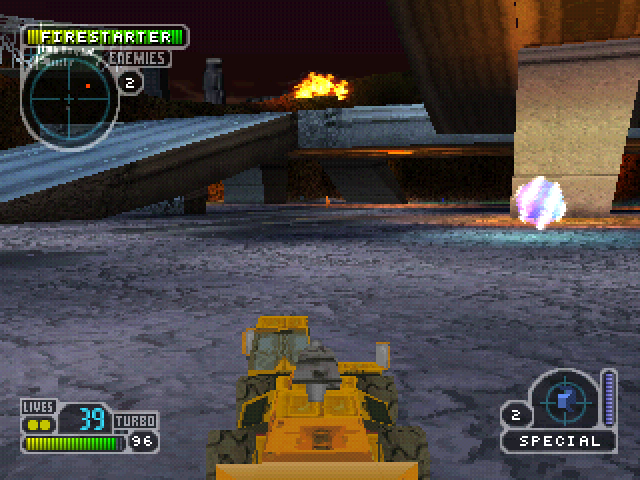
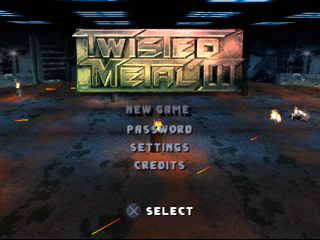
Setting Up The Game
From the Main Menu, select New Game, Password, Settings, or Credits. Use the Directional Buttons Up or Down to navigate, then press the button to confirm your selection.
If no selection is made within 30 seconds, a self-running demo will begin. Press the START button to return to the Title Screen.
New Game
At the New Game Menu, choose your Game Type (Tournament or Deathmatch), Number of Players, and Difficulty Level.
Number of Players
Choose between 1 and 4 players. For 3 or 4-Player games, a Multitap is required.
Difficulty Level
There are three difficulty levels:
•
Cream Puff (easiest): Play through the entire game, but without ending movies.
Players who complete all eight levels in Twisted Metal or Pure Lunacy modes will receive their ultimate wish from Calypso. Tournament
A Tournament is an eight-level game. To clear a level, you must destroy all opponent vehicles. Enemy vehicles are automatically chosen and their skill increases with each successful level.
The Tournament continues until all your lives are expired or all levels are completed. You can specify YES or NO for the following options:
•
CPU ALLY: Play with a computer-assisted ally. Ending movies are not shown when using a CPU Ally.
•
POOL LIVES: Share your total lives with a co-op player. The collective number of lives decreases when either player dies.
Deathmatch
A Deathmatch is a 1 to 4 Player game. You fight head-to-head against other players, and can also include enemy cars. The Deathmatch ends when one player destroys all other player vehicles, then resets for another battle.
Depending on the level, you can select up to seven enemy cars by pressing the button.
Deathmatch Menu Options (Player 1)
•
WORLD: Select your battleground.
•
CPU CARS: Dictate how many enemy cars you want to compete against (maximum 7).
•
CUSTOM: Press to enter the Custom Menu and specify:
•
CHOSEN WORLD REPEAT OR ADVANCE: REPEAT plays a level over after beating it. ADVANCE progresses to the next level after eliminating all opponents.
•
ONCE RANDOMLY: CPU selects cars once.
•
RANDOMLY EVERY WORLD: CPU randomly selects cars after every battle.
•
ONCE BY THE PLAYER: You choose exactly who to fight.
•
GAME ENDS WHEN: Choose how many matches to play, from 3 to Infinite.
•
MATCHES ARE PLAYED OR WON:
•
PLAYED: Deathmatch ends after a specified number of matches.
•
WON: Deathmatch ends when one player wins a specified number of matches. Tiebreakers are possible in WON mode.
Password
A password is awarded upon completing a level in Tournament mode. Press START to pause the game and view the password. To enter a Password, select PASSWORD from the Main Menu and then enter it.
Settings
Adjust the following:
•
SOUND VOLUME: Use Right and Left Directional Buttons to adjust sound effects volume.
•
MUSIC VOLUME: Use Right and Left Directional Buttons to adjust music volume.
•
ADJUST SCREEN: Manually realign display centering.
•
Dithered: Smoother picture.
•
Non-dithered: Sharper and crisper picture.
•
IN-GAME MENU: Choose YES for a text-only version of front-end menus for faster selections.
•
SKIP DISPLAY FRAMES: Choose YES to maintain constant 30 frames per second gameplay with up to 6 cars on screen.
Vehicle Selection
After selecting your game type, the Vehicle Selection Screen appears. Choose from VEHICLE, INFO, and PLAYER SETTINGS.
•
VEHICLE: Choose your vehicle for battle. Use Directional Buttons Left or Right to display a vehicle, then press the button to select it.
•
INFO: Provides additional information on vehicle handling, speed, power, and driver personalities. Press the button to access INFO.
•
PLAYER SETTINGS: Press the button to enter the Player Settings Menu. Adjust BUTTON SETTINGS, VIBRATION, and ABBREVIATED DISPLAY.
Button Settings
Assign any function or multiple functions to any button. Assign each function individually by pressing followed by the new button. Multiple functions can be assigned to one button (e.g., machine guns and accelerate).
To remove a button command, press START. To restore the default controller configuration, press the R1 button. After configuring, press Back, then use Directional Button Up to accept changes and continue.
Vibration
Turn Dual Shock Analog Controller vibration ON/OFF.
Abbreviated Display
Choose ON for a text-based HUD in multi-player games.


_1.png)