PlayStation 2 Console Layout
*Note: Illustration may not match all PlayStation 2 console types. For owners of SCPH-70000 series PlayStation 2 systems, refer to the setup instructions supplied with your system.* Setting Up Your PlayStation 2 System
Set up your PlayStation 2 computer entertainment system according to the instructions in its Instruction Manual. Make sure the MAIN POWER switch (located on the back of the console) is turned on. Press the RESET button. When the power indicator lights up, press the OPEN button and the disc tray will open. Place the ATV Offroad Fury 3 disc on the disc tray with the label side facing up. Press the OPEN button again and the disc tray will close. Attach game controllers and other peripherals, as appropriate. Follow on-screen instructions and refer to this manual for information on using the software.
Memory Card
To save game settings and progress, insert a memory card (8MB) (for PlayStation 2) into the MEMORY CARD slot 1 of your PlayStation 2 computer entertainment system. You can load saved ATV Offroad Fury 3 game data from the same card or any memory card containing previously saved games. Before playing online, a valid Network Configuration must be saved to the memory card using either the Network Adaptor Start-Up Disc or the ATV Offroad Fury 3 Network Configuration utility.
Network Adaptor
In order to play ATV Offroad Fury 3 online you must have an internet connection through a broadband or 56K dial-up account. You must also have installed a Network Adaptor (Ethernet/Modem) (for PlayStation 2) on your PlayStation 2 computer entertainment system before playing. Set up the Network Adaptor according to the instructions included in its packaging. *Caution: Unplug the AC power cord on your PlayStation 2 computer entertainment system before adding any networking equipment to the system.* *Note: ATV Offroad Fury 3 online must be played over a broadband (DSL, cable modem or higher speeds) or 56K dial-up internet connection.*
Player Profile Menu
Manage your profile from here. On the Main Menu, select OPTIONS and PROFILE.
•
LOAD - Load a profile for gameplay. Any game mode you select will depend on data stored in the loaded profile.
•
CREATE - Create a new profile. You can have up to four profiles.
•
DELETE - Delete a profile.
Unlock Features with Championship Credits
Compete in Single Player Championship competitions and win Credits to buy (unlock) important items for your racing career including new ATVs, parts, rider gear, tracks, mini games and music videos. Use the Championship to open up game features for Multiplayer competitions. You also unlock tracks and logos during championship participation and wins without spending Credits. See "Shop" on page 20 to see the selection of items for sale.
Main Menu
Single Player
Take the training course, compete in single events or whole championships. Design custom Enduro courses using the Waypoint editor.
•
SINGLE EVENTS - Choose this to just get into the action with your favorite event.
•
CHAMPIONSHIP - This is a career move. Select an event and go for domination. Earn Credits with Championship victories to unlock other game features, including track locations, events, new ATVs.
•
WAYPOINT - Create your own Enduro courses.
Multiplayer
•
ONLINE PLAY - ATV Offroad Fury 3 Online with up to five other riders.
•
LAN PLAY - Play over a Local Area Network where one or more PlayStation 2 consoles are connected by Ethernet cables. •
SPLIT SCREEN PLAY - Up to four players compete on one PlayStation 2 console. •
ONLINE COMMUNITY - Communicate, participate and get the latest online news.
Hall of Fame
View the best performances by event and location to see how you stack up. See player stats and records or view your saved replays.
Options
•
PLAYER PROFILE - Create and manage up to four profiles. Apply Cheats here too.
•
GAME SETTINGS - Make multiplayer, Autosave and game volume settings.
•
OVERLAY SETTINGS - Turn specific Display features on the Game Screen ON/OFF.
•
CONTROLLERS - Set controller options for each attached controller including the vibration function.
•
JUKEBOX - Make musical selections from the available songs.
•
MOVIES - View unlocked movies.
Radar/Compass Indicators
•
Player 1 or Single Player is the red dot.
•
AI (Computer) riders - White dots
The Radar/Compass appears in place of the minimap during Enduros and some Freestyle Objective events so you can navigate toward a waypoint or an objective.
*Note: All players in online races will be represented by a teal dot.*
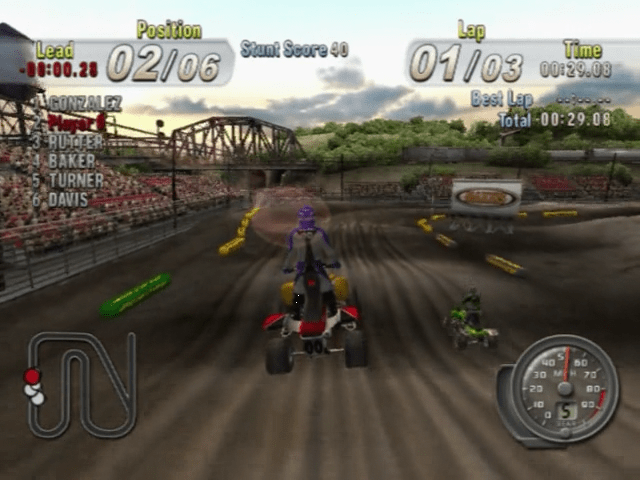
Game Screen Elements
•
DIRECTION ARROW - The arrow appears to put you back on track when you're going the wrong way.
•
STUNT IN PROGRESS - During execution of stunts, the stunt name, possible points and possible combo multiplier appear here. Pull off the stunt or combo and points turn green to indicate successful stunt. Those points are added to the Stunt Score. If the stunt name and score turns red, no points are
.png)


.png)

.png)

_1.png)


.png)