Getting Started
Setting Up Your PlayStation®2 System
Set up your PlayStation®2 computer entertainment system according to the instructions in its Instruction Manual. Make sure the MAIN POWER switch (located on the back of the console) is turned ON.
Press the button. When the power indicator lights up, press the button and the disc will open. Place the Ape Escape 3 disc on the disc tray with the label side facing up. Press the button again and the disc tray will close. Attach a DUALSHOCK®2 analog controller and other peripherals, as appropriate. Follow on-screen instructions and refer to this manual for information on using the software.
Memory Card (8MB) (for PlayStation®2)
To save game settings and progress, insert a memory card (8MB)(for PlayStation®2) into MEMORY CARD slot 1 of your PlayStation®2 system.
You can load saved game data from the same memory card or any memory card (8MB)(for PlayStation®2) containing previously saved games.
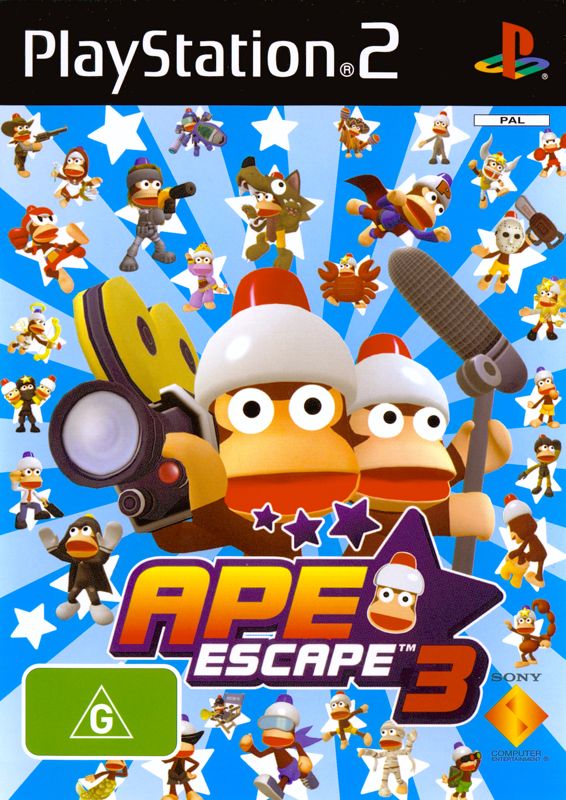
What kind of game is "Ape Escape 3"?
A game where you capture monkeys!
How do you play it?
You use all sorts of Gotcha Gadgets and Morph Gear!
Use the right analog stick to control the Gotcha Gadgets! By pressing the R3 button, rotating or tilting the right analog stick, you can perform all sorts of actions!
•
There are a total of 8 Gotcha Gadgets.
GAME FLOW
TV Station and Shopping Area
This is the base you'll be using when you're out on your monkey-catching adventure!
Stage Select
Get on the Warp Pad to go and find those pesky monkeys!
Capture the Monkeys!
Keep track of how many monkeys you need to capture.
Stage
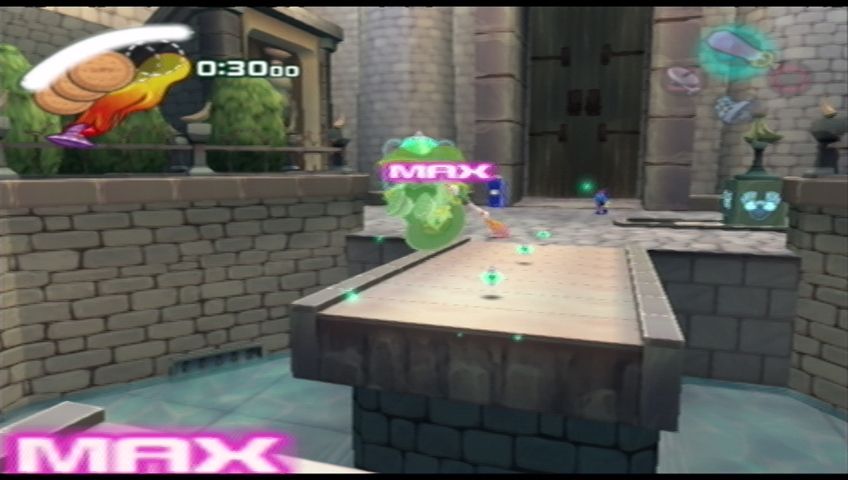
Capture monkeys with your various Gotcha Gadgets and Morph Gear! For more details, see page 15!
Stage Clear!
Move on to the next stage! A powerful boss is waiting for you at the end. You must capture Specter!
You can revisit cleared stages as often as you like after clearing them. Capture all the remaining monkeys!
STARTING THE GAME
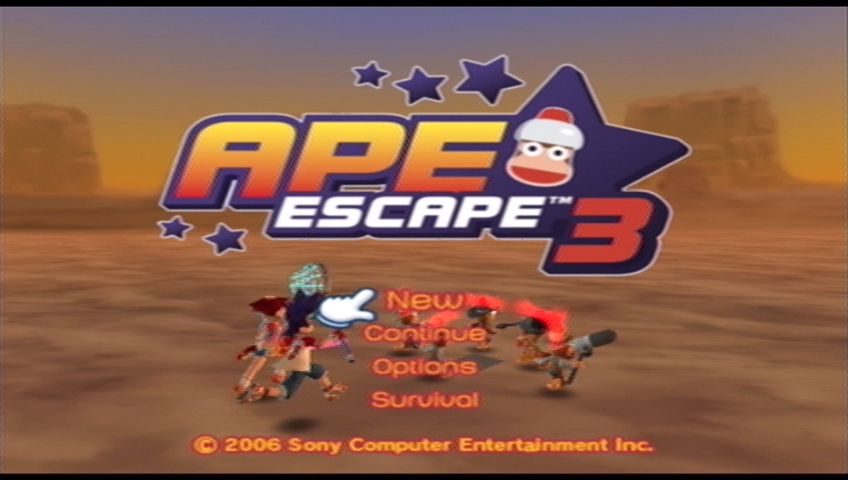
Press the START button at the Title Screen to bring up the Title Menu.
New Game
Select this to play from the beginning. Input a name for your save data and start the game!
About Save Data Naming
Press the button or the button to select a letter. Similar to text messaging on a cell phone, if you press the button multiple times on the same letter, a new letter will be inputted. Change the character set by pressing the SELECT button. When finished, press the START button!
Continue
Select this to start playing from a previously saved game. By selecting Continue, you will automatically load the last saved data used. By selecting Load, you can manually choose which save data you would like to load from your memory card (8MB) (for PlayStation®2)!
Options
Select this to change various game settings.
About Saving
You can save your game at the TV Station via the Data Desk. Make sure you insert a memory card (8MB) (for PlayStation®2) with at least 370 KB of free space into memory card slot 1 before you play.
•
If you're tired from playing, save the game and take a break!
GAME RULES
Capture the Monkey!
Your mission is to capture the many monkeys who are helping Specter keep the Specter TV shows on the air.
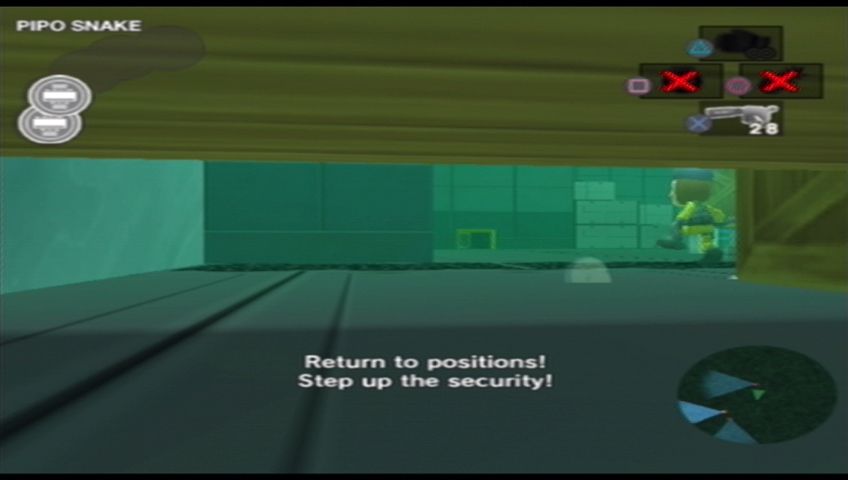
The number of monkeys you need to capture is shown on screen before you enter a stage, during gameplay when a monkey is captured, and on the Pause screen. Defeat any other enemies that stand between you and the monkeys. Capture Specter to complete the game!
Take Care of your Cookies
Cookies represent Kei's and Yumi's life. When attacked by the monkeys or other enemies, you lose cookies.
However, you can heal yourself by picking up more cookies. Be careful because when your cookies reach zero and you get hit, you lose a jacket.
Watch Out for Game Over
If you lose all your cookies while your number of jackets is at zero, it's game over. Make sure to buy plenty at the Monkey Mart in the Shopping Area.
•
Defeating Teleborgs often yields cookies and Morph Energy units.
•
Also try defeating Teleborgs when your Gotcha Coins are low!
PAUSE SCREEN
Press the START button during gameplay to go to the Pause Screen. Press it again to return to the game.
Menu
Choose with the directional buttons or the left analog stick and press the Ⓧ button or Ⓞ button to select.
Choose Gotcha Gadget
Let's equip our Gotcha Gadgets. Highlight the Gotcha Gadget you would like to assign, and press the button you want to assign it to (Ⓞ button/ Ⓧ button/ △ button/ ☐ button). You can also get to the Choose Gadget screen simply by pressing the SELECT button during gameplay.
•
Apparently the designs of the Gotcha Gadgets used by Kei and Yumi are slightly different.
MORPHING
As you progress through the game, you'll be able to transform into different outfits.
.png)

.png)
