Setting Up Your PlayStation 2
Set up your PlayStation 2 computer entertainment system according to its Instruction Manual. Ensure the MAIN POWER switch (on the back of the console) is turned on. Press the standby/RESET button. When the power indicator lights up, press the open button to open the disc tray.
Place the Frogger®: The Great Quest™ disc on the disc tray with the label side facing up. Press the open button again to close the disc tray. Attach game controllers and other peripherals as appropriate. Follow on-screen instructions and refer to this manual for information on using the software.
Memory Card
To save or load your game, a memory card (8MB) (for PlayStation®2) is required. Insert the memory card into memory card slot 1 (memory card slot 2 is not used) before starting play.
You can load saved games from the same card, or from any memory card containing previously saved Frogger: The Great Quest games. PlayStation® game console memory cards cannot be used. •
Frogger: The Great Quest uses at least 300KB of memory card data to save each game. •
Make sure there is enough free space on your memory card before starting play.
•
Do not insert or remove a memory card while saving or loading games or after the power has been turned ON.
Starting the Game
Insert the Frogger®: The Great Quest™ disc into your PlayStation®2 computer entertainment system. When the Title screen appears, press the START button to advance to the Main Menu. Main Menu
On the Main Menu, you can choose to start a new game, continue a previously saved game, or access the game options. Select options using the up and down directional buttons, then press the button to enter your selection.
Start New Game
Choose this option to begin a new game. You will be asked to enter your game name.
Continue Game
This option allows you to start from the most recently saved game.
Load Saved Game
If you want to load a saved game from your memory card, choose Load Saved Game. This option allows you to start from any of your saved game files.
•
Frogger: The Great Quest supports only memory card slot 1. Options
The Options Screen allows you to adjust your SFX, Voice Effects, and Music Volume. You can also change the audio output from Stereo to Mono, and turn Subtitles and Controller Vibration on or off.
View Credits
Choose this option to view the credits for Frogger: The Great Quest. Playing as Frogger
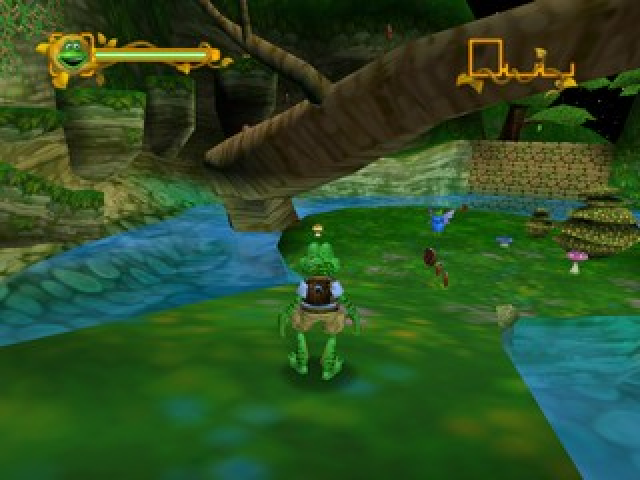
Frogger possesses an array of useful maneuvers. Master each technique to survive the numerous perils found in the world of Frogger. Move
Use the left analog stick to move Frogger in any direction. The more you push the left analog stick, the faster Frogger moves. Jump
Press the ✖ button to jump. A standing jump will make Frogger jump straight up. If Frogger is moving, he will perform a leaping jump, which covers more distance and height than a normal jump. If you charge (press and hold) the ✖ button before a standing jump, Frogger will jump the highest of any jump. Spit Frog Goobers
Press the □ button to spit frog goobers. This is a good way to attack enemies from a distance.
Frog Fu
Press the □ button to unleash the lethal art of Frog Fu. This is extremely useful for when Frogger's enemies are too close for comfort. Talk/Action
Use the ◯ button near characters, doors, and chests to activate an action. Frogger has a variety of actions depending on the situation. He will talk to characters, open doors, inspect chests, and more. Checkpoints
Checkpoints are magical markers that record Frogger's progress through a level. If Frogger is defeated, he restarts from the last passed Checkpoint instead of the beginning of the level. To activate a Checkpoint, run over it as soon as you see it. Saving The Game
Upon successful completion of each level, you will be given the opportunity to save your game progress. If you choose to do so, your game will automatically be saved at the current point.
There are 10 save files you can use to record your progress. Select a file and your game will be saved.
If you select a file that already holds a saved game, you will be asked if you would like to overwrite it. Select Yes to create your new save file over the old one.
Continuing The Game
To continue a previously saved game, select the appropriate option from the Main Menu.
The Frog Store
At the Frog Store, you can use the Coins and Gems that Frogger has collected to buy game tips, hints, and background information on characters. Highlight the item you wish to buy and press the button. The store will have different items for sale, depending on what area Frogger has just completed. •
40-60% Off Sale Prices!!
•
You'll Flip Over Our Prices!
.png)

.png)
.png)
.png)
