GETTING STARTED
Set up your PlayStation®2 computer entertainment system according to the instructions supplied with your system. Check that the system is turned on (the on/standby indicator is green).
Insert the Buzz!™ Junior: Jungle Party disc in the system with the label side facing up. Attach game controllers and other peripherals as appropriate. Follow the on-screen instructions and refer to this manual for information on using the software.
MEMORY CARD (8MB)(For PlayStation®2)
To save game settings and progress, insert a memory card (8MB)(for PlayStation®2) into MEMORY CARD slot 1 of your PlayStation®2 system.
You can load saved game data from the same memory card or any memory card (8MB) (for PlayStation®2) containing previously saved games.
Language Selection
Press the blue button or press the orange button to scroll through the different languages. Press the Buzz!™ button when the language you want is highlighted to select it.
THE WARNING SCREEN
If you have not inserted a memory card (8MB) (for PlayStation®2) into MEMORY CARD slot 1, the Warning Screen will be displayed.
Press the orange button if you do not want to save Buzz!™ Junior: Jungle Party data. The Title Screen will then be accessed.
Insert a memory card (8MB) (for PlayStation®2) when the Warning Screen is displayed and press the blue button if you do want to save Buzz!™ Junior: Jungle Party data. The Autosave Screen will then be accessed.
NOTE
If you decide not to save Buzz!™ Junior: Jungle Party data you will not be able to save data at any point during the game unless the Autosave feature within the Options Menu is manually turned on.
Once you have made a decision about the Autosave feature you'll be taken to an introductory movie, and then to the Title Screen.
AUTOSAVE
If you have inserted a memory card (8MB)(for PlayStation®2) upon start-up or have inserted a memory card (8MB)(for PlayStation®2) at the Warning Screen, the Autosave Screen will be displayed.
Press the blue button to enable the Buzz!™ Junior: Jungle Party Autosave feature. Press the orange button to disable the Buzz!™ Junior: Jungle Party Autosave feature.
MAIN MENU
MULTIPLAYER
If you've got all your friends around this is the mode you want. It's a party for up to four people.
SINGLE PLAYER
Are all your friends too tired to party? Enjoy some Single Player fun to try and enter the Jungle Party Hall of Fame!
PRACTICE
Play any of the mini-games by yourself or with your friends.
OPTIONS
Adjust the game so it is even more fun!
Press the blue button to select Multiplayer, press the orange button to select Single Player, press the green button to select Practice and press the yellow button to select Options.
GAME TYPE MENU
Before joining the party you can decide how long you want to party for.
•
Press the blue button to start a Short Game.
•
Press the orange button to start a Medium Game.
•
Press the green button to start a Long Game.
•
Press the yellow button to start a Marathon Game.
Next, either press the blue button to select Quick Start and join the party as fast as possible, press the orange button to select Standard Game or press the green button to select Custom Game and set your party up the way you like it.
QUICK START
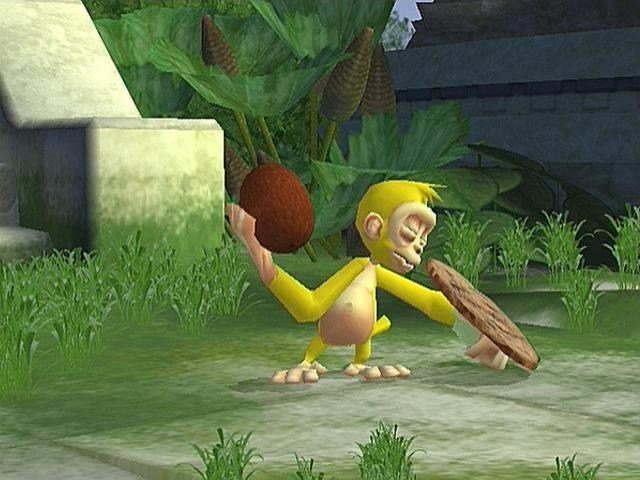
Press the blue button, the orange button, the green button or the yellow button to choose which monkey you want to be. Once all four players have chosen, it's time for the mini-games to begin!
All the mini-games are really simple to understand and play. The mini-game will be explained to you before it starts. Press the Buzz!™ button to skip the explanation.
STANDARD GAME
Press the blue button, the orange button, the green button or the yellow button to choose which monkey you want to be based on your seated position. Once all four players have chosen, the Enter Your Name Screen will be displayed.
ENTER YOUR NAME
Press the blue button or press the orange button to highlight different letters and press the Buzz!™ button to select that letter.
Highlight Delete and press the Buzz!™ button if you make a mistake to delete the last letter selected. When you are happy, highlight Done and press the Buzz!™ button to access the Costume Select Menu.
COSTUME SELECT MENU
Press the blue or orange button to highlight your monkey's head, body or legs. Once your monkey's head, body or legs are highlighted, press the green button or press the yellow button to scroll through the different items available.
Press the Buzz!™ button when you're happy with the items you've given your monkey to accept the changes. As soon as all participating players have selected their costumes, the party will begin!
The mini-game will be explained to you before it starts. Press the Buzz!™ button to
.png)

.png)
.png)
.png)
.png)
.png)
