Getting Started
1. Set up your PlayStation®2 computer entertainment system according to the instructions supplied with your system.
2. Check that the system is turned on (the on/standby indicator is green).
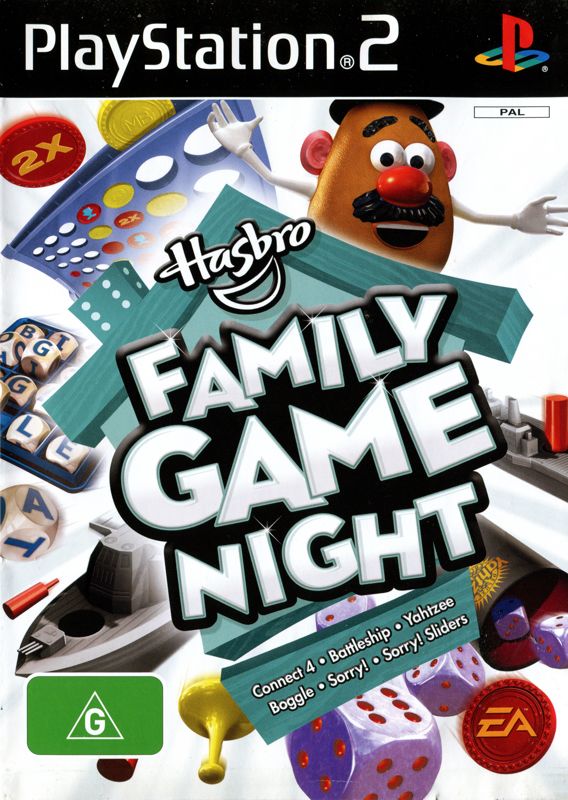
3. Insert the HASBRO FAMILY GAME NIGHT disc in the system with the label side facing up.
4. Attach game controllers and other peripherals as appropriate.
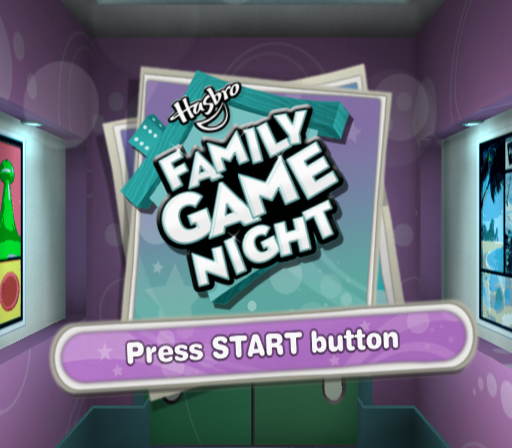
5. Follow the on-screen instructions and refer to this manual for information on using the software.
Multitap (for PlayStation®2)
•
A controller must be connected to controller port 1-A.
Change Players
Add or remove players from the group here.
My Room
Each game has a full set of furniture you can earn by beating goals of varying difficulty. Collect them all and decide which items you want to display in your room.
Each game also has a number of special trophies to win—but you'll have to play hard to win them all!
Playing the Game
Dive right into the fun with a play without save game. Select the number of players (1-4) and get ready for the time of your life.
Saving and Loading
To load a player, press the button to open the My Stuff menu. Select the Change Players menu and then select ADD PLAYER. You can now load or create a player, or play as a guest.
Autosave can be turned on or off via the Settings menu in My Stuff.
Battleship
Ahoy! Can you sink the enemy fleet before your ships get sunk? Press the button to start the ship placement phase or press the button to auto-deploy. Once ships are placed, press the button to begin the game.
Game Screen
•
Player 1 surviving fleet
•
Player 2 surviving fleet
•
Sunken ship (other player)
General Controls
•
Rotate ship before play:
•
Select ship before play:
•
Start game after placing ships:
•
Place shot/Fire at enemy:
•
Close case (when placing ships):
Game Modes
Select one of these possible game modes.
Classic
Play classic BATTLESHIP, with each player taking one shot per turn.
Salvo
Bombs away! You get one shot per turn for every un-sunk ship in your fleet. Be strategic with every shot you take and take out your opponent's ships fast to knock down the number of shots they get to take at you.
Super Weapons
Can't seem to score a hit? Don't worry, in Super Weapons you have a chance to collect a special power-up that you can use on your next turn.
Custom
Play with your own customized set of rules. To get started you must first select which main game mode you wish to base your game on.
Settings
From here you can tweak the setting for your games.
•
Al Difficulty: Determine how tough the competition is—NOVICE, SMART, or GENIUS.
Super Weapons Power Ups
•
Reinforcements: This power-up gives you another boat (two spaces long) that is hidden on your side.
•
Lucky Shot: Score a hit with this and you sink the entire enemy ship with one devastating blow.
•
Heavy Shot: Launch this bad boy to hit five of your opponent's spaces in a cross pattern.
•
Decoy: Decoys appear as a hit on your opponent's target grid but turn out to actually be a miss one turn later.
•
Missile: This devastating weapon fires down a column until it hits a ship—but watch out! If it misses it continues down onto your column and may hit one of your ships!
Boggle
Awake your inner-wordsmith with an entertaining game of BOGGLE. Choose your settings and your preferred game mode—Competitive or Word Hunt—then get right into a challenging game.
Game Screen
General Controls
•
Shake tray: button (hold) or move left analog stick
•
Select letter: Move left analog stick or Directional buttons to highlight the desired letter then press the button
•
Deselect letter(s): button
•
Complete word: button (tap twice on final letter of word)
•
Turn table: L2 button/R2 button
•
Panic Flip (at end of round): button
•
Start next round: button
Game Modes
Choose from three different game modes or create your own. To shake the tray and rearrange the letters before you begin in all game modes, hold the button.
Classic
Make as many words as you can before time runs out.
Advanced
Classic gameplay with a wicked twist. Panic Flip shakes the dice towards the end of the game to give you an extra rush to find new words, and Portal Cubes swap the first and last letters of any word you can score. The board changes after every word
.png)

.png)




_1.png)
.png)
_1.png)

.png)
.png)




_1.png)