GETTING STARTED
Set up your PlayStation®2 computer entertainment system according to the instructions supplied with your system. Check that the system is turned on (the on/standby indicator is green).
Press the OPEN button to open the disc cover. Place the Call of Duty 3 disc with the label side facing up in the disc holder, and then close the disc cover. Attach game controllers and other peripherals as appropriate. Follow the on-screen instructions and refer to this manual for information on using the software. MEMORY CARD (8MB)(FOR PLAYSTATION®2)
To save game settings and progress, insert a memory card (8MB) (for PlayStation®2) into MEMORY CARD slot 1 of your PlayStation®2 system.
You can load saved game data from the same memory card or any memory card (8MB) (for PlayStation 2) containing previously saved games. STARTING UP
DUALSHOCK®2 ANALOG CONTROLLER CONFIGURATIONS
•
left analog stick (L3 button when pushed down)
•
right analog stick (R3 button when pushed down)
To select menu options, use the ↑ and ↓ directional buttons to navigate. Highlight the desired option and press the X button to accept.
To select a menu option, follow the on-screen button prompts and press the X button to accept and the O button to go back. Call of Duty 3 supports the DUALSHOCK®2 analog controller. When Analog mode is on, the left analog stick works the same as the directional buttons. MAIN MENU
After you view the introductory movie, the game's Main Menu will appear. From this menu you can launch Single Player, switch to the Multiplayer portion of Call of Duty 3, access the Profiles menu and access Bonus Material (once unlocked). To start a single-player game, select Single Player from the Call of Duty 3 Main Menu. •
Multiplayer - Access the Multiplayer menu.
•
Profiles - Configure your controls and adjust audio/video settings.
•
Bonus Material - View unlocked materials.
THE SINGLE PLAYER GAME
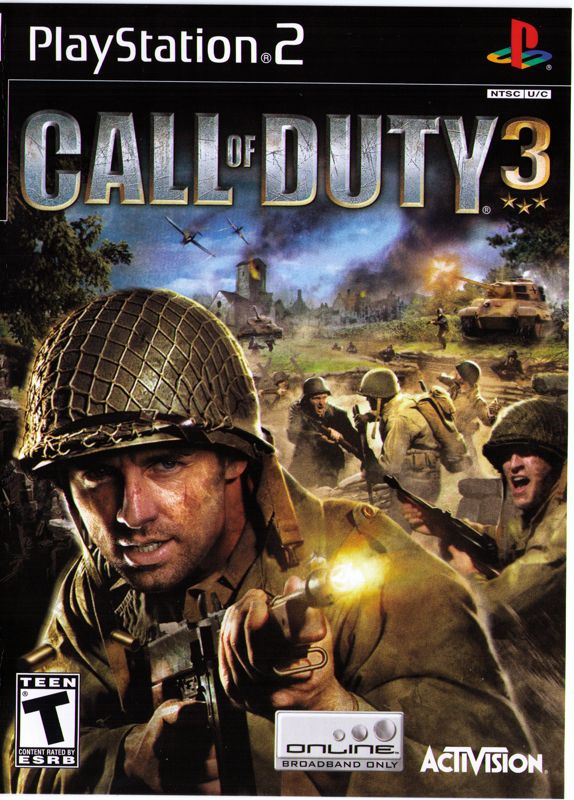
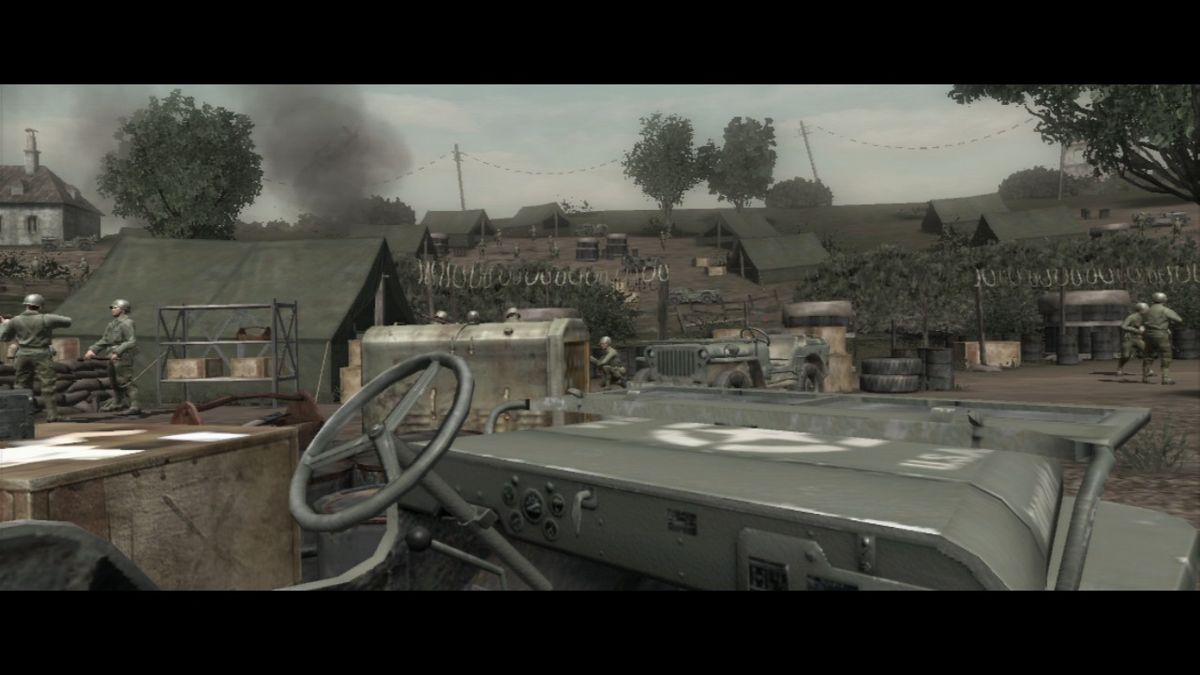
In Call of Duty 3, get closer than ever to the fury of combat as an Allied soldier in World War II's most intense military operation, the Normandy Breakout Campaign. Battle Actions bring you face to face with German forces. Multiple attack routes let you decide whether to flank your enemy or hit him head on. •
New Game - Launch a new Call of Duty 3 game from the beginning of the campaign. •
Continue - Load the game you were playing from your last Checkpoint, so you can continue your progress through the campaigns. This option is displayed only after starting a mission. This option is displayed in gray before you start any single-player gameplay, but will become available after you've begun a single-player campaign.
•
Chapter Select - Select an unlocked chapter. Play any mission you currently have unlocked. After selecting your mission, choose your difficulty level from one of the three options available.
PLAYING THE GAME
Before each mission you'll receive a briefing. These will frequently be in the form of orders from your superiors. These briefings will often provide crucial information about your objectives and the dangers you will face. Listen to them carefully. They could save your life.
IN-GAME DISPLAY
•
Compass - It shows the direction you are facing and the location of nearby allies (green arrows), and enemies (red dots, only when the enemy is firing). Your current objective is also marked with a gold star.
•
Ammunition Counter - The first number indicates how many rounds are in your current weapon. The second number indicates the total number of rounds you carry.
•
Crosshair - Use your crosshair to aim your weapon at your enemies. When you run or walk, your crosshair will widen, indicating the lack of accuracy that comes from attempting to aim while moving. If a friendly is in your line of fire, pressing the Fire button will ask individuals to move out of your line of sight.
•
Damage Indicator - When you take damage from enemy fire, a red arrow will appear near the center of the screen, indicating the general direction from which you were hit. If the arrow points upward, the
MULTIPLAYER
CONNECTING TO MULTIPLAYER GAMES
This Software uses DNAS (Dynamic Network Authentication System), a proprietary authentication system created by Sony Computer Entertainment Inc. (SCEI). DNAS retrieves information about a user's hardware and software for authentication, copy protection, account blocking, system, rules, or game management and other purposes. The information collected does not identify the user personally.
A Publisher can combine this information with personally identifying information from the Publisher's records if the user provides the personally identifying information. Before providing any personal information to a Publisher, please be sure to review the Publisher's privacy policy and terms and conditions of use. Do not provide personally identifying information to a Publisher unless you accept the conditions of use and terms of their privacy policy.
SCEI, Sony Computer Entertainment America (SCEA) and their affiliates cannot guarantee the continuous operation of the DNAS servers. SCEA shall not be liable for any delay or failure of the DNAS servers to perform. If you receive a message
.png)

.png)

_1.png)
_1.png)
.png)
.png)
.png)

.png)