Getting Started
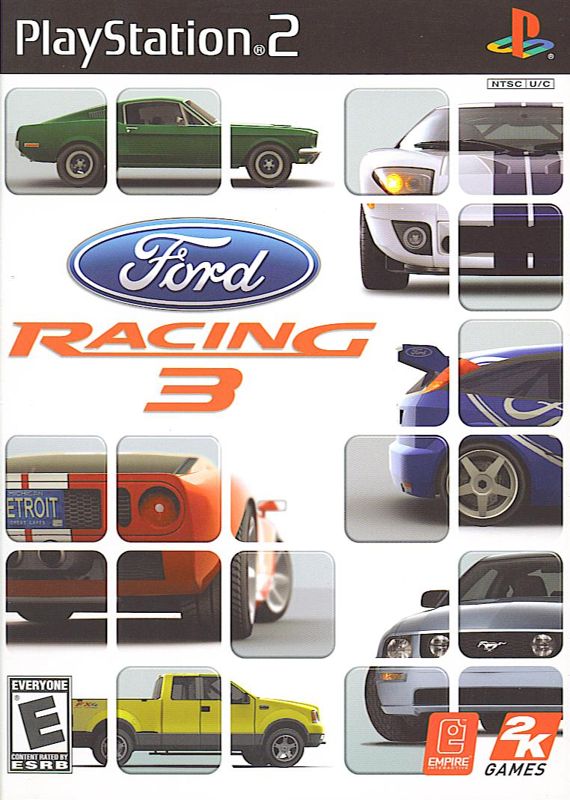
Set up your PlayStation 2 computer entertainment system according to its Instruction Manual. Ensure the MAIN POWER switch (on the back of the console) is ON. Press the RESET button. When the power indicator lights up, press the OPEN button to open the disc tray. Place the FORD RACING 3 disc label-side up on the tray.
Press the OPEN button again to close the disc tray. Attach game controllers and other peripherals as appropriate. Follow on-screen instructions and refer to this manual for software information.
Memory Card
To save game settings and progress, insert a memory card (8MB) (for PlayStation®2) into MEMORY CARD slot 1.
You can load saved game data from the same memory card or any memory card (8MB) (for PlayStation®2) containing previously saved games.
Starting Up
FORD RACING 3 can be played in one-player or two-player mode using the DUALSHOCK 2 analog controller or a USB steering wheel controller. Digital controllers are not supported.
To play with a controller other than an analog controller, go to the Controls menu and select your desired controller. Button configuration can be changed in the Options menu.
DUALSHOCK 2 Analog Controller Configurations
•
left analog stick (L3 button when pushed down)
•
right analog stick (R3 button when pushed down)
This is the default button configuration (Mapping A) for the DUALSHOCK 2 controller, arranged for driving with automatic gears. If you prefer manual gears, select Mapping B from the Button Configuration menu (see Options Menu/Controls). In-Game Controls (Default Mapping A)
•
Directional buttons/left analog stick (left/right) - Steer
•
Directional buttons/left analog stick (up/down) - Accelerate
•
right analog stick (up) - Brake/Reverse
•
right analog stick (down) - Shift up
•
R2 button - Boost (used with 'Boost' and 'Racing Line' race types) •
START button - Pause game
Menu Controls
•
Directional buttons/left analog stick (left/right) - Menu left/right
•
Directional buttons/left analog stick (up/down) - Menu up/down
•
right analog stick (up) - Back
•
button - Special function
•
right analog stick (down) - Menu up
If FORD RACING 3 is started with only a GT FORCE™ or DRIVING FORCE™ inserted, it will default to that controller. Main Menu
After establishing your Driver Profile, you will see the Main Menu:
•
QUICK RACE - a one-off race with no rewards
•
SINGLE PLAYER - the main section of the game, allowing new Vehicles, Tracks, and Race Types to be won
•
MULTIPLAYER - race in split screen against a human opponent using Vehicles, Tracks, and Race Types won in Single Player
•
OPTIONS - adjust controller and game settings; see the Options Menu section of this manual
•
SAVE GAME - save the current Driver Profile to the memory card (8MB) (for PlayStation®2) in MEMORY CARD slot 1
During Multiplayer games on a standard (4:3) TV, the screen is split with Player One at the top and Player Two at the bottom. On a widescreen (16:9) TV, the screen is split with Player One on the left and Player Two on the right.
Single Player Menu
Entering the Single Player section brings up the Single Player menu:
•
FORD COMPETITION - compete in 14 different Competitions to win Trophies, Cars, Race Types, and Tracks; see the Game Types section of this manual for full details
•
FORD CHALLENGE - complete Challenges to win new Vehicles, Tracks, and Race Types; see the Game Types section of this manual for full details
•
FORD COLLECTION - complete Collection races to win trophies; see the Game Types section of this manual for full details
•
DRIVER DETAILS - view statistics, records, and trophies for the current driver
Race Setup Menus
If you choose FORD COMPETITION, you go to the Competition Selection screen to choose an available Competition. Selecting a Competition takes you to the Competition Overview screen, which displays details and allows you to enter.
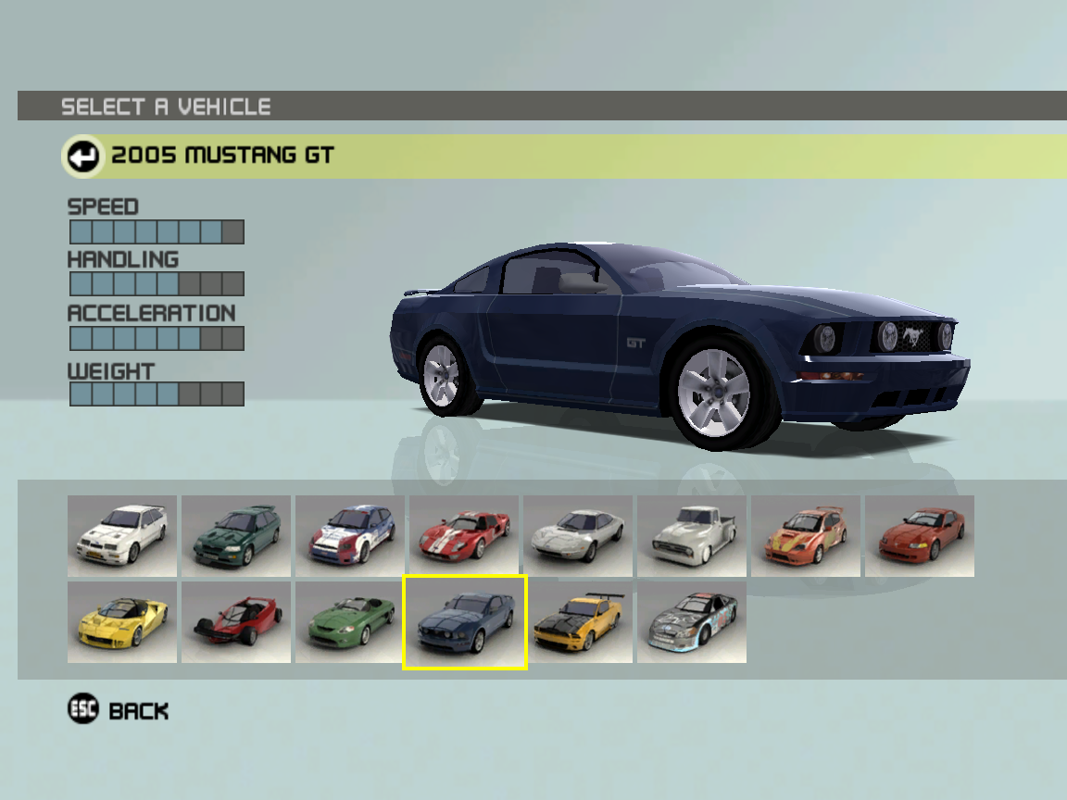
The Vehicle Select screen is next, where you choose your vehicle. You then proceed through the Competition and Round Introduction screens.
After each round, you see the Race Results screens, showing your round result and overall progress. Race Types and Tracks are collected at the end of each round.
After all Competition rounds, you go through the Competition Results screens. If
.png)

.png)

.png)

_1.png)
.png)