MAIN MENU
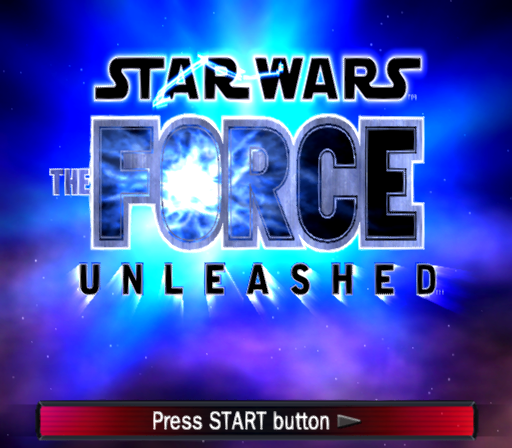
The Main Menu appears when you first load the game. You can start a new game, continue a previous game, or view game options.
CONTINUE GAME
Selecting this allows you to continue a previously saved campaign.
START GAME
This icon directs you to the Single Player Menu. From here you can start a new game.
You will be prompted to save into a new file or overwrite another. You can also play the game without creating a saved file.
OPTIONS
This icon leads you into the Options screen, where you can change settings and view Credits.
•
SOUND: Adjust the volume of the game's Music, Sound Effects, and Dialogue.
•
SCREEN: Activate widescreen ON/OFF, Progressive Scan ON/OFF, Brightness levels, and Contrast levels.
•
GAME: Adjust Controller Vibration ON/OFF, Subtitles ON/OFF, Tutorial Tips ON/OFF.
•
CAMERA: Activate Rotational Direction NORMAL/INVERT, Camera Move Speed SLOW/MEDIUM/FAST.
•
CREDITS: Displays the Credits for the game.
PAUSE MENU
Press START while playing Star Wars®: The Force Unleashed to pause the game and open the Pause Menu. Use the Directional Pad or the Left Analog Stick to select an option and confirm your choices. OPTIONS
Adjust Sound, Screen, Game, and Camera options.
FORCE POWERS
Spend acquired Force Points to level up Force Powers. You can choose to upgrade your current Force Powers or purchase some that you have yet to learn. As you progress through the game, more powers will be revealed in this menu.
SAVE GAME
Saves your game to the PlayStation®2 Memory Card.
CUSTOMIZE SABER
Use crystals to customize the setup of your lightsaber, from changing colors to enhancing different combat powers.
OBJECTIVES
Lists your goal(s) for the current stage.
EXIT GAME
Quit your game and return to the Main Menu.
RETURN TO ROGUE SHADOW
Return to the bridge of the Rogue Shadow. Any unsaved progress in the level will be lost upon return.
STARTING A NEW GAME
Press START GAME from the Main Menu to begin your journey into the Dark Side of the Force. Select any of the three available slots marked EMPTY with your Left Analog Stick or Directional Pad and press the Button to confirm your choice.
The player can choose to save a new game to one of these empty spots, overwrite the previously saved game, or continue without saving.
LOADING A SAVED GAME
As you progress through Star Wars®: The Force Unleashed your game will periodically save at Checkpoints placed throughout your journey. To load a saved game, enter the Title Menu, select CONTINUE GAME, and then choose your saved data. You will start in the Rogue Shadow even if you last saved within a level but all Holocrons, saber crystals, and Force Points you acquired within the level will be retained.
SAVING THE GAME
Star Wars: The Force Unleashed autosaves at Checkpoints, both at the beginning of missions and periodically throughout the levels. If you are defeated, you will return to the most recent Checkpoint. If you choose to end your playing session, enter the Pause Menu by pressing START and select SAVE GAME, then choose which game slot to save the game data on.
FINISHING MOVES
Some enemies are stronger than others. Once you have depleted their health to a certain level, you will be prompted to begin a Finishing Move.
To complete it, you must press specific buttons on your controller as they flash on-screen. Failing to press the buttons in time or pressing the wrong button will result in the enemy regaining health. Successfully completing the Force Finisher will defeat the enemy.
COMBAT
Combat is an integral part of your quest through the galaxy. Defeating the enemies who would dare to stand against you is one of the duties of a Sith, not to mention a loyal servant of Lord Vader.
Using your Force Powers and lightsaber skills in concert is the only way to make it through your mission alive.
TARGETING AURAS
In certain cases, objects / enemies will glow blue or red. When standing near these objects, you can use Force Grip to pick up and move, throw or slam them into the ground.
Occasionally, large barriers that obstruct your path will initiate an on-screen prompt to destroy them. Press the Button (hold) until the prompt begins flashing, then release the Button. You can break open bulkhead doors and perform a number of other actions.
FORCE POINTS
Enemies will release blue orbs when they are defeated. These orbs will automatically float toward you, at which point they are absorbed and added into your pool of Force Points.
ROGUE SHADOW
The Rogue Shadow is your base of operations in-between missions. You can converse with crewmembers, get information on missions, customize your costume and lightsaber, and launch your next mission from the bridge of the Rogue Shadow.
NAVIGATION COMPUTER
The Navigation Computer allows you to choose the destination for your next mission. When you have finished customizing and adjusting, select the Navi Computer and press the Button to select your destination or Button to check your objectives.
CUSTOMIZE COSTUMES
PROXY can assist you in altering your
.png)

.png)
