PlayStation®2 Console Overview
PlayStation®2 Setup
Set up your PlayStation®2 computer entertainment system according to its instruction manual. Ensure the MAIN POWER switch (located in the back of the console) is turned on.
Press the RESET button. When the power indicator light comes on, press the OPEN button to open the disc tray.
Place the game disc on the disc tray with the label side facing up. Press the OPEN button again to close the disc tray.
Attach game controllers and other peripherals as appropriate. Follow on-screen instructions and refer to this manual for information on using the software.
*Note: Illustration may not match all PlayStation®2 console types. For owners of SCPH-70000 series PlayStation®2 systems, refer to the setup instructions supplied with your system.*
Memory Card (8MB) (for PlayStation®2)
To save game settings and progress, insert a memory card (8MB) (for PlayStation®2) into MEMORY CARD slot 1 of your PlayStation®2 system.
You can load saved game data from the same memory card or any memory card (8MB) (for PlayStation®2) containing previously saved games.
Game Modes
ONE PLAYER
Highlight this option with the directional buttons/left analog stick, then press the button to begin a brand-new adventure! You will be asked if you'd like to create a Save File.
You need a memory card (8MB)(for PlayStation®2) to save your game — make sure you have one inserted! You can have up to three Save Files.
TWO PLAYER
(Requires a controller connected into controller port 2)
Highlight this option with the directional buttons/left analog stick, then press the button to take on the Underminer with a friend! You will be asked if you'd like to create a Save File.
You need a memory card (8MB)(for PlayStation®2) to save your game — make sure you have one inserted! You can have up to three Save Files.
LOAD GAME
During your game, you can save your progress at any time to a memory card (8MB)(for PlayStation®2). Use this option to access your saved games and return to action where you left off.
OPTIONS
•
Music Volume: Turn the Music Volume (the tune playing in the background) up or down.
•
SFX Volume Control: Turn the SFX Volume (the game's grunts and zaps) up or down.
•
Controls: View your Control Configuration.
•
Vibration: Select your vibration mode here.
•
Sound Mode: Choose Mono, Stereo, or Dolby Surround®.
•
Screen Adjust: Adjust your screen position.
BONUS
Access bonus items and view previews for upcoming THQ games. CREDITS
View the list of the incredible people who helped create this game!
Pausing the Game
Press the START button at any time during the game to pause the action and access the Mission Select Screen.
Mission Select
Enables you to replay any mission you've already unlocked.
•
Select: Press the button to confirm a selection on this screen.
•
Press the button to access the options menu and stats screen.
•
Press the button to exit out of any menu.
Secondary Goals
Aside from your primary mission in each level, you'll also have a secondary goal. The first is to reach your damage goal. The second is to pass the level without being defeated. Challenge yourself to meet the secondary goals! How Super are you??
MENU AND STATS
Press the button to access the following menu:
•
Options: Allows you to access the previous Options Menu.
•
Quit Game: Supers never give up. But if you do need to take a quick break, then use this option to exit the game. Don't forget to save!
•
Save Game: Save your adventure at any time.
•
Gallery: If you've unlocked any bonus art, you can view it here.
•
Secrets: What's the password? Hmmm ... Enter your secret codes here.
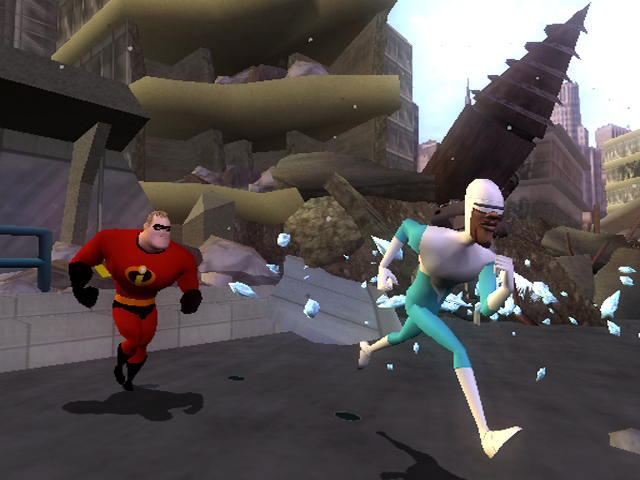
To the right of the menu, you will see two boxes - one for Mr. Incredible and one for Frozone. Each contains the current stats for that hero.
•
Health: The first number shows your current level of health and the second number shows your maximum health level.
•
XP: This keeps track of the current number of experience points that you've earned. The more points you earn, the more upgrades you can obtain.
•
Next Upgrade: The amount of experience points needed to earn the next upgrade.
Joining a Game
If you're playing a One Player game, you can have a friend join in at any time! Make sure there is a controller connected to controller port 2.
Press the START button on the second controller to bring up the following menu:
•
Join This Game: Select this option and you'll join the action immediately!
•
Return To Game: Select this option if you've changed your mind and want to go back to the One Player game.
If you'd like to leave a previously joined game, press the START button on the second controller and simply select the "Drop out of this game" option.


.png)