PITCHING
•
Control Pad: Select pitch type/Aim pitch
•
Control Pad + B Button: Throw to bases (Right: first base; Up: second base; Left: third base)
BATTING
•
Control Pad: Move the Batting Cursor
•
A Button: Press and hold to ready batter for swing. Release to swing.
•
B Button: Bunt (Press Control Pad for height and angle of bunt)
FIELDING
•
Control Pad: Move highlighted player
•
Control Pad + A Button: Throw to bases
•
A Button: Throw to first base
RUNNING
•
L Button: Move all runners to the next base
•
Control Pad + L Button: Move individual runner to the next base
•
R Button: Move all runners back to previous base
•
Control Pad + R Button: Move individual runner back to the previous base
•
L Button + R Button: Stop all runners while the ball is in the air.
•
Press the Control Pad + L Button before hitting to steal a base.
Once the Title screen appears, press START to enter the Mode Selection screen. Use the Control Pad to highlight an option and press the A Button to make a selection.
EXHIBITION
Select this mode to play an exhibition game. Choose a team among 30 teams from both the American League and National League.
SEASON
Select this mode to play a season. Choose one team from either the American League or National League to enter the pennant race and a chance to head for the World Series.
PLAYOFFS
Select this mode to enter the playoffs directly. Choose one team from either the American League or National League to enter.
ALL-STAR GAME
Select this mode to play the All-Star Game with the actual players chosen to play in the 2001 All-Star Game. Choose either the American League team or National League team to play.
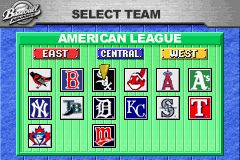
1. Team Select
Press left or right on the Control Pad and press the A Button to select a league from which to choose a team. Use the Control Pad to scroll through the teams and press the A Button to enter your selection. Similarly, select an opponent. In the case of the All-Star Game, select one of the teams representing either the American League or the National League.
2. Bat/Field First & DH Select
Use the Control Pad to scroll through the options and select which of the team bats first, and whether to use a DH (Designated Hitter) in the game. Once selected, confirm by selecting OK with the A Button.
3. Stadium Select
Choose the stadium in which to play the game. Use the Control Pad to scroll up and down through your choices and press the A Button to select.
4. Rules
This option allows you to set the rules for the next game. Use the Control Pad to scroll through your choices. Once selected, confirm by selecting OK with the A Button.
•
LEVEL: The strength of the computer team. (ROOKIE > VETERAN > ALL-STAR > LEGEND)
•
INNINGS: The number of innings in the game (1-9).
•
ERRORS: Enable/disable errors in the game.
•
INJURY: Enable/disable injuries to the players.
•
WIND: Turn the wind on or off.
5. Lineup
Select a starting lineup for your team and adjust the game settings.
•
ORDER: Make changes in your starting lineup.
•
GAME SETTINGS: Make changes in the game settings.
Press L/R Button to view the opposing team's starting lineup.
ORDER Screen
•
LINEUP: Make changes in your starting lineup. First, use the Control Pad to scroll through the current lineup and press the A Button to select the player you wish to change. Once selected, choose a replacement from the list of eligible bench players on the right of the screen.
•
BATTING ORDER: Make changes in your team's batting order. Use the Control Pad to scroll through your lineup and press the A Button to select the player you wish to switch, then highlight the other player you wish to switch the batting order with and press the A Button again to perform the switch.
•
POSITION CHANGE: Make changes in the fielding positions of your players. Use the Control Pad to scroll through your lineup and press the A Button to select the player you wish to switch, then highlight the other player from your roster and press the A Button again to perform the switch.
•
DEFAULT: This option allows you to initialize all options to their original settings.
•
OK: Return to the previous screen.
GAME SETTINGS Screen
•
Defense: Select Auto/Manual fielding by using the Control Pad.
•
Base Running: Select Auto/Manual base running by using the Control Pad.
Once your selections have been made, select OK by pressing the A Button.
Player Conditions
Each player's condition is illustrated by a color scale (Best: Red > Orange > Yellow > Green > Blue > Purple: Worst). An arrow pointing up suggests that the player is in great condition.
ALL-STAR GAME™ / EXHIBITION MODE
6. Start the Game
After you have made all





.png)
