Placing Panels
By pressing A and Control Pad simultaneously, you can place the panel in the direction the Control Pad is pressed. For example, press A and up on the Control Pad to place an "▲" panel. Be careful, as nothing happens if you press only the A Button.
In Pro mode, you can place Arrow Panels by pressing A, B, L, or R Button. Each button corresponds to a specific direction, though it may be difficult to get used to.
•
A Button: Places "▲" Panel.
•
B Button: Places "▼" Panel.
•
L Button: Places "◀" Panel.
•
R Button: Places "▶" Panel.
Stage Limits
You can only place up to 3 panels on the stage. If you try to place a 4th panel, the first panel will disappear.
Game Display and Rules
The goal of the game is to use Arrow Panels to lead ChuChus to your Rocket. However, you must not lead KapuKapus to your Rocket.
•
Rocket: Guide the ChuChus to your Rocket.
•
Hatch: Mice and cats come out here.
•
Cursor: The selection indicator.
•
ChuChus: They are simply mice.
•
KapuKapu: Watch out, or they'll eat all the ChuChus!
•
Arrow Panel: Used to guide movement.
How ChuChus Move
Usually, ChuChus run in a straight line. If they bump into a wall, they turn right. If they encounter an Arrow Panel, they turn in the direction indicated by the panel.
Different Sorts of ChuChus
Guiding specific ChuChus into your Rocket triggers special events.
•
? Mark: If you guide a ChuChu with a "?" mark into your Rocket, the roulette wheel will spin and there will be a new game "event."
•
50 Mark: If you guide a ChuChu with a "50" mark into your Rocket, you will get 50 ChuChus.
KapuKapu Rules
If a KapuKapu enters your Rocket, you will lose some of your ChuChus. Therefore, you should guide KapuKapus to your opponent's Rocket instead.
Arrow Panel Durability
Arrow Panels can be damaged by KapuKapus.
•
One head-on bump from a KapuKapu causes an Arrow Panel to shrink.
•
Two head-on bumps from a KapuKapu cause an Arrow Panel to break and vanish.
Language Selection
When you start the Game Pak for the first time, you will be asked to select the display language. Use the Up/Down controls to select the language, and press the A Button or START to confirm. You can change this setting later from the Options menu.
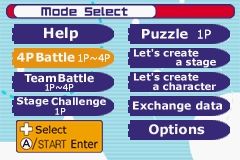
Mode Select
During the Title Screen, press START to display the Mode Select Screen. Use the directional controls to select the mode to play, and press the A Button or START to enter.
•
Help: View the Help Screen for further explanations (p.11).
•
4P Battle: Battle it out with up to 4 players! (p.11).
•
Team Battle: Play two on two! (p.13).
•
Stage Challenge: Try to tackle these problems! (p.16).
•
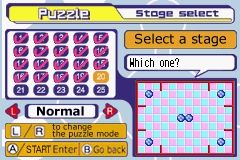
Puzzle: Try to solve these puzzles! (p.17). •
Let's create a stage: You can make your own stage (p.18).
•
Let's create a character: You can make your own character (p.20).
•
Exchange data: Exchange your creations with your friends (p.22).
•
Options: Change the game settings (p.24).
Help Mode
You can view the basic rules and explanations for every mode. Initially, you have only a few selections to choose from. As you play each mode more often, you will unlock more explanations. You can even download the characters you use during the game. View this mode often to enjoy the game more.
Help Controls
Use the Control Pad to move the arrow. If the arrow turns into a hand icon, you can select the menu. Press the A Button to enter. Move the cursor to “Next” and press the A Button to view the next page. Either select “Go back” or press the B Button to view the previous page.
4P Battle
Play in a 4-player battle against human players or CPU players. The objective is to collect as many ChuChus as possible in your Rocket within the time limit.
•
Start Immediately!: The game will start immediately.
•
Start after set up!: You can adjust various game settings before starting.
If you have Game Boy Advance Game Link cables connected, you can play multiplayer.
Game Start and Over
Place the Arrow Panels on the field to guide as many ChuChus as you can to your Rocket. The game ends when the time counter reaches zero.
The player with the most ChuChus will have their rocket launched and earn 1 point. The first player to reach the preselected point count is the winner.
Team Battle
Play 2 on 2, with red and blue players on one team, and yellow and green players on the other. The rules are the same as 4P Battle.
Link Battle Setup
For 4P Battle and Team Battle, up to


 (En,Ja,Fr,De,Es).png)
 (En,Ja,Fr,De,Es).png)
 (En,Ja,Fr,De,Es).png)
 (En,Ja,Fr,De,Es).png)
