Loading the Game
1. Make sure the power switch is OFF.
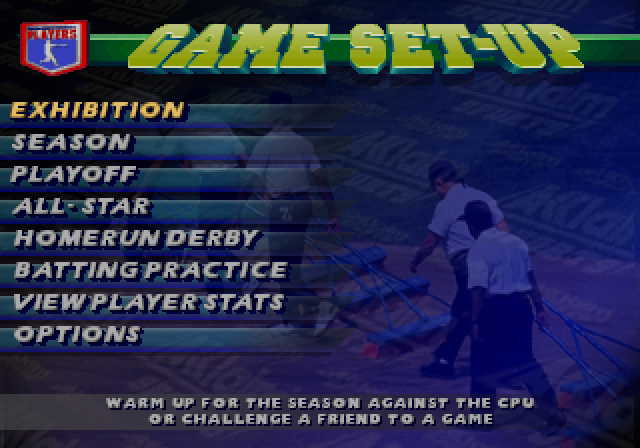
2. Insert the Frank Thomas "Big Hurt" Baseball™ Game Pak as described in your SUPER NINTENDO ENTERTAINMENT SYSTEM® instruction manual. 3. Turn the power switch ON. When the Frank Thomas "Big Hurt" Baseball™ title screen appears, press the START BUTTON. You will then see the Game Setup Screen. This screen allows you to select from 5 game play modes and to set Main Options. Screen Navigation
•
UP or DOWN on the CONTROL PAD: Scroll through/select options, lists, and rosters.
•
LEFT or RIGHT on the CONTROL PAD: Change various option settings within a screen.
•
Any button (except START): Select a player, team, or option setting.
•
START BUTTON: Return to the previous screen (Undo selection).
On-Screen Help
Frank Thomas "Big Hurt" Baseball™ features On-screen Help to make it easier to navigate the rich world of baseball available in the game. Control prompts appear wherever possible. Fielding Radar
When batting or fielding, you will be using the fielding radar to track the position of the ball and players. To switch player control to another fielder, press the X or Y BUTTON. The color of each player's circle will be exchanged.
•
Small blue circle: Position of base runners.
•
Small red circle: Position of the ball.
•
White circle: Fielder under user control.
•
Yellow circle: Other fielders.
Main Options
•
DIFFICULTY: Choose between Pro and All Star skill levels. All Star players run faster, throw harder, and are tougher to strike out than Pro players.
•
TIME OF DAY: Choose a Day game, a Night game, or have the computer make a Random choice.
•
STRIKE ZONE: Select ON to play with the strike zone on screen, or OFF to play without it.
Edit Team Name
To change a team name, press UP or DOWN on the CONTROL PAD to move the highlight border to the desired team and select it. A new graphic will appear with the current team, a space for the new team name, and an alphabet.
•
Enter a letter: Press the CONTROL PAD to highlight the desired letter, then press any button to enter it.
•
Delete a letter: Highlight "Delete" with the CONTROL PAD, then press any button.
•
Save changes: Highlight "OK" with the CONTROL PAD, then press any button.
Play Modes
In EXHIBITION and PLAYOFF Game modes, you can choose between two play modes:
•
QUICK PLAY: It's one strike and you're out! Foul balls do NOT count as strikes. Stats for Quick Play games will vary from those in Regulation Play.
•
REGULATION PLAY: Follows the big league rules (9 innings).
Game Types
To select a particular game mode, press UP or DOWN on the CONTROL PAD to select the desired game type, then press any button. Once you've selected a game mode, the options for that game type will appear.
•
ONE PLAYER GAMES: Pits you against a computer-controlled opponent. In Season play, Player One controls the team that goes through a season.
•
TWO PLAYER GAMES: Two players match skills and strategy.
•
CPU vs. CPU: Select the teams, then sit back and watch the fun unfold!
Exhibition Games
An exhibition game is a perfect way for one or two players to sharpen playing skills without changing their stats or standings. Two players can choose the same team!
•
Step 1: Choose One, Two, or Cpu vs. Cpu.
•
Step 2: Choose Reg. Play or Quick Play.
•
Step 3: Use the D-pad to Highlight your choice. Next, move to the Team Select Screen and choose your team and who will control it.
Selecting Teams
To select a team, use the CONTROL PAD to highlight a team, then press any button.
In a 1 Player game, you select both the team you wish to control and the team which the CPU will control. In a 2 Player Exhibition game, each player selects a team. Both players can choose the same team, allowing for a true head-to-head test of skill.
Stadium Selection
After you've selected your team, the Stadium Select screen appears. You will see the home team stadium along with a list of other teams (home team is the bottom team). Press the D-PAD to scroll through the different stadiums and select your choice by pressing any button (except Start).
Season Mode
In Season mode, you will play as one team for an entire season as you battle towards a conference title, and, if you're good and get some breaks, the Championship!
•
NEW SEASON: Choose this to start a new season. You must ERASE OLD SEASON information by pressing LEFT or RIGHT on the D-PAD to highlight "YES" (erase season), or "NO" if you wish to preserve the current season.
•
SEASON LENGTH: Choose between playing a Standard season schedule or an Adjusted '95 schedule. You can also choose the length of your season: Short or Full Season.
•
RESUME SEASON: Highlight "RESUME SEASON" and press any button to pick up a season from where you last left off. Set Play Mode options to bring up the Game Day screen showing the next scheduled game.
Saving a Season Game
In Season mode, you have the option of saving a completed game
.png)

.png)


.png)
.png)

_1.png)
.png)
_1.png)
.png)
 (En).png)
.png)
.png)
.png)

