Getting Started
The journey begins now. As you adventure through the land of Lufia, you can save your progress with the game's battery back-up. If you stop playing for a while, you can pick up where you left with your last saved game.
New Game
The Game Select Screen shows four places where saved games are stored. Saved game information is displayed on the screen. In order to start a new game, move the cursor to the word "Start" using the Control Pad, then press the A Button or the Start Button.
Place the cursor on "Start" and press the A Button to begin. Even if all four saved game slots contain game information, you can still start a new game from the beginning of the adventure.
Enter Name
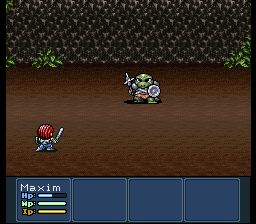
While the default name of the main character is Maxim, you can customize your game and change his name. Press the B Button to erase the letters, one at a time. Then move the cursor to highlight the desired letters and press the A Button to select them. The name cannot exceed five letters. You can use Maxim as the name of the lead character or change his name for a more personal playing experience. The maximum length for the name is five letters. If your own name is too long, you can use your initials. Saving
You'll find a special shrine in every city and castle where a wise man waits to save your progress, revive the perished members of your party and return all other states to normal. You should save your progress whenever you have the opportunity. Be sure to save in more than one file.
Select a file and press the A Button. The old man will ask you to confirm your choice. When you do, your progress will be saved.
Saving Over Data
When all four of the saved game slots are filled, you can save over a previously saved game. This progress does erase the previous file, so make sure that you don't save over a file that you want to keep. Move the cursor to the appropriate slot and press the A Button to proceed.
When you save over a file, the old file will be erased. Don't save over games that you want to keep.
Continue
When you're ready to continue a saved game, turn on the power and press the Start Button to move to the screen that displays the information regarding saved games. Then, select the appropriate file by moving the Control Pad and press the A Button to resume the play.
Use the Control Pad to highlight the game that you wish to resume, then press the A Button. You'll start where you last saved your game.
Puzzle Rooms
Many dungeon rooms present puzzles that must be solved in order for you to move on. Puzzles involve switches, keys, blocks that can be pushed and other subjects. If you find a hint sign on the wall, make sure to read it for an important clue.
Help Is Here
Just when you need them the most, you will find icons with which you can save your progress, restore Hit Points and restore Magic Points. These icons are often hidden deep in the darkest dungeons. Guide your lead character over the icons. This will give you the option to save and restore. Then you can move on with confidence.
•
HP Icon: Indicates that this is the place to restore Hit Points. Move your lead character onto the icon and your points will be back to their max.
•
MP Icon: Works just like the HP icon. When your character steps onto this section of the floor, the Magic Points for all magic users will be restored.
•
Save Icon: It's important to save your progress often because, if your party perishes, you can continue your game at your last save point. Step on this icon to save.
Sub Screen
If you need to check on an item, equip a weapon, use a spell or change the order of the characters in your party, you can perform those functions, and more, in the sub screen. Press the X Button to bring up the sub screen, then survey the screen for the options of choice.
•
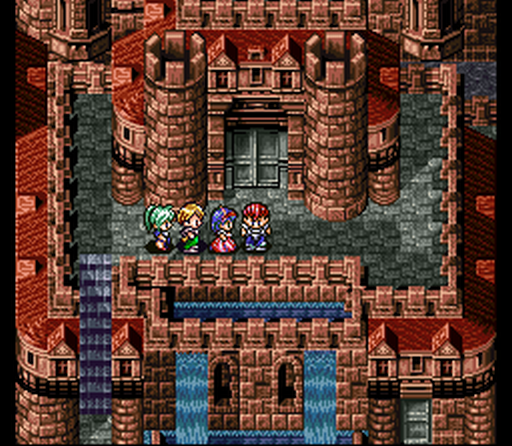
Party Members: This area shows the members of your current party and their vital statistics.
•
Categories: Use the Control Pad to single out a category, then press the A Button to select it.
•
Game Stats: This option allows you to check your total game time played and your current gold reserves.
•
Items: Press up or down on the Control Pad to scroll through the items in your inventory. Press the B Button to switch to the item bar, then press left or right to choose between the Use, Sort and Drop options.
•
Spells: When you select spells, a blue bar will appear under one of the characters. Move the bar to the appropriate character and press the A Button. Spells that you can use will be shown in color.
•
Equip: It's important to make sure that your characters are using the right equipment. You can equip items individually or select the "Strongest" option to automatically give your hero the strongest equipment available.
•
Status: The Status selection allows you to see the character's name, current level, Hit Points, Magic Points, attributes and equipped items. You can also see how much experience they need in order to reach the next level.
•
Character Order: This option allows you to change the order of your party members. Press the A Button to select a member of the party, then move the cursor and press A again to change that character's position.
•
Capsule: Use the Control Pad to move between the Feed, Change and Name options. Then press the A Button to choose the selected option
.png)

.png)
_2.png)
.png)
.png)
.png)