Getting Started
Make sure the power is turned off on your Control Deck. Insert the Game Pak into the slot on top of the Deck, and then turn the power on.
Demo Screen
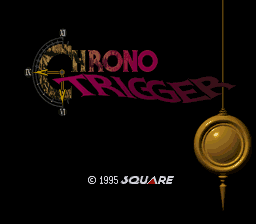
The Demo Screen shows you scenes from the game. To skip it, simply push the A Button.
New Game
To begin a new game, choose "New Game" on the opening Menu Screen by using the Control Pad and push Start.
Continue the Game
Instead of selecting "New Game," you can select a saved game and start from wherever you last saved.
Battle Mode Active & Wait
There are two different modes used in battle: Active and Wait. You can also choose either one in the Config. Screen.
•
Active: Active is for the seasoned pro. When you choose this mode, monsters will not wait for you to decide on your plan of attack. This is a more thrilling battle mode, but you must decide quickly what to do.
•
Wait: Wait is for beginners. You will have more time to decide on an attack method.
Saving Progress
You can save up to three different games. Likewise, there are three places from which you can begin a saved game. When you resume playing a saved game, you may begin from any one of those three saves.
•
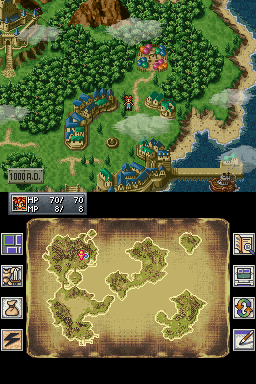
Map Screen: While on the Map Screen, you can open the Save Screen at any time to save your game.
•
Save Points: There are save points throughout the game. Access the Save Screen in the Main Menu by standing on the save point and pushing X.
•
The End of Time: When you reach "The End of Time," be sure to save your game at the save point.
Sub Screen: 2 Items
•
Item Screen: This screen shows you all the items your party is currently holding.
•
Use/Move: Select to use or move items.
•
Organize: This allows you to organize your items by their category.
•
Item Description: This tells you what the selected item does.
•
Item Name: This is the name of the item.
Using Items
Items you can use during battle and in the field will be highlighted in yellow. Other items will be in white. Move the cursor to the item and push A.
Organize Command
This command organizes your items for you automatically without having to move them manually.
Sub Screen: 3 Tech Skills
Tech is your special attack ability. As you play and win battles, you gain more Tech Skills. You can also use certain Tech Skills with other characters.
•
Character: This is the character you have selected.
•
Combinations: Tech can be used with one, two, or three characters.
•
Tech Names: These are the Tech Skills the character knows.
•
Magic Points: This is how many Magic Points it takes to use this Tech.
•
Tech Description: This describes the effect of the selected Tech.
•
Use Magic: When you are in this screen, the Tech Skills highlighted in yellow are the ones you can use.
Sub Screen: 4 Configuration
Here you can change features such as music, text speed, etc. You can configure your game any way you like it.
•
System Icons: Each icon represents a game function.
•
Function Description: This tells you what the selected function does and how it is currently configured.
•
Sound Select: You can choose either stereo or mono sound.
•
Battle Cursor: This allows you to program your favorite attack and use it automatically.
•
Battle Mode: You can choose Active or Wait.
•
Skill/Item Position: Use this to automatically choose tech skills and items.
•
Menu Cursor: Use this to automatically select the same sub-screen every time you press the X Button.
•
Battle Speed: Use this to change battle text speed and Battle Gauge speed (1 is fast, 8 is slow).
•
Window Color: Use this to change the color of the text windows to suit your taste.
•
Controller: Here you can change the configuration of the buttons. For example, if you feel more comfortable using the B Button for action, you may do so.
•
Battle Gauge: There are two types of battle gauges. Here you can choose fast or slow, or turn the gauge off.
•
Skill/Item Description: You may turn off the Tech Descriptions during battle if you want.
Sub Screen: 5 Character Order
During play you may want to change your party's configuration. For example, occasionally a certain character is required to ask questions of others, and in battle, one character may be more effective than another.
To move characters around, move the cursor to a character and push A. Then move the cursor to where you want to place that character and push A.
If the window is dark, you cannot move the character displayed there.
Battle Commands
•
Attack: Choose "ATTACK" if you are strong enough for hand to hand combat. You are unable to fight until your Battle Gauge is full. Hit the enemies with your weapon.
•
Tech: Tech is your special attack capability. It can be done alone or in groups of two or three characters (called a "Combo"). Choose a Tech. If you want to use a combination Tech, you have to wait for the other characters' Battle Gauges to reach full power.
•
Items: You can also choose to take your turn by using an Item to recover lost Hit or Magic Points.
.png)

.png)
