Getting Started
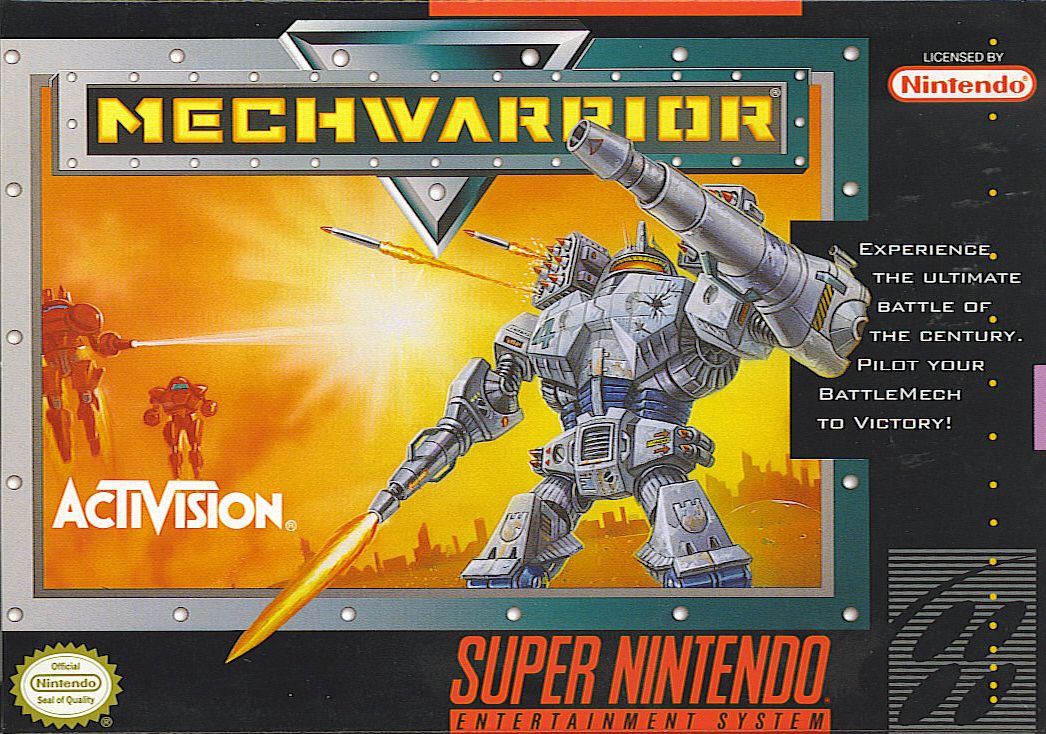
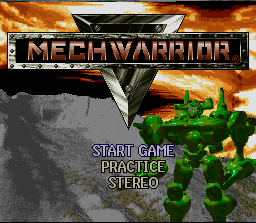
Insert the MechWarrior Game Pak and then turn on your system. On the title screen, you can select your game options. Press any button when the desired option is highlighted.
If you are playing for the first time, you'll probably want to select PRACTICE and get right into your 'Mech and blast some other 'Mechs. The LOAD GAME option will only be displayed if you have previously saved a game.
The Object of MechWarrior
In MechWarrior, you play the role of Herras Ragen. Operating out of the outpost on Galatea, your object is to find the members of the evil Dark Wing Lance and have your revenge. You'll have to identify and find them first.
You will never be able to do it with just your Nexus (your first 'Mech), either. As you earn money for successfully fulfilling contracts, you'll be able to afford better 'Mechs so that you can deal with the enemies you encounter.
Quick Introductory Walk-Through
At the title screen, select START GAME and press any button. You'll see yourself (Herras). Press any button to exit the screen, and you'll find yourself on the main menu screen:
On the main menu screen, the icon for Club Zero-Zero is already highlighted for you. Press B or Y ("Yes") to go to the club.
In the club, you'll see another club icon already highlighted for you. Press B or Y to initiate a conversation with Cearle, the waiter/proprietor/chief-bottle-washer of what is jokingly referred to as the dining room of this establishment. He'll tell you which planet to go to first (Galeton). After he's left you alone, press A or X ("eXit") to exit the club and go back to the main menu.
Back at the main Galatea menu, select "G.H.Q." In G.H.Q. you'll be presented with a variety of possible mercenary contracts. If need be, click on the right-arrow icon (just below the "OK!" icon) and keep pressing B until the Galeton contract appears. Click on the "OK!" icon to sign the contract (press B or Y), and you'll exit back to the main menu.
Back at the main menu, you'll see that the Battle icon (skull and crossbones) is now available, and highlighted. But don't rush into battle just yet. Move the highlight all the way to the right, to the 'Mech icon, and press B.
In the 'Mech Complex, there are only three icons available to you right now: Repair/Reload (wrench); Customize ("???"), and "Buy." Trust me, you don't have enough money to buy any 'Mechs yet. Click on the "???" icon, to go to the Chop Shop and buy some extra armor for your 'Mech.
When you enter the Chop Shop menu screen, the weapons icon is highlighted. Move the highlight down, to the armor icon, and press B. You enter the armorer's bay. Use the right-arrow icon to increase your armor as much as you want, then select "OK!" You automatically exit the armorer's bay back to the Chop Shop screen -- and you'll see that you don't have much money left. Press A or X to exit the Chop Shop.
Back at the 'Mech Complex screen, press A or X to exit back to the main Galatea menu. Back at the main menu, you're ready now for your first mission. Click on the battle icon. Your 'Mech will be presented for your inspection -- you're ready. Click "OK!" and go blast those 'Mechs!
Galatea Main Menu Exits
There are four possible exits from the Galatea main menu:
Highlight an exit icon using the + Control Pad, and press B or Y ("Yes") to go to the indicated location. To return to this screen from Club Zero-Zero, G.H.Q., or the 'Mech Complex at any time, press A or X ("eXit"). To play MechWarrior, you'll need to become familiar with the options made available to you in all of the locations on Galatea, and use them all to your advantage.
Club Zero-Zero
Club Zero-Zero (so called because it's on Galatea's equator — 0° latitude — and at 0° longitude) is the place to be, if you want to hear news and rumors and get tips about where you might find Dark Wing Lance members. You'll be able to meet a variety of characters here, as well as to view your holovid messages and watch the NewsNet.
It's important to make full use of the Club's facilities, or you won't know what contracts to ask for at G.H.Q., and the necessary contracts won't be available to you. So pay close attention!
Using the holovid player is pretty straightforward - but if you've never seen one, or even a late-20th century VCR, you might not be familiar with the universal symbols for "fast-forward," "play," and "eject." You press one of these buttons by highlighting it and pressing B or Y. Fast-forward
.png)

.png)