Getting Started
Insert the Game Pak and turn the power ON. The Title Screen will be displayed. Press START to display the data file screen.
Starting a New Game
Select "New Game" using the Control Pad and press the A Button to enter. Next, select the level of difficulty (either "Normal" or "Hard"), and press the A Button again.
Continuing a Saved Game
If you have saved data from a previous game, you can continue where you left off by loading a saved game file. Select a file to load with the Control Pad, then press the A Button to display the menu.
Use the Control Pad to select one of the options below and press the A Button to enter:
•
Continue game: Continue playing a saved game.
•
Copy data: Copy game data. Select a location to copy the data to and press the A Button.
•
Delete data: Delete game data. Select the data to delete and press the A Button.
Destination Points
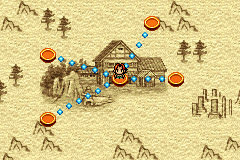
Select a destination point to enter a stage. Some destination points are locked, but you can unlock them by fulfilling certain conditions or teaming up with friends.
To proceed:
•
Select a destination point on the Map.
•
Hold down the L or R Button.
•
Clear the stage to move to the selected point.
Game Objective
The main goal of the game is to defeat Magister, who is trying to take over the world by bringing the ancient Shaman King back to life. In order to achieve this daunting task you will need the help of your friends. Together you will be able to defeat Magister and save the world! Game Flow
The game alternates between the Map and Action Stages. First, select a destination point on the Map, then play an Action Stage. Once you clear the Action Stage, you can proceed to the selected point on the Map.
Map Menu
Press START on the Map to display the Map Menu. Select a menu item with the Control Pad and press the A Button to enter. Press the B Button to return to the Map.
The menu offers the following options:
•
SAVE: To save game data, select “Save” with the Control Pad and press the A Button. The current game data will be saved over any existing data.
•
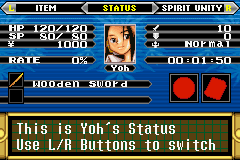
STATUS: Check your status. For details on each parameter, as well as commands, see P.11-13.
•
SHOP: Items can be bought and sold here. To buy, select “Buy” with the Control Pad. To sell, select “Sell” with the Control Pad. Press the A Button to enter your selection. Each item has a certain weight, and you can hold a maximum weight of 10.
Spirit Unity
You can equip Guardian Ghosts that have been collected with this command (see P.14 - 15). If you organize your Guardian Ghosts into Decks, you can easily select specific Guardian Ghosts for specific occasions. Slots
Guardian Ghosts may be equipped to 5 different slots on the body. Select the desired slot using the Control Pad, then press the A Button to enter. Choose the desired Guardian Ghost from the list that appears at the bottom of the screen. When the game begins, only the Right Hand slot is available. The display is different for each type of Guardian Ghost:
•
Spirit Unity type: Name only shown.
•
Spirit Control type: LR icons and furyoku cost shown.
•
Button icon: Amount used up when activated once.
•
Clock icon: Amount used per second when active.
Deck
Create Decks containing various Guardian Ghosts. You can hold up to four Decks. Use right/left on the Control Pad to choose a Deck, and SELECT to enter. Guardian Ghosts
There are two types of Guardian Ghosts: •
Spirit Unity Type: Equip a Spirit Unity type Guardian Ghost to any slot to activate its power. These Guardian Ghosts can be used to increase attack power, cure poison, etc. •
Spirit Control Type: This type of Guardian Ghost must be equipped to either the Right or the Left Hand slot, and gives the Player the power to fire missiles or execute a special stabbing attack. It is activated by pressing the L or R Buttons, but you must have adequate furyoku levels to use it.

_2.png)
.png)
 (En,Fr,De).png)
