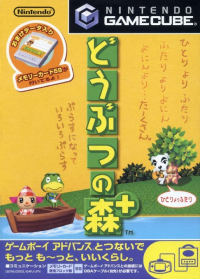
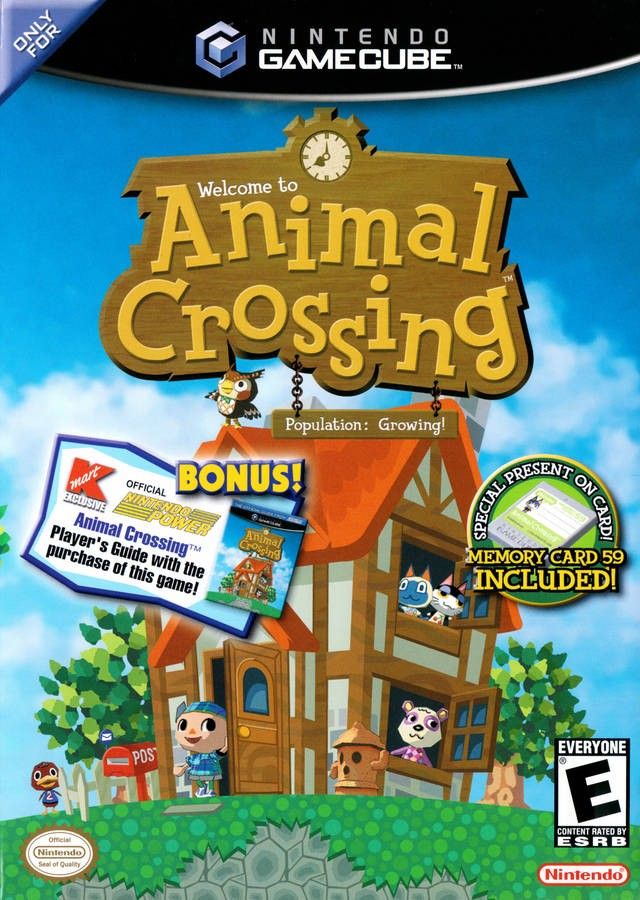
Welcome to Animal Crossing
Are you ready to strike out on your own and lead an independent life? In Animal Crossing, you can do exactly that—amongst animals. Time passes much like it does in the real world. Seasons and holidays come and go. The trees change color. It rains. It snows. So what are you waiting for? Pack up your things, and get ready to start a new life! Starting the Game
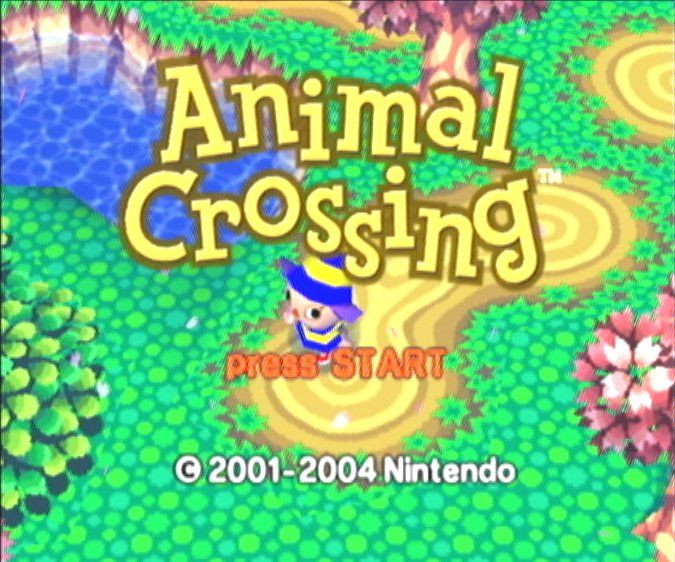
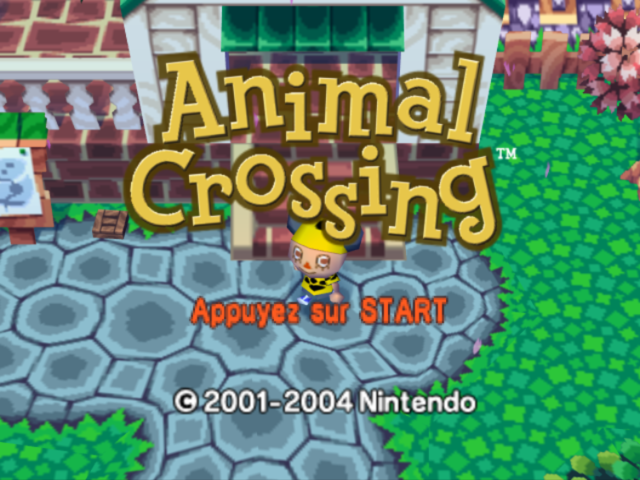
Insert the Animal Crossing Game Disc into your Nintendo GameCube. Insert a Memory Card into Slot A, close the Disc Cover, and turn the power on. Press START on the title screen. You will need a Memory Card to save a game in progress.
Playing for the First Time
Talk to Rover while you're riding the train. Use the Control Stick and the A Button to set your clock and to name your character and town. You should arrive in town just as you finish things up. Then you'll be ready to start exploring!
Continuing Your Game
To return to your town, simply answer "Yes" to the first question you're asked and select your character from the list.
If you want to create a new character in your town, select "I'm New". You can save up to four characters on one Memory Card. Only one set of town data can be saved on a single Memory Card.
Select "Before I go..." to change the game settings listed below.
Game Settings
•
Sound: Choose from Stereo, Mono, or Headphone. You can also set how the animals sound when they speak.
•
Demolish a House: Delete a player's character data.
•
Set Clock: Set the current time and date.
•
Rumble Feature: Turn the Controller's Rumble Feature On or Off.
•
Build a New Town: Delete town data.
Note on Deleting a Town
If you delete a town, it's gone forever! Think carefully before you do it. Letters and patterns created in the town won't be deleted.
Use Your Own Designs!
Try pasting a pattern you've created onto clothes and umbrellas.
•
Press the A Button here to display the design page.
•
Select a pattern with the A Button.
•
Select Use to decide where to use the pattern.
Pattern Usage Options
•
Use on Clothes: Use the selected pattern on your clothes. Your old outfit goes back into your inventory.
•
Use on Umbrella: Fold the selected pattern up and use it as an umbrella. You don't need to have an umbrella in your inventory to do this.
•
Use on Walls, Use on Floor: Works Only in Your House! Paste the selected pattern on the wall or floor. The wallpaper or carpet you were using goes back into your inventory.
Important Note on Inventory
You can't use patterns on your clothes, walls, or floor if your inventory is full.
Drop in Your House
Works Only in Your House!
•
Drop as Clothes: Show off your pattern as an outfit in your room.
•
Drop as Umbrella: Show off your pattern as an umbrella in your room.
Post a Design
Works on Signs! After you erect a signboard outside, you can stand in front of it and press the A Button to post one of your patterns on it.
Use Your Tools!
You can follow the same steps for changing clothes to pick up a tool, such as a shovel or a fishing pole. To put the tool away, go to the item screen. Place the cursor over your name, and press the A Button to grab the tool. Then just put it back into your inventory.
•
Shovel: Use your shovel to dig holes in the ground. You can also use it to fill holes or bury items.
•
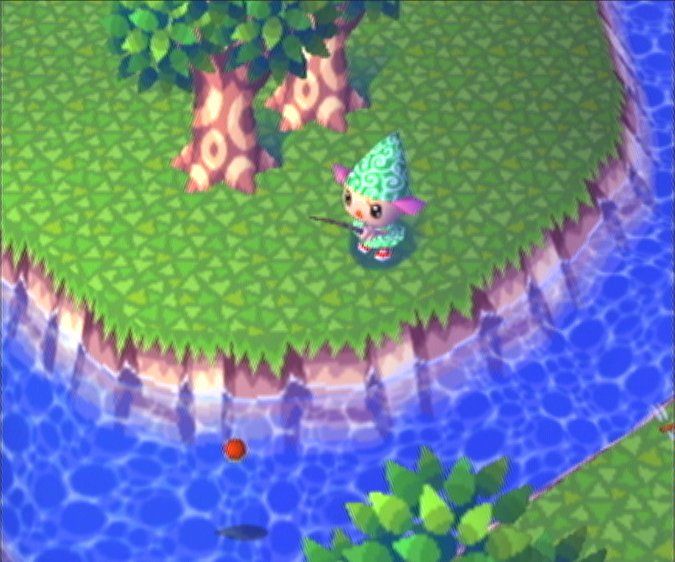
Fishing Pole: You'll need a fishing pole to catch any fish. Every fish you catch is recorded in your fish list.
•
Net: Use your net to catch insects. Every insect you catch is recorded in your insect list.
Presents Sent with Letters
If you receive a present in the mail, press the A Button on the letter and select Present. Then move it to your inventory, where you can open it.
Money Bags
You can move money bags from your inventory to your wallet. Just press the A Button to grab them and carry them up to where your total number of Bells appears on the item screen. Then press the A Button to add them to your funds.
Tom Nook's Store
You can do much more than just shop at Tom Nook's store! Talk to Tom to see what the options are.
Shop
Press the A Button while standing in front of the item you want to purchase. Tom Nook will explain the item and its price. If you're buying clothes, wallpaper, or flooring, he'll even show you what it looks like. Select "I'll buy it!" to purchase the item or "Never mind..." to decline.
Can't Find What You Want?
The store changes its stock every day. If you don't find anything you want, try coming back the next day!
Sell Items
Sell your unwanted items to make some money. Once you've sold an item, you can't cancel the transaction, so be careful. Make your selection with the A Button, or use the X Button to select multiple items and sell them all at once.
Catalog
See a complete list of items you've purchased or received in the past. Select an item from the list to
.png)





_1.png)
_1.jpg)