Title Screen
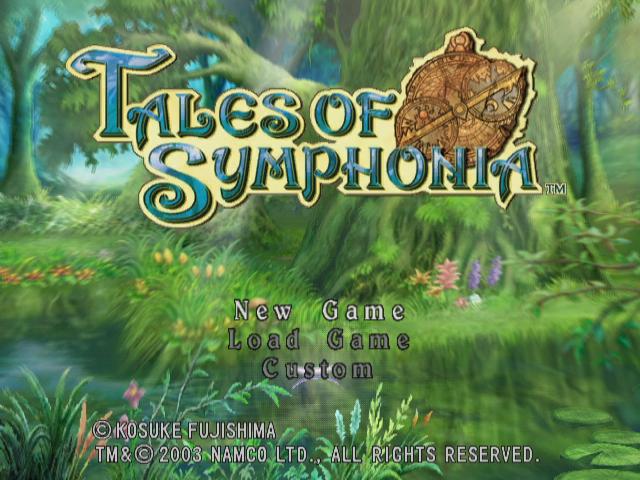
NEW GAME
This option allows you to start the game from the beginning.
From the Title Screen, use the Control Stick or Control Pad to select NEW GAME, and press the A Button or START/PAUSE to confirm.
At the following screen, you will be able to change game settings such as SKIT TITLE DISPLAY, BATTLE CONTROL TYPE, etc. (see page 15 for more information on Battle Control Type).
CONTINUE
If there is saved game data for TALES OF SYMPHONIA on a NINTENDO GAMECUBE Memory Card, you can continue a previously saved game. From the Title Screen, select CONTINUE, select the location containing the Memory Card which the game data is saved to, and select the game data you wish to load.
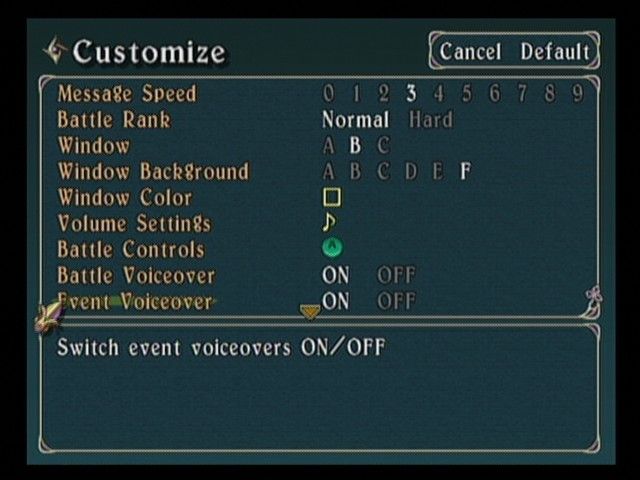
CUSTOMIZE
You can customize various game settings, such as: MESSAGE SPEED, WINDOW TYPE, WINDOW COLOR, etc. See page 28 for an explanation of each item.
Saving
A game can only be saved at Memory Circles in towns and dungeons or on the FIELD.
While in the Save Menu, insert a Memory Card into Memory Card Slot A or Memory Card Slot B and select the appropriate location and press the A Button to confirm the selection.
Next, select a location to SAVE your game data and press the A Button to confirm the selection.
TALES OF SYMPHONIA requires 1 file and 3 blocks to save. Please refer to the NINTENDO GAMECUBE Instruction Booklet for directions on how to format and erase Memory Card files. Memory Circle
To save while on a Memory Circle, press the A Button to open the Save Menu.
Saving on the Field
While on the FIELD you can save at any time.
Press the Y Button to open the Main Menu (see page 14 for more information on the Main Menu), select SYSTEM and press the A Button to confirm the selection. Next, select SAVE and press the A Button to open the Save Menu.
Changing Game Discs
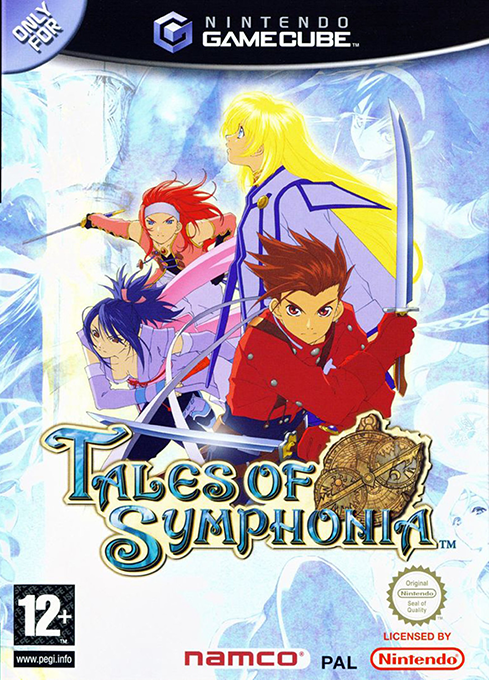
TALES OF SYMPHONIA is composed of two NINTENDO GAMECUBE Game Discs. When playing the game for the first time, always start by inserting TALES OF SYMPHONIA Game Disc 1.
When a disc change is required, follow the on-screen instructions to exchange the discs properly and continue with the game.
Four Player Mode
In the Four Player Mode, up to four players can battle against fierce enemies.
When three of your friends should battle along your side, make sure that each Controller is properly inserted into the appropriate Controller Socket.
Please note that this manual is generally written under the assumption that a single player is playing the game.
Using The Main Menu
Main Menu
The Main Menu allows you to set TECHS, use ITEMS, and determine various game settings.
On-screen Indicator
This shows the character that will be on-screen in the FIELD and the Town/Dungeon.
Menu Items
A list of items that can be accessed from the Main Menu.
GALD
Shows the amount of money you currently possess.
TIME
Shows the total play time (white) and the amount of time since the last game load (yellow).
ENCOUNTER
Shows the number of battles that you have encountered.
COMBO
Shows your highest number of successful combo hits in battle.
Character Window
This window displays a character's current level, the amount of Experience required to reach the next level, current and max. HP, current and max. TP, and Type Gauge (see page 17 for more information on the Technique Type Gauge).
Tech
How you set magic and techniques will greatly influence the course of battle.
Be sure that you understand how to set magic and techniques!
Battle Control Type
You can choose AUTO, SEMI-AUTO, or MANUAL for each character's Battle Control Type.
Under the option TECH, you can choose the Battle Control Type for each character by pressing START/PAUSE until the appropriate Battle Control Type is highlighted - which indicates that the Type is chosen.
Battle is performed automatically, according to the set strategy. Magic and techniques used automatically during battle are displayed in white. To turn off magic or techniques, select the magic or technique you want to turn off and press the Y Button. Turning off magic or techniques will prevent them from being used during battle.
The character is controlled by the player, but support features such as automatic guard are enabled. Also, the magic and techniques listed in the Tech Menu can be mapped to different combinations of the B Button and the Control Stick for use during battle.
The character is controlled by the player with no support features enabled. Magic and techniques listed in the Tech Menu can be mapped, similar to SEMI-AUTO, to different combinations of the B Button and the Control Stick, for use during battle.
Using Magic in the Main Menu
When you want to use magic and you are not in a battle, move the cursor to the magic or technique you want to use, and press the A Button to confirm the selection.
Please note that magic and techniques labelled with a red "B" cannot be used out of battle.
The Cost of Magic and Techniques
Each time you use magic or techniques, TP will be consumed.
The cost of each magic or technique is displayed at the bottom of the screen when selecting the appropriate magic or
 (Disc 2).png)


_1.jpg)