Getting Started
Thank you for purchasing Hudson's HuCARD, 'Appare Gate Ball'. Before use, please read this 'Instruction Manual' regarding handling and precautions carefully, and use it in the correct manner. Please keep this manual in a safe place.
Handling Precautions
•
As it is a precision device, avoid use or storage under extreme temperature or humidity conditions, and avoid strong shocks. Do not bend the card forcibly.
•
Do not touch the terminals or get the card dirty by wetting it with water, as this may cause malfunction.
•
Do not wipe it with lint, pliers, or other polishing oil.
•
Play at a distance from the TV screen of approximately 2 meters.
•
For long periods of play, take a short break of 5 to 10 minutes every hour for your health.
Reset Method
During the game, press the SELECT button while holding the RUN button to restart the game from the beginning.
HuCARD is a game card exclusively for HE. While we strive for perfection in quality, we will replace the product with a new one in the unlikely event of a defect for which our company is responsible. Unauthorized duplication of this software and its use for commercial purposes are prohibited.
Game Introduction
The ultimate sport, Gate Ball, has appeared!! 'Appare Gate Ball' is a sports game that simulates gate ball.
While gate ball may seem like a game just for older individuals, playing it reveals a strategic and deep experience. Please enjoy this thrilling game, which features sudden developments with every shot.
Mastering the Rules
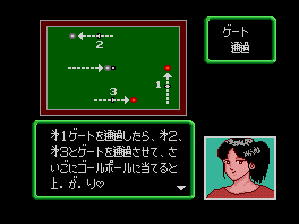
This game is made as faithfully as possible to the actual gate ball rules.
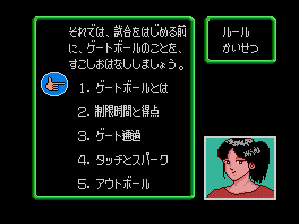
For those unfamiliar with the rules, select the 'Rules' explanation mode before starting to master general knowledge. Note that judging is performed automatically by the COMP.
The rule sections covered are:
Play Modes
"Appare! Gate Ball" offers three modes: "Action", "Simulation", and "Lecture".
"Action" and "Simulation" allow for standard gameplay. When selecting either, you will choose several elements, and the game will begin. Selection is done with Direction Keys + 1 Button.
For the "Lecture" mode, refer to the dedicated section below.
Player Catalog
12 players appear, each with unique characteristics explained in detail before they enter the gate shot. The figure displays an example of the player status screen.
Each element is displayed in 3 stages. The face and name of each player are displayed at the top.
•
S/M/L: Represents short, medium, or long distance capability.
•
Direction Accuracy: Represents accuracy regarding direction.
•
Distance Accuracy: Represents accuracy regarding distance.
•
Stamina: Displays the player's stamina.
Match Settings
Select the following options to configure your match:
•
VS: Select either computer match or player match (2-player).
•
Order: Select Red Team (first attack) or White Team (second attack).
•
Level: For computer matches, select from 4 levels ranging from local tournaments to world championships.
•
Course: Choose between turf course and soil course. The soil course is more irregular.
•
Time: Select the match duration from 10, 15, 20, or 30 minutes. Official gate ball match time is 30 minutes.
Choosing Players
There are 5 players per team. Select the team using the left and right direction keys.
In VS Play, players are selected alternately: Red Team → White Team → Red Team. When a player is selected, their batting order is determined simultaneously.
Player Names
Screen Display
The game features two types of screens: the "Field Screen" and the "Board Screen".
Basically, you determine the direction of your shot on the Board Screen, then execute the shot on the Field Screen. While this varies slightly by Play Mode, the Field Screen is divided into two side-by-side halves.
Meaning of Screen Display
Normally, player status and team scores are displayed in the window at the top of the screen:
•
Current team total score.
•
Number of shots remaining for the player.
•
Time elapsed since the start of the match.
•
Mark for the top scorer.
•
Window showing the status of balls for all 10 players. The number inside the square gate symbol indicates the gate number passed. A star shows if the course is finished. The absence of a square indicates the ball is out.
Field Screen
Displays the full view of the gateball course, split into two horizontal screens. This is the standard mode for this view.
Board Screen
A blacked-out display used to determine the direction for the shot.
Controls
Determine the course with the D-Pad.
Basic Operations
Shots are executed by moving the crosshair with the D-Pad, then pressing Button 1 to set the position.
•
Pressing Button 2 slows down crosshair movement,


.png)
