Welcome to Formula 1
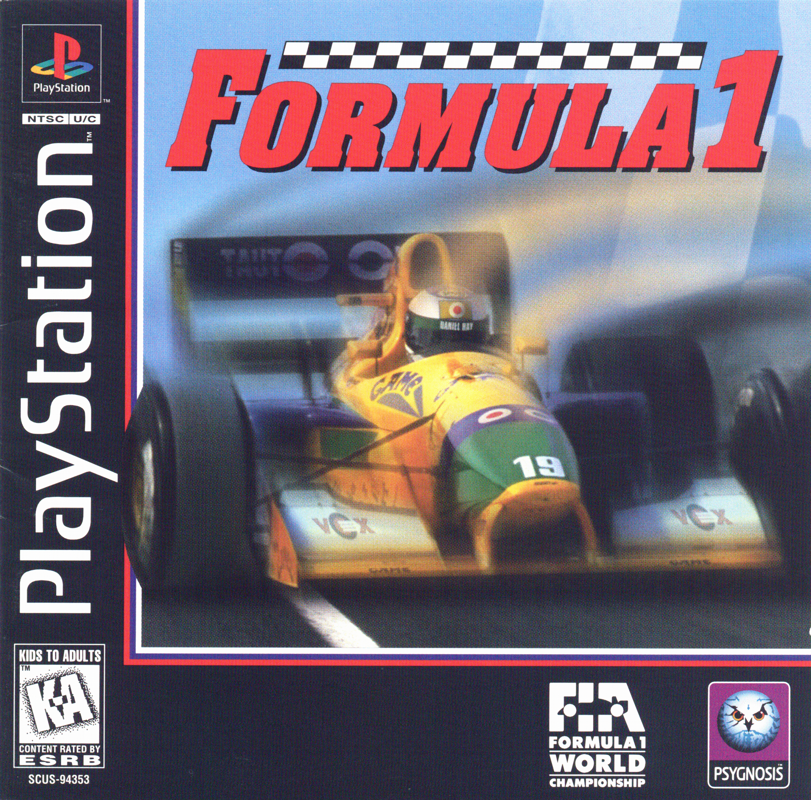
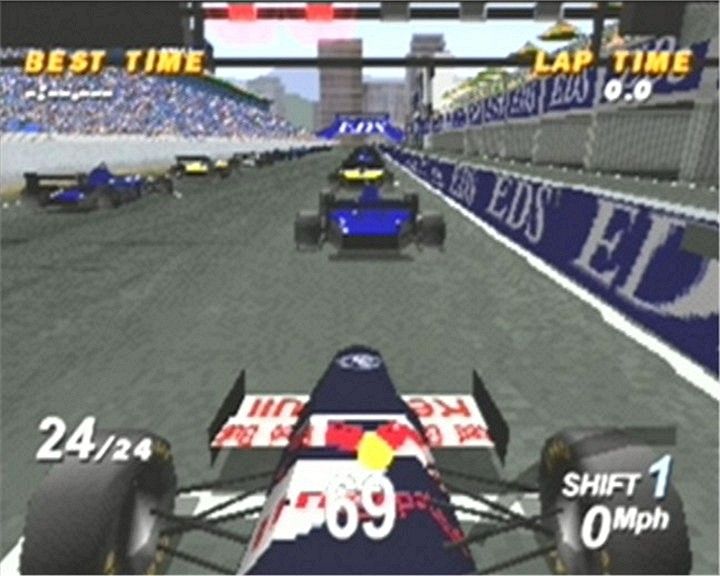
Welcome to Formula 1 - the ONLY official Formula 1 racing game for the PlayStation. Experience the glamour and excitement of a full F1 season. Take your pick from 13 teams, 35 drivers, and 17 circuits in an attempt to win the most coveted title in modern motor racing - FORMULA 1 WORLD CHAMPION.
The Starting Grid
To load and run Formula 1 on your PlayStation, follow these simple instructions. •
Set up your PlayStation in accordance with the instruction manual supplied with the system. It is advised that you do not insert or remove peripherals or Memory cards once the power has been turned on. •
Insert Controller 1 into Controller port 1 on your PlayStation. •
Follow your system directions to open the disc cover and place the CD onto the bed of the drive, ensuring the printed side faces upwards.
•
Close the Disc cover and switch the system on to begin play.
Red Light!!
Okay, you're all set up, and ready to race. Get the engine revving, hit the redline and get it on...
Green Light!!!
Formula 1 has two game environments: the menus and the races. When in the menu system, use the Directional buttons on your Controller to move the highlighting effect over the option of your choice. Press the X button to select the option currently highlighted.
Go!!!!
Controller
Take your pick from one of eight different pre-set Controller set ups. If you are using an Analog Controller such as neGcon, you will be able to access other menu headings to the left of the Controller diagram. Use these to alter a range of settings specific to this type of controller.
Formula 1 supports the neGcon, Mad Catz, and Per4mer analogue controllers.
Sound
Allows you to adjust the volume levels of the commentary, music, crowd noise, and other sound effects. You may also select between Mono, Stereo, Q Sound, or Dolby Surround. Enter the CD Player screen to make selections from the track listings.
High Scores
See if you can top the high score table.
Screen Set Up
Allows you to adjust the horizontal and vertical positions of the game window on your television.
Memory Card
Select this to gain access to a sub menu where you can load and save games and carry out other alterations to your Memory card set up. It is essential that you do not remove or insert a Memory card when the operations below are in progress.
Loading a Game
Insert a Memory card with previously saved games on it into your Console. Move from the main menu screen to the Memory card screen.
Once there, use the up and down Directional buttons on your Controller to move the highlighting effect over the "Load" option. Next, use the left and right Directional buttons to scroll through the list of saved games.
Press the X button to select the saved game that you wish to load. Your choice will then be loaded from the Memory card. Return to the Main Options menu by pressing the triangle button on your Controller and then select Resume.
Saving a Game - Championship Racing
If you wish to save a game, ensure that you have a Memory card inserted into your Console. Following the end of a race and the results screen, you will be shown an options screen.
Using the Directional buttons on your Controller, move the highlighting effect over the Return to Front End option and press the X button to select it. This will take you back to the main menu screen.
Using the same highlight and select procedure, move from the main menu screen to the Memory card screen. Once there, use the up and down Directional buttons on your Controller to move the highlighting effect over the "Save" option and press the X button to select it.
A slot will appear just to the right of the listed options. Name the slot by using the up and down Directional buttons to scroll through the alphabet and pressing the X button to select each letter.
When you have named the slot, press the X button on your Controller and the game will then be saved to that slot. Finally, use the same highlight and select process to choose "Exit" and quit the screen. Select Resume from the main menu if you then wish to continue with the championship.
Saving a Game - Default Options
If you wish to save your default game preference settings, choose all your preferred settings in the front end and then save a game named 'Default'.
If the PlayStation is turned on while the Memory card with the 'Default' save game is in Memory card slot 1, then these settings will be automatically loaded into the front end for you. Delete
Choose this if you wish to erase previously saved games from your Memory card. Use the same highlight and select procedure as before to choose the game you wish to delete.
Format Card
Select this to format a new Memory card. You cannot reformat a previously formatted Memory card.
Exit
Takes you back one screen. Alternatively, you can press the triangle button on your Controller to back up one screen anywhere in the main game menus.
When you have configured the game to your satisfaction, use the Directional buttons to move the highlighting effect over the Exit box and press the X button to select it. This will take you back to the Main Menu screen.
Quick Race
Choose Quick Race for an instant arcade style race with a choice of team, driver, and track. Selecting this will take you straight into the game where all options will be the same as the last options chosen.
However, if you choose One or Two Player racing, you will then be prompted to decide between Arcade or Grand
 (Rev 1).png)

.png)
 (En,Fr,De,Es,It).png)
 (En,Fr,De,Es,It).png)
