GETTING STARTED
TO PLAY MYST ON YOUR PLAYSTATION GAME CONSOLE:
•
Set up your PlayStation game console in accordance with the instruction manual supplied with the system. •
Follow your system directions to open the CD drive and place the CD onto the bed of the drive, ensuring the printed side faces upwards.
•
Close the CD drive. If the unit is switched off, press the Power button to begin play. If the unit is already on, press the Reset button.
If you want to skip introduction and title screens, press button X on the Controller or press the LEFT button on the Mouse.
PLAYING THE GAME
MOVING AROUND: Basics
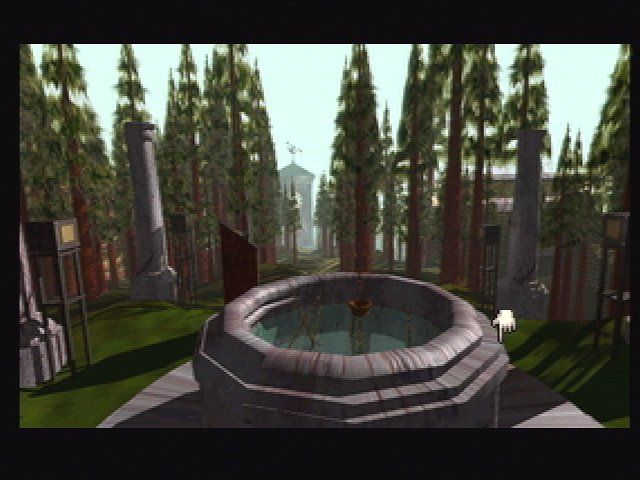
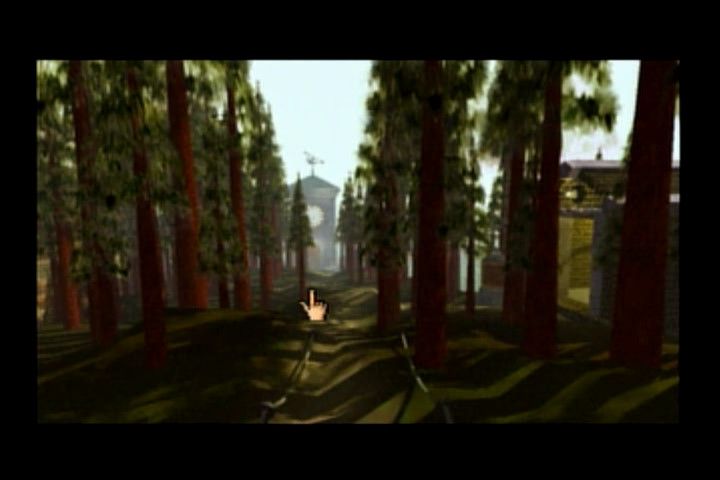
Moving around in Myst is incredibly intuitive. Use the Directional buttons on the Controller or move the Mouse to place the pointer where you would like to go.
Press button X on the Controller or the LEFT button on the Mouse to move to that location. If you would like to move forward, press button X on the Controller or the LEFT button on the Mouse when the pointer is indicating straight ahead.
If you want to turn right or left, press button X on the Controller or the LEFT button on the Mouse when the pointer is on the right or left side of the screen.
Details
It is possible to turn around from most locations (either 90° or 180° depending on the location) by pressing the Directional buttons on the Controller or using the Mouse to move the pointer to the left or right side of the view.
When the pointing hand turns left or right it indicates that pressing button X on the Controller or the LEFT button on the Mouse will turn you to the left or right. It may also be possible to look up or down in certain locations by moving the pointer to the top or bottom of the image and then pressing button X on the Controller or the LEFT button on the Mouse.
In some locations when you are close to an object, pressing button X on the Controller or the LEFT button on the Mouse when the pointer is to the side of the object will move you back one step.
Some locations are not accessible. Pressing button X on the Controller or the LEFT button on the Mouse in those locations will have no effect, and indicate that the location is not important.
Zip Mode
Myst has an option called "Zip Mode" that allows you to quickly move to places you have already been. When Zip Mode is selected from the Options menu, your pointer will turn into a lightning bolt when it is on certain objects or areas.
Pressing button X on the Controller or the LEFT button on the Mouse will "zip" you to these areas immediately. Some mechanical equipment will also function more quickly in Zip Mode. You can only zip to a precise location you have already been.
Remember, if you use Zip Mode too early or without care, you may miss some important details in the areas that you are skipping.
MANIPULATING OBJECTS: Basics
If you want to examine, use, or pick up an object, just move the pointer to it and press button X on the Controller or the LEFT button on the Mouse. To drag it, keep button X on the Controller or the LEFT button on the Mouse held down as you move the pointer.
Details
Pressing button X on the Controller or the LEFT button on the Mouse while the pointer is on an object will either bring that object closer to you, or bring you closer to the object. If the object is functional, pressing button X on the Controller or the LEFT button on the Mouse may activate it, or manipulate it (such as turning on a switch, or flipping the pages in a book).
If the object is not important, pressing button X on the Controller or the LEFT button on the Mouse may have no effect.
It is also possible to move levers and other objects by dragging them. If an object is draggable your pointer will turn into a grabbing hand. Also, if an object requires you to hold down button X on the Controller or the LEFT button on the Mouse the pointer will turn into a grabbing hand.
There are a few limited objects that you can pick up and carry with you. When you press button X on the Controller or the LEFT button on the Mouse on these objects your pointer will indicate that you are holding the object in your hand. The pointer responds as normal, even when holding items.
Most objects that you pick up can be put back down, right where you picked them up, by pressing button X on the Controller or the LEFT button on the Mouse at the same spot you picked the object up. There is also a menu option allowing you to drop a page (a specific type of object you will discover in the game) when you have picked one up but do not want to carry it around any more.
When pages are dropped in this manner, they return back to their original location. Also, if you are holding a page and you attempt to pick up another page, the page you are holding will be returned to its original location.
Player Info
Systems
Which type(s) of games do you enjoy most:
•
19 Other. [PLEASE SPECIFY]
How did you find out about this game?
-
.png)







.png)
_1.png)
.png)
_1.jpg)
 (Disc 2).png)

 (v1.0).png)

 (Disc 2).png)




.png)

.png)

_1.png)
_1.png)