Starting the Game
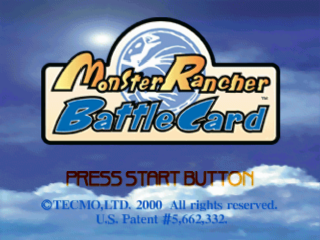
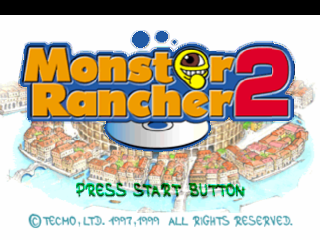
Place the Monster Rancher Battle Card game disc into the main unit and turn on the power. The Game Mode selection screen appears when the (START) button is pressed on the Title Screen.
Game Mode
•
New Game: Select this when playing for the first time.
•
Continue: Select this to start a game from where you left off.
•
Battle Mode: Select this to play in Group Battle.
New Game
Starts the game at the beginning. You can choose the strength of the opponent characters' battle cards, but not after the game has started.
The only factors that change between the different levels of difficulty is the strength of the opponent character's battle cards. Events and cards that are given to you are the same no matter which level of difficulty you choose.
Continue
Continues the game from where you left off.
Battle Mode
You can create teams of characters within the game and engage in group battles against your friends using that data.
Game Play
The following explains the basic procedures for use of the controller.
Basic Usage Procedures for the Analog Controller
This game is not compatible with analog mode (LED display lit). Play the game in digital mode only.
The Vibration feature is available even in Digital Mode (LED display unlit). You can set the Vibration feature on or off in Options during intermission.
•
Directional buttons: Move cursors
•
Left and right sticks: Not used
•
△ button: Display Help Message
Basic Procedures for Use of the Controller
The buttons serve the same purpose as the buttons on the analog controller.
Game Flow
The "Monster Rancher Battle Card" story advances through repetition of the flow shown below.
Screen Descriptions
An intermission will be shown when the story ends after the game starts. The Intermission screen is used to see the date or select menus.
Intermission Screen
•
Message Window: Various Information, including on-screen operations, is displayed.
•
Date: The date will increase as the story progresses or practice matches are held.
•
Menu: Various actions can be taken.
Menu Description
Various menus can be chosen in the Intermission screen.
•
Move: The Map screen will be displayed, and you can go to places you already know. You can engage in practice matches with people you've already met. Also, various events occur here.
•
Card Management: You can "reform," "create" or "disassemble" teams using cards you've acquired. If you don't make a good team here, you probably won't win any battles.
•
Information: You can view your Battle Cards ranking, along with the Friends List (personal information), Complete Skill Cards List, Monster Plates, Ranking and other information.
•
Options: You can save and load data, and perform various settings.
Card Management
Card Management is used to perform team management, creation and other tasks.
Team Management
Manages the teams used in battle. You can create your unique, original team by freely combining Monster and Skill cards.
The rules that apply when creating teams are shown below:
•
Three different monsters will be used.
•
Teams must be made of exactly 50 cards.
•
Up to three of the same cards can be placed in each team.
Team Reformation
You can change the Monsters or Skill cards used in an existing team.
Create New Team
Creates a new team. You can save up to 10 teams.
Disassemble Teams
Disassembles an existing team.
Team Selection
Select a team to reform or disassemble.
Monster Selection
Exchanges a monster currently on your team for another. After the monsters have been switched, the Skill cards for that monster will be 0. You must register Skill cards to your team using "Skill Card Selection."
Skill Card Selection
First, choose a monster for which you will perform the switching or Skill card addition. Then the list of Skill cards for that monster will be displayed. Choose a card using the up and down keys on the directional keypad to select the card, and use the left and right keys on the directional keypad to increase or decrease the number of cards.
Change Team Name
Changes the name of the team.
Cancel
All changes will be canceled when this is selected.
End
Team creation will end, saving the contents that have been changed as shown.
Recipe Management
Team recipes save information such as which monsters are being used by the team, and which Skill cards are used in what quantity by the team. Up to 10 recipes can be saved.
Recipe Details
You can view recipes that have been registered.
Recipe Registration
You can register a team created as a recipe.
All Cards in Possession
You can view the Monster and Skill cards you've acquired.
How to View Cards
Cards used in "Monster Rancher Battle Cards" can be roughly divided into Monster cards and Skill cards.
Monster Cards
This is a card that represents the Monster on your team.
.png)

.png)

.png)



_1.png)
_1.png)
_1.png)