STARTING UP
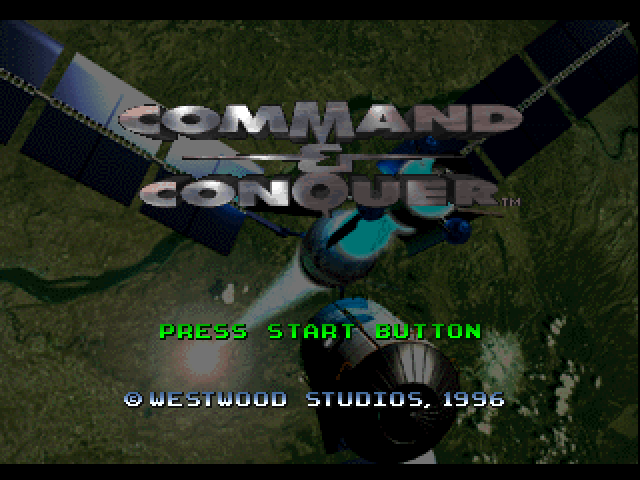
Set up your PlayStation™ game Console according to its Instruction Manual. Ensure the power is off before inserting or removing a compact disc. Insert either Command & Conquer PlayStation™ disc and close the Disc cover. Insert the game Controller into the left port and turn on the PlayStation™. Follow on-screen instructions to start a game. It is advised that you do not insert or remove peripherals or Memory cards once the power is turned on.
Console
PLAYING THE GAME
Starting the Game
Choosing Your Side: GDI or the Brotherhood of Nod
You can play as one of two sides: GDI (the Global Defense Initiative peacekeeping force) or the Brotherhood of Nod, a secretive terrorist organization. Choose your alliance by inserting the corresponding CD-ROM.
If you choose the Brotherhood disc, you will fight against GDI. If you choose GDI, you will fight against the Brotherhood. Each side has unique characteristics, playing styles, units, buildings, and tactics.
Title Screen Menu
When you start the game, you'll see C&C's introduction. After that, you'll be taken directly to the Title Screen menu.
SPECIAL OPS
Select this option using the X button. You will be taken into missions created specifically for the Sony PlayStation™. It is recommended that you select NEW GAME until you are very familiar with Command & Conquer™, as the Special Ops missions can be very difficult.
NEW GAME
To start a new game, choose this option. You'll go straight to the mission briefing for the first mission.
ENTER PASSWORD SCREEN
This screen allows you to enter a password and continue at the beginning of a level you have the password for. A password is available at the beginning of every mission in the INGAME OPTIONS.
PASSWORD
OPTIONS
Selecting this option by pressing the X button will allow you to access the options below.
To change an option, use the up and down Directional buttons to move the selection box. Then use the left and right Directional buttons to change the option.
OPTIONS MENU
Controller Config.
Selecting this option displays a picture of the controller along with the functions of the buttons. From here you can cycle through the four different configurations.
Effects Volume
This option allows you to adjust the volume level for the sound effects in the game.
Music Volume
This option allows you to adjust the volume level of the music in the game.
Track Loop
Setting this option to "YES" will cause the in-game music to loop.
Cursor speed
This option controls the speed at which the cursor moves. This also affects the rate at which you can scroll around the screen.
Help Text
This option turns the "Explainer Text" on and off. With this option on, placing the cursor over items in the game will bring up a brief description of the item.
Exit Menu
Selecting this returns you to the previous menu.
Playing the Game
Scrolling Around
To scroll the main viewing window around the battlefield, move the cursor using the Directional buttons.
Ordering Your Troops Around
To get your troops to act, press the X button when the cursor is on top of a unit. A bracket will appear around the selected unit and its health will be displayed above it.
Move the cursor to the location on the game map where you want the unit to go. If the cursor is over a potential target, it will change to the targeting cursor. Pressing the X button here will cause the unit to attack the target. Otherwise, it will move the unit to that location, unless it is impassible (i.e. a cliff or trees).
To cancel out of this mode (or any mode), press the button and the unit will be deselected.
Main Game screen
How to Select a Group of Units
To save time, you can combine your troops into groups. Press and hold the X button, then move the cursor to include all the troops you want selected. A white box outline indicates the range of this selection.
Release the X button, and all the units within the white box will be selected. You can give that group an order the same way you'd give a single unit an order.
Selecting many units at once
The Sidebar
From the Main Game screen, the Sidebar may be opened by pressing the △ button. R1 + △ opens the Sidebar permanently on screen; use the △ button to switch between the play area and the Sidebar.
You can build units and buildings by positioning your cursor on the corresponding icons in the Sidebar and pressing the X button. The Sidebar will also show you a radar map of the area (if you have radar stations) and tell you how much power your base is producing versus how much it needs. Press the R1 button to switch radar map zoom level.
Sidebar open


_1.png)
_2.png)
_3.png)