CALIBRATING YOUR 3DO JOYSTICK
You can use a 3DO extended joystick to play Super Wing Commander. If you do so, and your joystick drifts or does not respond, you may need to calibrate it. Turn off the 3DO machine and restart it. While flying a mission from the cockpit, perform these steps: •
Make sure the trim pots (the wheels on the base of your joystick) are in their center positions.
•
Move the handgrip as far as possible to the upper left, then press [Square] + trigger.
•
Move the handgrip as far as possible to the lower right, then press [Square] + trigger.
•
Move the handgrip to the center position, then press [Square] + trigger.
If the joystick still doesn't work properly, check all cable connections (refer to your joystick documentation).
STARTING THE GAME
To begin Super Wing Commander, turn on power to the 3DO machine (if necessary, refer to the hardware documentation). Open the CD-ROM drive and insert the 3DO disk. After you close the door, the game will play an introductory animation. To bypass animations, press the indicated button symbol. The following keypad controls are available:
•
POWER SWITCH: Located on the unit.
•
CD DRAWER OPEN/CLOSE BUTTON: Located on the unit.
•
EARPHONE VOLUME: Adjusts audio.
•
PLAY/PAUSE BUTTON: Controls playback.
•
EARPHONE JACK: For audio output.
•
CONTROL PORT: Connects controllers.
•
LEFT/RIGHT SHIFT: Shift keys.
•
DIRECTION PAD: Move cursor.
Press the indicated key once to activate. Use the D-pad to change options (on the carrier) and steer your ship (during flight). Press the first key and hold it as you press the second key to perform combined actions.
Note: You may have more than one 3DO controller hooked up when playing Super Wing Commander. If so, press any button on the controller you wish to use. The game will then recognize that controller for the duration of the game. After the introduction, a menu appears with two options: NEW GAME and CONTINUE. Press the button symbol to change options and A, B, or C to begin Super Wing Commander. The screen will dim as the CD-ROM accesses the disk and loads portions of the game. •
NEW GAME begins a new game starting with Mission 1 of the first campaign.
•
CONTINUE GAME starts the game with the last successful mission flown. If you've just turned on the 3DO machine, it also allows you to load a saved game (not an option until you complete and save a mission). REC ROOM
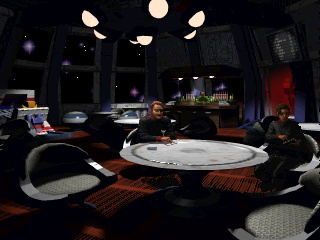
The Rec Room is the favorite hangout for off-duty Tiger's Claw crew members and the perfect place to keep up with events in Vega Sector. Here, you can check everyone's latest number of kills, talk strategies with pilots, practice your flying techniques, or head for the barracks. Stay in the Rec Room as long as you want, but you must enter the Barracks to access the Hangar and fly a real mission.
Choose an action. When you change actions, objects light up or animate, or characters stop what they're doing and look at you. You also see and hear the option:
Press A to activate the option you've chosen. Note: You can toggle onscreen text on and off through the system menu (see System Configuration Menu on page 23).
SIMULATOR
If you're new to Super Wing Commander, the training simulator is a good place to practice before you begin flying. Since training missions don't affect your score, you should use the simulator to become familiar with the game. Press left or right until the simulator opens and you see and hear Enter SIMULATOR. Press A to choose the training simulator option. You'll see four Kilrathi fighters, with the selected ship highlighted. Press B if you wish to abort the simulation (only works before selecting an enemy). Choose a ship to fly against. A detailed information screen displays that ship's statistics, such as speed, mass, and armor. Press A to begin the simulation. Ten fighters of the chosen type (Salthi, Dralthi, Krant, or Gratha) are divided into four waves. First, you will face one fighter, then two, then three, then four. If you complete the fourth wave, you proceed on to the next fighter. Your score appears in the upper left portion of the screen, and the time remaining displays in the upper right. If you manage to complete all four waves for all ships, you'll be victorious!
BARRACKS
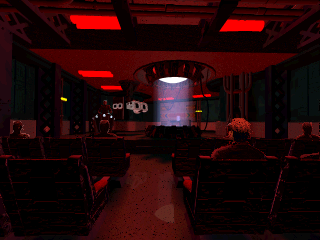
To enter the Barracks, press the indicated button until you see and hear Enter BARRACKS (the red entrance to the right lights up), then press the button. In the barracks, you can Save, Load, and Delete Games, View MEDALS, Enter REC ROOM, or Enter BRIEFING ROOM. Press the button to change actions and the button to begin.
SAVING, LOADING AND DELETING GAMES
After completing a mission, you should save the game. Later, you can load it and start playing where you left off. If you've already saved the maximum number of games (8), delete old games and save new ones in their place. Note: If you save other manufacturer's 3DO games after saving Super Wing Commander games, you may erase your saved missions. 
.png)

_1.png)


.png)

.png)
.png)










_1.png)
.png)
